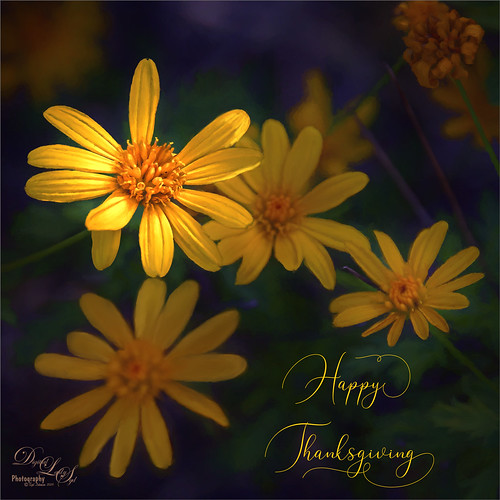
I still have a few yellow daisies blooming in my yard so they decided they would like their picture taken to wish everyone a wonderful Thanksgiving Day. What I like the most is the pretty font in this image – it is called Argentina Script. It lots of different Glyph settings to make your text look fancy. Also used Topaz (see sidebar for website link) Sharpen AI and Topaz Impression (for just the background – painted back the flowers), PS Color Lookup Adjustment Layer using Crisp Winter preset, a red Photo Filter set to 27% Density, and Nik Viveza. Great fun with this one!
I have tried to post process this image before without a lot of success. That was until I ran across an older video by the Photoshop Guru Unmesh Dinda where he used Luminar 2018 on a very similar image. I could not believe how great the details came out so I thought I would share the technique. The video is called 4 Luminar EXCLUSIVE Effects Photoshop Can’t Create and the effect used here is called Image Radiance. The image was taken in St. Augustine at the main entrance to Flagler College, aka the old Hotel Ponce de Leon built in 1890 by Henry Flagler. The dome stands 3 stories high and is still quite spectacular. The effect can be done easily with Luminar (see sidebar for website link) Flex but is much harder with Luminar 4. Here are the filters and settings used for the above – you can see the issue with Luminar 4 not having all the filters/sliders: Dramatic: Amount 39, Contrast 95, Local Contrast 69, Brightness -88, and Sat -42; Highlights/Shadows: Highlights -80 and Shadows 63 (for Lum 4-look in Light filter for sliders); Sharpening: Amount 89, Radius 50, Masking 35, and Dehalo 50 (for Lum 4-look in Details Enhancer – all but the Dehalo sliders are found in Advanced Settings); Image Radiance Amount 14, Smoothness 100, Brightness 29, Shadows 79, Warmth 19, and Sat -70 (for Lum 4 there is a Glow setting but no Shadow or Saturation slider) ; Microstructure: Amount 90 and Softness 50 (for Lum 4 there is not Microstructure filter-possibly AI Structure would work); and added Details Enhancer: Small 41, Medium 35, and Large 21. I also used Topaz (see sidebar for website link) Sharpen AI at the start using the Stabilize mode, Remove Blur 0.90 and Suppress Noise 0.30 – the best sharpening filter around.
Hope this post helped you a little, especially if you are working with the new Luminar 4 – Luminar 3 did have all the filters and sliders still. Have a great day!…..Digital Lady Syd
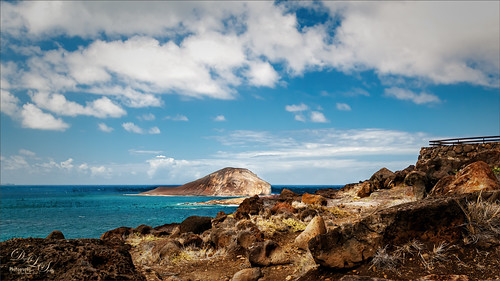
This was a pretty exciting moment when land is first seen after sailing across the Gulf Stream all night. There was a sailboat off in the distance in this image, but we did not see another one until Spanish Cay – the ocean is very empty around here. To post process the image, very little was done. The water was adjusted in Topaz (see sidebar for website link) Studio 2 by adding a little bit of the Impression filter set to the default to tone down all the white reflection on the water – it was masked off the sky. This is exactly how the clouds looked – totally incredible. A Color Lookup Adjustment Layer was added using the free SparkleStock’s Wedding LUT called Airy 01 set to 58% layer opacity. A Curves Adjustment Layer was added on top where the RGB curve was set to a little S curve for contrast and the Red Channel was used to lighten up the Cyan just a little. That was it. ….. Digital Lady Syd
Just enjoyed painting an image I took quite a while ago in Savannah, Georgia. These type of homes are everywhere in the historic district. In Photoshop used the Fan-Flat Blender that Photoshop provides in their Legacy set. Also used a couple others to get the smooth effect I wanted on the steps. In Corel Painter, used one of the newer Thick Paint Brushes to add texture and lighting to the ferns which were quite flat in the original image. Then brought the image back into PS to finish up. Actually ended up using a really old Topaz (see sidebar for website link) program called photoFXLabs and the Instatone effect since I could not get an the correct palette for the image. It worked great!…..Digital Lady Syd
This is a rather towering Bird of Paradise plant that grows by my garage and protects the house from intruders. Well, maybe not the intruder thing but it is pretty intimidating for a plant. I just had some fun trying out the new Photoshop 2020 Content-Aware Fill update that works incredibly well when the Custom mode is used. My house and other parts of the plant were around this part of the plant, and they were removed pretty quickly with the Custom mode and the paint brush where you paint over the part of the image you want your selection to use for the replacement. It is a little bit like the Patch Tool. It did an incredible job of adding in the clouds, which I painted in by the way, to give a beautiful sky for the background. Otherwise not much to this image – just had fun trying this new functionality. ….. Digital Lady Syd
I wasn’t going to do one this year, but I just love make Halloween pix so here it. These are the resources used in case you want to make one next year. Thanks to PixelSquid who has such fabulous objects to using for compositing on their site – the tomb, skeleton and both trees are from the site. Just used mainly a little Layer Style wizardry on them. The Cat and Bats from Deviant Arts mutato-nomine were custom shapes loaded into Photoshop. The Milky Way was from a Serge Ramelli video download and the moon from a free set called from Design Cuts called Planet Space Explosion Background and Ancient Texture. The text is called East Liberty Signature. Totally fun to do!…..Digital Lady Syd
I have always wanted to try this and I finally found a really great Photoshop tutorial on how to do it. This image started with a wonderful painting by Sofonsiba Anguissola called Portrait of a Spanish Prince from 1567 (it is probably an image of Prince Phillip III – the link gives some interesting perspective on this guy). Anyway, I will not go into all the steps since I pretty much just followed the steps presented in Chris Spooner’s video called How to Make a Fun Oil Painting Pet Portrait in Photoshop. This effect is especially popular with people’s pet images. The trick is to find an image that works with your pet image. It took a lot of manipulation using the Free Transform Tool with the Warp in the Options Bar to get it looking correct. And in this case, I had to use two other images of lemurs for the hands. The colors can be matched using the video after the images are combined. 2 Little Owl’s Carnevala 23 texture was added on top and set to Vivid Light at 65% layer opacity to get the illuminated effect in the background. If you want to have some fun, give this a try……Digital Lady Syd
This image was take on the second floor looking down on one of the newly renovated areas of the Smithsonian National Museum of Natural History. There is a lot to see in the Museum. And don’t forget, when in DC all the Smithsonian Museums are free to the public! The image was really hard to get straight and looking good. (Thank you Topaz AI Sharpen – see sidebar for website link.) Used about everything in my workflow but it was worth it. I love this image!…..Digital Lady Syd
The above is a bit of an abstract painted image using Corel Painter 2019 and a few new brushes. This image is one of my favorites to just try different effects on and I have used it several times. (For image link, see ISO Republic called Guitar Man.) In Corel Painter George Ireland’s Flat Drip Lucious Bristle brush was used (can download the category of brushes at his website, which is in both Germain and English – his images are fabulous). Added a few sketch lines and some oily squiggles in the background. Then took image into Photoshop and totally changed the colors. This was done by using a custom Gradient Map Adjustment Layer – used Gradient Editor, selected Gradient Type Noise, Roughness 12, Color Mode LAB with Restrict Colors checked – kept pressing randomize button until I got this purplish/orange effect. The layer was set to Soft Light blend mode and 83% layer opacity. Then on a stamped layer, Topaz (see sidebar for website link) Simplify was opened up and a cartoon preset was applied (see Serge Ramelli’s How to Turn a Photo into a Cartoon or Painting with Topaz video to create preset that was used). Back in PS it was the layer was set to Linear Burn at 66% layer opacity. On a New Layer the splotches were from Kyle Webster’s Summer 2019 collection which included the Pollock brush (download from inside PS – open Brushes Panel pop out in upper right and select Get More Brushes) and set too63% layer opacity. That was it. Just a lot of fun to paint again!…..Digital Lady Syd
In Lightroom I started out with a new free preset downloaded from SparkleStock called Instant Hipster X Pro 2 and a few Basic changes before going into Photoshop. On a stamped layer applied Topaz (see sidebar for website link) Sharpen AI set to Stabilize, Reduce Blur 0.80 and Noise Reduction 0.12 – a whole bunch of detail became visible in the wings especially. Next a Color Lookup Adjustment Layer was added using PhotoFocus’s Africa preset set to 49% layer opacity. On another stamped layer set to a Smart Object (for any additional edits), Luminar Flex was opened and the Structure and Details filters were applied. Back in PS, A black mask was added and just the wing lines were painted back for a little more detail. An Exposure Adjustment Layer was used on the eye. (See my The Eye Have It – How to Make Them Pop in an Image blog.) That was all that was done! Love this crazy bird!…..Digital Lady Syd
Check out AI Gigapixel stand-alone software for upsizing your images. It’s incredible! And it can now be used as a plugin when in Photoshop. Also Topaz Labs Photo AI has some great sharpening and denoise tools along with Photo Video AI.
GRUT BRUSHES – Photoshop Brushes for Digital Artists
Click here to visit GrutBrushes.com
And be sure to check out his Free Brush of the Week and Brush Sampler! These are the best brushes you can find!
Topaz Studio 2 and Legacy Topaz Labs Filters
Unfortunately Topaz Studio 2 and other Topaz Lab filters are no longer available for sale as of 2020. If you had bought these filters and would like to put them back on, here is a link to the Legacy Apps where they can be downloaded again. Below is an example of the wonderful Remix AI Filter from Studio 2. The wonderful Impression still works fine in Photoshop right now along with Adjust (all versions), ReStyle, and even PhotoFXLab!
Please note that I do make a very small commission on purchases made if you click through to the websites using the links above – it helps me keep my site going. Thanks for clicking.