
Autumn on the Reservation

The basic image was created back in July 2025 with Grok AI which used latest Flux version at that time. My prompt was “create a detailed sketch of a Native American Portrait featuring a younger woman.” AI created a much longer prompt for me. Followed a tutorial in the last Photoshop User (18th Gonzo Holiday Edition) Magazine from December 2023. It was by Kirk Nelson and called Craft an AI-Powered Comic-Frame Effect with the New Parametric Filters (which are still in the Beta PS). He used the Oil Paint Filter in the Parametric Filters, and Style Transfer in Neural Filters, Poster Filter, Glow Edges, and Photocopy Filters from the Filter Gallery. It was a big workflow and it did turn out okay with some finagling. The AI background was removed and replaced with one of my Painter backgrounds. I did find a cool brush from Kyle Webster’s Summer Set of 2022 called Tracker Ink. Looks good with the cartoon effect as it will fill in areas that need a little more drawing feel. Anyway that is what was done and I hope it looks a little less AI-looking.
Blue Jay

Just playing around with this beautiful image that Chat GPT AI created when I was working on my Trying Out Different AI Programs Fun Photoshop Blog. (Check out the blog to do this.) I put in a wrong prompt and this is the image I got so it was downloaded since it looked kind of nice. I have a Blue Jay family living in my backyard right now, so it seemed very appropriate. A glitter look was created on the leaves using a blue glitter texture clipped to a New Layer and painting on it with a regular old Photoshop spatter brush set to 45 pixels. Can actually use any glitter color and add a Hue/Saturation Adjustment Layer clipped on top of texture and the blank layer for painting – just move the sliders to get the color you want. For some nice free gold glitter textures, check out Gold Sparkle Texture Images like the one used on this image. The difference on how it looks is from the brushes you apply. The gold glitter texture was clipped to a new layer for the gold effect this time. A small 15-pixel heavily textured brush was selected to paint in the tiny leaf veins, berries, and bird feathers. Used a Daily Texture called Tranquil Start 5 on top set to Darker Color blend mode at 69% opacity. On a layer mask, the bird was lightly painted back in his face and breast. A highlight layer was created by setting top layer to Overlay at 15% opacity – just painted using soft round brush with white on just the breast, a few feathers, and face to drive the focus. That was it. It was so much fun to do!…..Digital Lady Syd
In the Still of the Night

This image was created using the AI Rotate command in Photoshop Beta on my favorite Guitar Man practice photo (can be downloaded from either Pixabay or ISO Republic). To get the full effect, need to take a peek at the linked original image. Totally not realistic, but lots of fun to create. The Rotate command is not working great yet so I was lucky it worked this time (it will require 20 credits to use once it is perfected). Lots of clean up with the Remove Tool, Spot Healing Brush, and the Stamp Brush was done, which is typical of a many of PS AI creations. The following used were all free. An On1 Night Sky Brushes 16 was applied. Used a Star Field set from Frostbo at Deviant Arts brushes 01 and 03 (can’t find on his site – also need to be a member to download) – a snow brush with a few brush setting adjustments would work just as well. The Aurora’s used Midnighttouch Brushes 1 and 5, and Devin Elle Kirkz’s Northern Lights Simple Base Northern Lights and Simple Northern Lights Size Dynamics. Then Color and Vibrance, Clarity and Dehaze, and Color Lookup preset Foggy Night adjustment layers were added. Lightened and darkened a few areas. Last step used Viveza – still the best PS plugin there is! Give it a try!
Lady at the beach

Was not sure what to name the image – Lady at the beach or Feeling Breezy. Generated this image in PS using Adobe Firefly back in 2024. As you can see, it is pretty basic from what Firefly does a year later, but I still liked the overall feel of the generation. There was a lot of manipulation done to the image after it was created. Many layers of painted areas using different brushes. One thing that was selected was an old legacy filter from Topaz called Lens Effects – it created a rather soft lovely yellow vignette around the image. I just downloaded this nice font from Creative Market called Bellisa Script – it has many glyph choices which makes it fun. At least it feels like I put a bit of myself into the image…..Digital Lady Syd
Gigantic Wave

I created this image while working on my Fun Photoshop Blog called Mixing It Up with Legacy Bristle Brushes in Photoshop-Mixer Refresher. The initial wave was created using the an AI prompt “Large wave for surfing” in Photoshop. Ended up flipping it, changing the color of it, and adding the Mixer bristle brush strokes on top of it. Most of the brushes used here were created by Fay Sirkis (brushes are no long available except on Kelby One). In the image above the beautiful blender strokes that were created for the wave are quite noticeable. And the foreground utilized some very small regular Mixer brushes that added color for the details. In other words, just by looking at many of the provided Photoshop bristle brushes, the paint strokes for the image could be figured out. Tips on how to work with these brushes are in the referenced blog. It was a lot of fun to see if I could get that frothy look into the top of the wave. ….. Digital Lady Syd
More Adobe Photoshop Firefly AI Fun!

Practicing using Adobe Firefly AI so that it does not overrun my creative expression. Image was created by drawing the lady’s head on a layer using a David Belliveau curly hair brush and one of Grut‘s pencil brushes for the skin and details on the face. Duplicated this layer and turned off the original for backup. On this layer the Contextual Taskbar was used to Generate the rest of the image using the prompt “Watercolor background of beach and add female body to woman” showing different poses with a white bathing suit on the body connected to her head. Pretty cool! The chosen variation was turned into a new layer (see my Fun Photoshop Blog called Placing Any Photoshop Generative Fill Variation on a Layer Easily to do this) and the other variations layer was turned off in case other parts would be needed later. Placed a New Layer under the newly created body variation layer (turned off at this point), a different AI background was generated the same way using the prompt: “Beach background in watercolor with pastel colors.” After selecting this new background variation and turning it into a regular layer, the original body AI layer was turned on above. With a layer mask, its background was painted out where not needed.
Painting Details: On separate layers, the face drawing was painted like I do with my Selfie AI images. The highlights and shadows on the body were created using Sam Peterson’s technique. (See my Fun Photoshop A Few Photoshop and Lightroom Tips and Tricks Blog-see #2 for this.) The skirt effect was created by following Carol Tayler’s Silk Texture short video for net brush settings, and the gold Scatter Brush added on top of the skirt was from Jessica Johnson’s video Creating Custom Photoshop Pattern Brushes (and Layer Styles) Inspired by High Couture: Rahul Mishra Muse on Behance. Lots of clean up especially on the body and several Adjustment Layers were added at this point – AI still is not perfect in Photoshop! Though I did enjoy trying out a different way to use it …..Digital Lady Syd
Native American Woman

Just had a lot of fun getting back to digitally painting portraits. Tried out the Grok 3 AI image generator and used as a prompt “Sketch of a Native American Portrait of a Younger Woman with jewelry.” Not exactly sure what kind of hocus-pocus occurred, but I was able to get a sketch somewhat similar to the one above. Lots was changed, and I noticed the exact facial proportions are not totally perfect, but overall it is a very pleasing image. Two backgrounds were used – one was my own Jaguar Texture and the other one was Melissa Gallo’s Summer Silk texture (not sure it is still available). Wanted an overall warm feeling to the image so the textures provided this. All the brushes used were ones discussed in numerous AI portrait images I painted in other blog entries – just in this and my Fun Photoshop Blog for more on this. Only the earrings and necklace had one of Jessica Johnson‘s lovely gold Pattern Stamp Brushes called Gold Leopard Exclusive from one of her Luxe sets. I decided I wanted the hair to look a little unkempt instead of perfect like a model. …… Digital Lady Syd
Dancing Maiden

Had a lot of fun just being creative with this one. First ran a Grok AI Image Generator character using the prompt “create vector black and white full length sketch of a young lady dancing gracefully” to get the pretty maiden dancing. Then decided to put her in a free file called Scribble Portrait Effect by Deeezy. Also downloaded Deal Jumbo’s 500 Free Photoshop Brushes and added a couple to the image along with the scribble border (use Free Transform to get the brush stroke to fit the image). An old Melissa Gallo impasto texture was added at the bottom. After making all the changes, put a stamped image into an old filter by Topaz called ReStyle to get the pretty frozen look. Added in some snow and free text also from Deeezy is Fladeo inline grunge. That was it!….Digital Lady Syd
My Bubble Office with my Creative Assistant

Yes Sophie, my sweet tailless feline, has come to my rescue this time and suggested we create this whimsical office that we both would love as a workspace. Note, she still can’t keep her eyes off the birds! So how was this image created? Using the Photoshop Beta version, an image was created with this text prompt “Office space in an office with windows high up in a building” using Special Effects Sketch and Watercolor. The variations that did not work were deleted keeping just a similar version as above. On a duplicated Smart Object Layer, the Parametric Filter (which are only available in Beta at the moment) Spherify was selected (set to Medium, Close Up, Size 1, Image Scale X:2.69 and Y3, Sphere Scale X:1.9 and Y:1.18, and Background Color White). On separate layers lots of clean up was done. Put some of my cartoon images on the computer screens. Sophie’s image is from a generic cat picture placed in Topaz Studio 2 – used the Impression filter to give her a painterly look. To get the soft sunny background effect, the cleaned up image was taken into Anthropics Smart Photo Editor and settings called Beach by InoculateIT were used. The final step was to add a few birds into the sky with a brush Bert Monroy teaches how to make. This was a lot of fun to do!…..Digital Lady Syd
Merry Christmas!

Merry Christmas to everyone – hope this Holiday brings you much good cheer! I enjoyed making this candle card – pretty simple and lots of fun. Basically ran from the Contextural Task Bar a prompt saying “Lit Yellow candle in the middle of the image with no decorations around it” – Cinematic and Cartoon Effects were check. Took 4 Variation runs to get the one I liked, but finally did. To get the pretty greenery, just followed Jessica Johnson’s Behance video called Creating a Stylized Holiday Holly Illustration in Photoshop & New Brushes. By using a simple Pointed Arrow as a brush tip, many different kinds of fern-like greenery can be created. Most of them were Pattern Stamp brushes with different color swatch patterns used to create the interesting colors in the branches. Mixer used to paint the berries and a little gold dazzle using a gold layer style. She has lots of info on how to do this on her website. I found it was a lot of fun to create this card and make some new brushes. Happy Holiday!…..Digital Lady Syd
Hawaii Dreaming

Created this image using Adobe Firefly AI – created a layer and clicked on the new bottom icon that says “Generate an image using a text prompt.” Used the prompt “surf shack at the beach at sunset, with surfboards. Silhouetted surfer holding surfboard looking at sun.” I got the above basic image with an ugly surfboard so another a selection of it was made. Ran another Generative Fill with the prompt “Hawaiian flowered surfboard” and got the above variation. Had to select the surfboard and do a Free-Transform (CTRL+T) for it to fit over the original ugly surfboard. Added in some birds and a little clean up to get a very nice Hawaiian scene. The font is Zahra Inline Grunge. This was actually a lot of fun to do!…..Digital Lady Syd
Ellie from Jurassic Park

I tried out Google’s ImageFX to see if I liked it as well as Adobe Firefly – thought it did a pretty good job but still not sure how to use the prompt to get exactly what I wanted. Only used one prompt called Sketchy – it created several beautiful sepia and black and white sketches. On this image a pencil outline of the original sketch was created. The various AI brushes from my other blogs were used to paint in the face and hair. Then took the image into Portraiture Pro and completed her face features. Went back into ImageFX and used the prompt “Dinosaur Open Mouth” and added the dinosaur in the upper left. A Selective Color Adjustment Layer was added to adjust his coloring. Made a Vignette using my Using a Levels Adjustment Layer for a Vignetting blog (great for precisely setting up the vignette on the image). The Font is called Lobster and used an Outer Glow Layer Style. Overall, I would say that ImageFX is doing a better job with faces, but it appears there are limited choices when a prompt is used (or I need to learn how to use it better). Anyway, it was fun to try out….Digital Lady Syd
Sophie’s Territory

Just had some fun trying out the new Beta Adobe Firefly AI – used one of my drawn images of my tailless cat Sophie as a reference photo to create the cat items in this image. A new Generate Image was created using the prompt “A futuristic city.” Generate Image means a whole image is created at a higher resolution than the original Firefly 1 which is currently in PS 2024. For a square image, it now generates at 2048 px X 2048 px versus Firefly 1’s lower resolution square at 1024 pixels X 1024 pixels. For a really good explanation of all the new features, check out Dave Kelly’s YouTube video called Fire Image 3 Now in Photoshop Beta. Generative Fill layers were run for the 3 cat elements. The image did need some clean up and a couple Color Lookup Adjustment Layers were used. Lots of new things to try! ….. Digital Lady Syd
Paris 1920

Just had fun with this one. Took a very blurry snapshot from an old colored short video of the streets of Paris. I actually wanted a copy of the dress one of the ladies was wearing in a different segment for drawing, and thought this interesting cafe image would be fun for try out. Just good ole’ Topaz plug-ins were used on this image. On a duplicate layer Topaz Studio 2 was opened and AI ReMix Crinkled Portrait preset was used changing some of the Brightness and Color sliders in the panel. Then on a New Layer above, Topaz ReStyle was opened to add the final effect using a preset called Midday Hay Fields. A Black & White, Color Balance, Levels and Selective Color Adjustment Layers were add and some text using the Broadway Engraved BT font. Enjoyed going back to my basic filters!…..Digital Lady Syd
AI Selfie Enjoying the Winter Wonderland
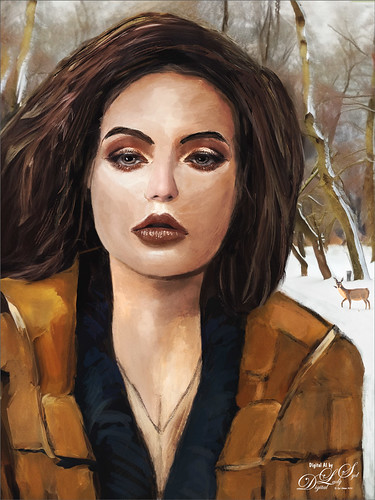
My AI Generated selfie has found herself surrounded by snow and wildlife creatures in her own winter wonderland. For this image I wanted more of a painterly effect, so mainly painted with Kyle’s Thinner Oil brush from his Winter 2024 set. Since I have covered just about everything I do with my selfies, I will only add a couple new tips. First off, on this image an Airbrush set to Opacity 100%, but Flow at only 18% was selected – softens a lot of the hard edges that the Thinner Oil brush left on her skin. Can use any brush tip for this brush (set Size Jitter Control to Pen Pressure, Transfer Opacity Jitter to 92% and Control to Pen Pressure, and Build-up and Smoothing checked on). The other tip I thought I would mention is that it helps a lot to do some screen shots of faces that have make up applied and would look good on AI the face. If you have used the AI Generative command at all, you know there are always bad variations created. Many of them are created and deleted to get something as nice as this variation, and then it can take several hours to get the painterly effect wanted, as in this case. The background was created by selecting the Selfie and inverting the selection, then in the Generative Fill prompt type “digital oil painting of wintry park scene.” The deer was taken from a different variation in the group (just used the old Apply Image Trick; selected the deer and copied it onto its own layer, and then moved into this image – see my Fun Photoshop Blog Placing Any Photoshop Generative Fill Variation on a Layer Easily). The other brushes used were the Painterly Smudge Brush and the 36% Blender for face from Grut’s watercolor Late Never brush. For settings on these brushes, see the bottom of my Fun Photoshop Blog A Few Selfie AI Tricks.) Hope you enjoy her!…..Digital Lady Syd
My Older Selfie

Will keep this short! On my original Selfie image, first ran Dave Kelly’s AI action at 70%. Then used the Quick Selection Tool to select just the background and hair from the whole selection created by Dave’s action. Last step was to invert selection to run Generative Fill Prompt: Digital oil paint glamor look. Chose a variation and selected the resulting layer mask. On Generative Fill panel clicked the Invert Selection so background and hair were selected and ran Generative Fill again with this prompt: Digital Oil painting with fancy hair and wintry background. From these results, created a stamped layer and duplicated it as a New Document with just this layer (right click on layer and choose Duplicate Layer – then in Document drop-down select New). This was the starting point of this image and how I usually work with these AI results. From here created different layers on top and painted over the face, hair, coat and background. Used these brushes – Kyle T. Webster’s Winter 2024 set Thinner Oil (see Skiing Selfie blog for settings used with it – definitely a New Favorite for painting especially skin) and Right Angled for the background, his Summer 2018 Ocean Brush (for hair), and Fay Sirkis’s Short Streaky Detail Blender (not sure it is still available anymore), but any small detail mixer brush would probably work for the little edges of the hair. Used Viveva to pull the whole look together….Digital Lady Syd
Glamor Gal Selfie
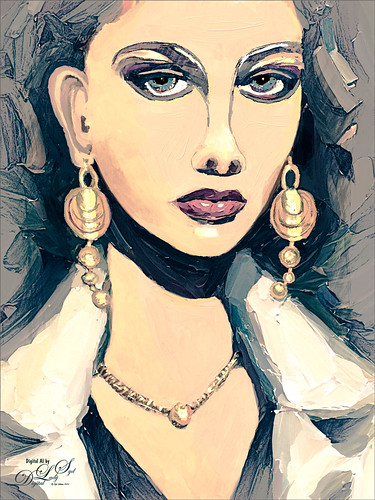
Just playing with another selfie that came from the Generative Fill variations in Photoshop 2024. Original prompt for image was “Oil Painting of beautiful woman with larger gold loop earrings and a white coat.” I was not sure if I liked the original crop but decided it added a modern art feel to it so it was kept. Used Escape Motions Rebelle 7 to metallic paint for the jewelry – cool new feature in this program. This image was so cleaned up it looked sterile. Therefore I took a stamped layer into Anthropics Smart Editor and added a Line Drawing effect to it which turned the layer black and white. It looked nice so the layer was set to Screen blend mode at 44% opacity. Then took another stamped layer into OnOne Effects 2023 where the Honky Tonk filter was applied which give it a bit of poster look. Used some new brushes from Kyle T. Webster: a new Winter 2024 brushes called Staccatto Ink for some edge lines, and Ocean Brush from the Summer 2018 set for painting- both are nice brushes to experiment using. Otherwise just the same process as before. Love these ladies!…..Digital Lady Syd
Beaching It

Flipped my selfie to give a little different look here. The selfie bathing suit was generated in Photoshop using the prompt “digital oil painting bathing suit.” This time, the background was generated in Adobe Firefly using the prompt “digital oil painting ocean beach scene with people in the background” and using the styles of Art and Acrylic paint. It was saved as a jpg and brought into the selfie file as a layer underneath her. The selfie blocks the people that were on the beach. The red palm tree over her head was generated in Photoshop afterwards. By using Apply Image and using a layer mask, it could be added to the Firefly layer. Otherwise it was just the usual brushes. Wish I was in this scene!…..Digital Lady Syd
Skiing Selfie

Another one of my selfie AI-generated portraits – this time put me in a skiing background scene using the Generative Fill prompt “Oil Painting of Ski Slopes in Background” – it took several variations and had to use one background with trees and one with the skiers which was reduced in size and moved. Used the same generating process that I discussed in the last several blogs (see blog links below). Parts of the coat had splashy colors which I did not like. I found a great brush that covers without being too heavy with the paint in Kyle T. Webster’s new Winter 2024 set called Thinner Oil (this set is free to download with Adobe Photoshop subscription members – just go to the Brush Panel upper right hamburger icon’s drop down and click Get More Brushes – it is at the top). The brush Size was changed to 25 pixels and in the Dual Brush section changed the Size to 17 pixels – then saved the brush to use for painting. On a New Layer the snow was painted in using Snow Large & Heavy-use Motion Blur -70/33 brush, one of the 9 nice brushes of Serge Ramelli’s that he gives away in his How to Create Snow in Photoshop CC tutorial from several years ago. I like how the snow can be placed exactly where I want it and removed in a layer mask off parts of the face. Also added my Snow Overlay slight blur png – a black layer mask was added (ALT+click in added white layer mask) and just painted back in the smaller sized snow into the trees on the right and on the brown distant trees. To get the skin tone right, used a Gradient Fill Adjustment Layer set to Linear and white to gold to clear gradient. Added a layer mask to remove from the gold from the trees. Could go on and on – it does take a while. Each time I do one, I learn something else. Lots of fun…..Digital Lady Syd
Digital Lady Syd Additional Blogs:
At the Lake Selfie

Just having more fun creating the crazy images from my selfie (about the only one I have actually). Use the same settings as for the previous sailing selfie by creating two versions of the image. One using 55% Brightness in the HSB settings for the subject, and the other using 65% Brightness setting for the background. On subject layer, the subject was selected by using the Quick Selection Tool before running the Generative Fill with prompt Oil Painting. On the Background layer, used the Quick Selection Tool to select the background and in Generative Fill the prompt read Oil Painting Lake Background. Created image layers using the Apply Image command (see my Placing any Photoshop Generative Fill Variation on a Layer Easily blog on how to do this) and then used a layer mask to hide my original image from the background layer. The sunglasses were selected and Generative Fill was used to add in the eyes – prompt Oil Paintng Eyes (and Apply Image also used.) Then painted on several separate layers to clean up. This time Mixers were used mainly. The birds are in a set by Wavenwater. Skylum’s Neo was used to add more tone into the image. Last step was a Black and White Adjustment Layer to adjust the colors just right. Can’t believe how many different looks you can get doing this!…..Digital Lady Syd
Sailor Selfie
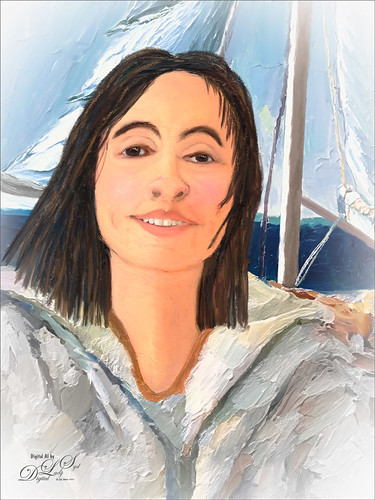
Just a quick blog here to show you how to get more of a realistic AI result as your subject, me in this case, and get a nice interesting background. The original is still the one of me in the car from the other pictures, except this time used both the 65% Brightness for one image, and 55% Brightness for the HSB setting for another image. By stacking the two Apply Images (see my blog Placing Any Photoshop Generative Fill Variation on a Layer Easily) from each Generative Fill layer, I was able to use a layer mask leaving the coat from the 65% layer and painting in the face from the 55% layer. Used an “Oil Painting” prompt for both layers. Created a stamped layer on top and selected the Subject in the Contextual Task Bar, which once the subject is selected turns into the Generative Fill command – must click the inverse icon to run Generative Fill to select the background. In this case the prompt was “Oil Painting small sailboat background” – it did not turn out great – no sails, just the sailboat lines. So had to select certain areas and run Gen Fill two more times for the white sails. Then lots of clean up layers which is what it often takes with the PS AI generation. Also lots of painting layers – had to use my nose, mouth and eyes from the original again – PS just is not doing that great a job with face details in my opinion. (See my blog Being One with Nature on how to do this.) And the Liquify filter and Luminar’s Neo filter were used. This may be the closest I can get to my selfie – hmmm…..Digital Lady Syd
Being One with Nature
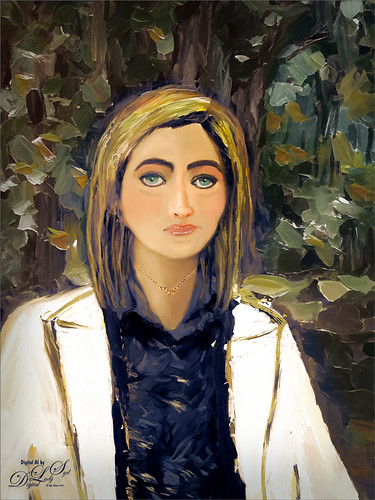
Above is another of my variations from my selfie image. These AI variations all turn out so different although in most cases the person is looking in the direction I was and the coat is somewhat similar, mine being light beige. I find that when having a problem with a face feature looking right, going back to the original selfie and copying that part onto it own layer. Then moving the layer above the variation layer and free transforming if needed works nice for getting a more accurate look – then blend into the face with a brush. My original nose is appearing in many of these AI images! In this case, the Liquify Tool was used along with Viveza and Topaz Lens Effects Reflector filter to lighten the left side of the image – it gaves the background some depth difference. For tree background, used Generative Fill prompt of “Oil painting outdoor background with trees.” Otherwise using all the same brushes as in my other blogs. It is fun to do these, and I am hoping I am getting better at drawing and painting faces!…..Digital Lady Syd
The Worker Bee
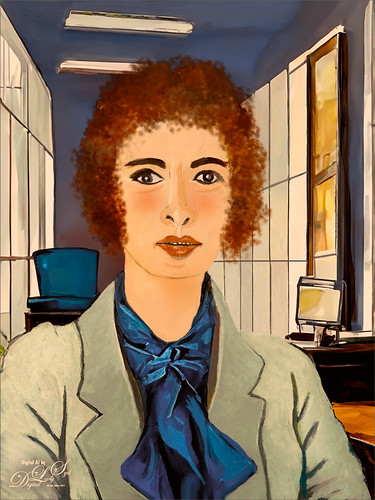
Here is another member of my Selfie Family – this time in a work environment. Tried out some new brushes and thought I would share what they are. To get the texture in her jacket, used Kyle’s Bruno Brush from his Spring 2022 set (go to Brush Settings pop-out at top right and select Get More Brushes and go to the set to download – double-click the file to load once downloaded). In the Brush Settings Panel, turned off the Scattering settings and set the Options Bar Opacity to 40% – but also liked it at 80%. The texture looks very painterly in this brush. For her face and cheek coloring, used an Airbrush (which means buildup is turned on either in the Brush Settings Panel or clicking on the Airbrush icon in the Options Bar). To make this brush, download Kyle’s Real Watercolor brushes from Photoshop (as discussed above – they are a separate group in this list). Choose Kyle’s Square Simple brush and in the Brush Settings Panel set Shape Dynamics to Size Jitter Control: Pen Pressure, Transfer to Opacity Jitter of 92% and Opacity Jitter Control to Pen Pressure, Buildup checked on, and Smoothing checked on. Put the Flow to 18% in the Options Bar. The hair was painted using Zummerfish Blending Brushes – Sampled Brush 43 2 for the curls. The last brush used was one I have mentioned before and really like – Kyle’s Fall 2023 (another set to download like above) Great Paint (changed Flow to 54% and Smoothing to 12% in the Options Bar) – used small size for detail brush and larger to paint in solid colors. Selected the background area and ran Generative Fill with prompt Acrylic office interior for this image – the Oil Painting Interior results did not look good. Also used my original selfie nose again, but this time ran another Generative Fill (Oil Painting Nose) to get a better result than from the total subject fill. That’s it – the new brushes actually worked out really well!…..Digital Lady Syd
A Sophisticated Model

Thought I would put up another Photoshop Generative Fill variation from my selfie – this time a more sophisticated looking person selfie image (used Dave Kelly’s free Gen Fill Photo Painting Action set to GF Painting 40 before running Generative Fill). Had fun painting her as the Oil Painting prompt was too much for the overall image, but looked good in her hair. Used the same brushes that were used in my Fun Photoshop Placing any Photoshop Generative Fill Variation on a Layer Easily Blog. The main difference here is that Rebelle, a really nice and pretty inexpensive painting program, was used to smooth out the thick paint background and created a beautiful backdrop. Just took the PSD file into Rebelle and made some changes to the Oil & Acrylic Brushes -> Round -> Rough Oil Brush – changed the Loading to 100 and the Size to 50 – just sampled colors and painted softly around the subject. Pretty simple and easy to do. Oh yes, I didn’t like her nose so I copied my from the original selfie layer into the image and blended it in. It was in the right place at least!…..Digital Lady Syd




