Anything Photoshop or Photography

Latest

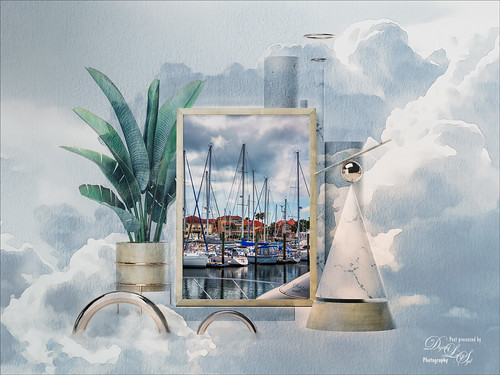
Mockupped Sailboats

I have never used a Mockup File before to show off my images, but this one sort of seemed to fit this image since there is a strong triangle effect. First a free Abstract Mockup file by Best Pixels was opened up in Photoshop.  The top layer is a Smart Object layer which must be opened by double-clicking on the thumbnail icon and then your own image can be placed in and aligned with a Free Transform (CTRL+T) if needed to fit the frame opening – must Save this image when warning comes up (the file does not appear anywhere in your folders but you still have to save to add in your image). This is where my Sailboat image from Camachee Cove was added into the image. On top of the bottom layer a Solid Color Fill Adjustment Layer was added using a light blue sky color. Next one of several free beautiful Watercolor Clouds Textures by Presets Galore was placed under the Smart Object ans set to 45% layer opacity. In a layer mask, the picture frame areas and few other places were masked out with a black brush. On top a Curves Adjustment Layer was added. Nik Viveza 2 was added on top where a little warmth was added into parts of the mockup. That was it. I love the dreamy feel this created…..Digital Lady Syd

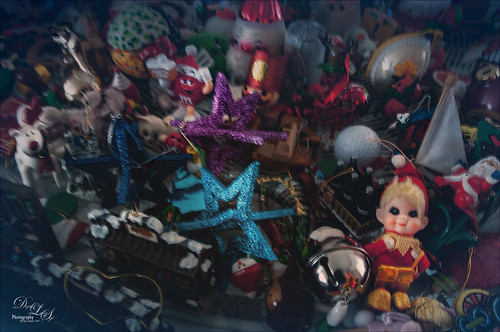
Joyous Ornaments Lining Up for the Tree

Image of Christmas Ornaments
This is just one of those crazy photos that make me laugh. It is not all that sharp but sort of exemplifies the total chaos it is for me to get all the ornaments up and hanging right! Biggest issue I had was to get this image sharper without deteriorating the quality. In Lightroom’s Develop module, used my SJ Sharply Dark LUT (created in my blog and video called How to Create Profiles in ACR from LR Presets and Some PS LUT Files) and set it to Amount 81. Then did just the normal adjustments. Radial Filters were used to help sharpen up some of the ornaments I wanted particularly in focus. Went into Topaz (see sidebar for website link) Studio from LR and used AI Clear (applied it twice to get some additional sharpness and it worked!), the Precision Contrast adjustment, Topaz Lens Effects Diffusion Adjustment to soften overall just a little and Topaz Studio Focal Blur Adjustment, placing it over the main ornaments to keep sharp. Then back to LR where it was opened up in Photoshop. Did a little clean up of some edges and used Nik Viveza 2 to emphasize the focal point on a few ornaments. That was it. I find this a really soft sort of happy image – not one that goes up on the wall but one that reminds me of Christmas!…..Digital Lady Syd

View from The London Eye

Black and white image from
Just thought this image from the London Eye looked nice with a black and white treatment. This time in Lightroom used one of Sergei Ramelli‘s preset called AA Drama Gradient Filter (subscribe to Serge’s newsletter to get the preset and lots of others) and then went in and tweaked the settings – added some Radial Filters also to emphasize the setting sun on the buildings. Did a crop of the image before taking into Photoshop. On a duplicate layer used Topaz (see sidebar for website link) AI Clear Adjustment, applied it, and opened up Topaz Black and White Effects plug-in from the top drop-down. This time selected from the Traditional Collection the Classic with Grain preset – but turned off the Basic section and used mainly the Adaptive Exposure, Regions, Detail, and Detail boost sliders. In the Finishing Touches selected the Silver and Paper Tone and adjusted to get a nice off-black, almost purple color. Back in Photoshop added a Curves Adjustment Layer. Not much too it…..Digital Lady Syd

A Little Wintry Guitar Playing

A Little Winter Guitar Playing
Well here is one of my favorite ISORepublic images called Guitar Man that I often choose when trying out a new technique. I used to play guitar and I think that is why I like it. This time I liked the result so well I decided to post it. I spent a lot of today watching a video (unfortunately it was not a talky), but it was so good I took notes and worked along with the basic steps anyway. The video is on You Tube and called Technical Dost/Digital Painting/Smudge Painting/Photoshop Tutorial by Nikhil Shirkar – some of the technique just did not work for this image like a lot of the smudging, which seems to apply to portraits more than this type of image. What I did like were the brushes he linked for the download. I especially liked the Danger Pig Strokes 01 free brush set and there was also a nice white watercolor grunge texture to use. I decided to use my own background texture, but his is quite nice. Otherwise it is just adding in elements and strokes to get a nice grunge feel. I used a watercolor border at low opacity to give a little vignette effect. The notes were created from some sheet that was downloaded and made them into brushes – I use them all the time. Overall just a lot of fun to do and the only filter used was Topaz (see sidebar for website link) AI Clear to sharpen the image. And also beware that when using some free images (including this image), the resolution is set to 72 dpi. Need to adjust this by going to Image -> Image Size and setting the Resolution to 300, then uncheck the Resample – the Width and Height will readjust – and recheck. That will give you a normal size image with the correct Resolution. ….. Digital Lady Syd

Fishing the Osprey Way

Osprey perched on a branch
Here’s an image of a beautiful Osprey checking out the swampy area he apparently lives above. I don’t know how he balances on that tiny branch, but you can see how big his talons are so that explains it. Initially I did not think the image was sharp enough to use this cropped in. After adding Topaz (see sidebar for website link) Studio’s AI Clear adjustment and following Unmesh Dinda’s video called The Hidden 3D “Contrast” in Photoshop, the bird just sort of popped. Used a rather washed out texture I created behind him and added a Hue/Saturation Adjustment Layer on top for the blue tones. Then added a Curves Adjustment Layer to brighten the image back up. The free font is called Old Originals……Digital Lady Syd

Mickey Shopping on Main Street USA

Image of the Yellow Shop on Main Street USA at the Magic Kingdom, Orlando, FL
Had some fun working on this image. This image is of a shop on Main Street USA, Magic Kingdom in Orlando, Florida (click on link to see more info and other interesting buildings). I really love the color yellow so this shop always catches my attention. There was a lot of manipulation done to get rid of the people in front of parts of the image, straightening the building, and adding the Mickey Mouse cloud. Note that the top floors are not as high as the bottom floor – Disney does that on all the buildings to make them look bigger than they are. Just a few Basic panel changes done in LR before going into PS. Next the people were removed in front using the new Content Aware-Fill command and little more clean up. Next the Adaptive Wide Angle filter was used to straighten up the columns and the image was cropped (see my How to Use the Adaptive Wide Angle Filter blog). Next on a Composite layer (CTRL+ALT+SHIFT+E) , Topaz (see sidebar for website link) Studio’s AI Clear Adjustment and HSL Color Tuning Adjustment were used. Back in PS on a New Layer on top, Grut’s FX Cloud Kernel Hi brush (these Cloud Brushes are the best around) was used to paint in the Mickey Mouse cloud face. Then Grut’s Cloud Lumens Hi and Sparco HI brushes were used on other sky areas. Another composite layer was created and taken into Skylum’s Luminar 2018 (see sidebar for website link). This used their wonderful new AI Sky Enhancer which really popped the sky. (Settings: On bottom layer used Accent AI Filter Boost 67; AI Sky Enhancer Amount 38; Tone: Exposure 0, Contrast 4, Smart Tone 66, Highlights 31, Shadows -6, Whites 92, and Blacks -80; and Golden Hour Amount 17 and Sat -62. On top layer used my SJ Matt Look preset – Sun Rays which contains Matt Look (Amount 47, Fade 20, Contrast 20, Vividness -44, Toning 7, Hue 256, and Sat 46; and Sunrays – placed the sun down halfway on right side of house (X104/&55) with center off the side of the image, and the rest of the settings: Amount 30, Look 31, Number 23, Length 65, Warmth 67, Radius 63, Glow Radius 69, Glow Amount 66, Warmth 72, Penetration 78, and Randomize 8.) The last step involved adding a Mickey Mouse vector object from Shutter Stock (noted that an .eps file from Illustrator can be opened in PS – to see it first, find file in Adobe Bridge and place into your image) and created shadow for him. I love the color and how sharp the image is!…..Digital Lady Syd

Native American Playing a Flute

Image of a Native American playing a Drone Flute
Happy Thanksgiving to everyone here in the States! Usually I put up a funny turkey, but this year I am posting image from the Native American Festival that occurs annually in Ormond Beach, Florida. The first Thanksgiving celebration theoretically occurred in October of 1621 after their first harvest in Plymouth and was attended by 90 Native Americans and 53 Pilgrims. I believe a Native American drone flute is being played. This image uses a technique learned from Adam Sheff of Photoshop Tutorials called Create a Powerful Emotional Effect for Your Portraits in 9 Easy Steps. First cropped the image quite a bit and then used Topaz (see sidebar for website link) Studio’s AI Clear to do a great overall sharpening and noise reduction (this little filter is amazing!). To finish, just followed the steps in the tutorial. Lots of fun to do. Everybody enjoy your day (I have got to go cook a turkey…..)…..Digital Lady Syd

Here is some info on the flute from Wikipedia that I thought was interesting: A double Native American flute is a type of double flute. It has two sound chambers that can be played simultaneously. The two chambers could have the same length or be different lengths. The secondary sound chamber can hold a fixed pitch, in which case the term “drone flute” is sometimes used. The fixed pitch could match the fingering of the main sound chamber with all the finger holes covered, or it could match some other pitch on the main sound chamber. Alternately, various configurations of finger holes on the two sound chambers can be used, in which case terms such as “harmony flute” or “harmonic flute” are sometimes used.

Graham Swamp

Image of Graham Swamp in Flagler County, Florida
Graham Swamp is a place I have photographed many times. It is not really that pretty most of the time, but this fall it contained just enough color to create this image. And Topaz (see sidebar for website link) came to the rescue for me. In Studio, the new AI Clear Adjustment was terrific on this type of image. Really helped sharpen up all the little details without over-sharpening them. Learned a new workflow from a Topaz Webinar by Joel Wolfson called The Simple Path to Stunning Images with Topaz. Not sure it is posted yet, but do check out the Topaz webinars – there are some really informative ones like this one. Basically it uses Topaz Adjust to adjust exposure without losing the Shadows or Highlights in the image. I had forgotten this and it is a very useful tip. So here is the tip: since the Adaptive Exposure slider is connected to the Regions slider, use them in together – the higher the Adaptive Exposure amount is, the more Regions should be set. Used the Dehaze, Precision Contrast, Precision Detail Adjustments, and somewhere in the mix some Impression and the ReStyle Plugin. Turned this rather dreary image into a beautiful autumn look…..Digital Lady Syd

Deserted Beach on Spanish Cay

Image of a deserted beach on Spanish Cay in the Bahamas
This image of a very deserted beach on Spanish Cay in the Bahamas was post-processed using the new On1 Photo Raw 2019 (see sidebar for website link). The software has had a major update and is much better. First of all, it is even faster loading your images . The next big improvement is that you can quickly switch between the Develop, Effects, Portrait (a new module) and Local tabs when accessed from Photoshop. This image used the Dynamic Contrast filter set to Natural, Glow Filter using Softlight Strong and painting out the dead trees, and Color Adjustment Filter changing the blue color a little. All the filters were set to an Opacity of 65. Then back in PS, a blue Solid Color Adjustment Layer was set to Hard Mix blend mode, layer Opacity 100%, and Fill set to 8%. Nik Viveza 2 was applied to add just a little warmth to the foreground water area. A spotlight effect was added to the wood and the edges were darkened down a little for a slight vignette effect. Last step was a Curves Adjustment Layer to add a little contrast. I will be learning more about this software soon and pass any tips along. I really like what I am seeing with the new On1 software!…..Digital Lady Syd

Colorful Queen Emma Lily

Image of a colorful Queen Emma Lily
Enjoyed post-processing this Queen Emma Lily growing in my front yard (they bloom all year long). I was mainly experimenting more with Topaz (see sidebar for website link) Studio AI ReMix. This time used the Neon Rise Style set to Linear Light blend mode and added Impression’s default settings except for Paint Opacity at 0.05 and Precision Detail. Back in Photoshop, added Nik Viveza 2 to sharpen up the center of the flower for focus and that was it. I just love the colorful results! For more on AI ReMix, check out my Topaz ReMix – Update and Better than Ever! blog for more information.