Anything Photoshop or Photography

Latest

Topaz ReStyle on a Black and White Image

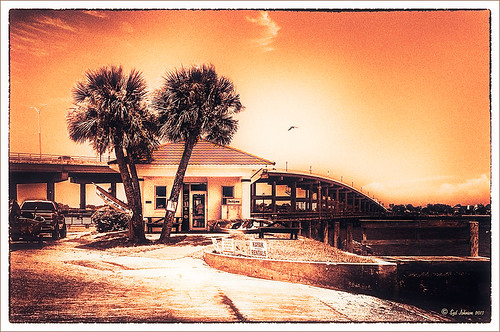
ReStyle applied to image of ICW
I totally loved how this image turned out. Once again this is the Intracoastal Waterway (ICW) looking back at the Granada Bridge in Ormond Beach, Florida. I had originally did just a black and white image using Nik’s Silver Efex Pro 2 using the High Key 2 preset as a starting point and then changed several sliders – brought the orange roof back on little shop. I just could not get the effect I liked. Then I took the image into Topaz (see sidebar for website link) new ReStyle plug-in and voila! – the totally different feel using the Orange Peel preset. (These are the changes made in the plug-in after applying the preset: Set Texture to -1.00, ReStyle Opacity 77%, and Hard Light Blend Mode; and Tint set to -0.16, Structure -1.00, and Detail -1.00.) This image now has a totally different feel with a color scheme I would never have considered. Check out this plug-in if you want something to give you image a real pop!…..Digital Lady Syd

Digital Lady Syd Related Blogs:
Digital Lady Syd Reviews Topaz ReStyle

Using a Natural Texture for an Image

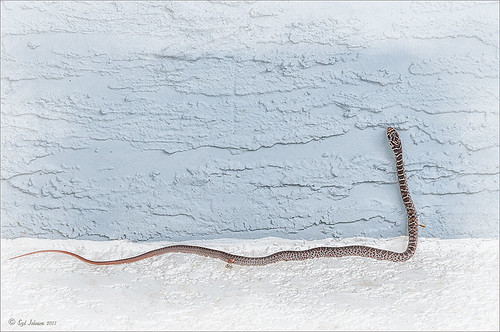
Image of snake processed with Topaz Clarity and Nik Viveza 2
This little Hognose Snake fell out of a Palm Tree frond after my tree was trimmed recently and ended up on my porch. I love the natural texture of the stucco of the wall – this is the easiest way to apply a texture! This little guy was first processed in Topaz (see sidebar for website link) Clarity using the Natural Boost III preset. Then on a duplicate image, Nik Viveza 2 was used to sharpen his body and accentuate his face. There also is a rather ugly looking spider near the bend of his body that was also sharpened. The last step applied Kim Klassen’s Cloth & Paper Touch Texture that was turned into an overlay frame and set to Linear Dodge blend Mode at 61% layer opacity. (See my How to Create an Overlay Out of a Texture blog link.) A Layer Mask was added to paint out areas over the snake to make sure he was clear of texture from the overlay framing. Loved how this image turned out!…..Digital Lady Syd

Viveza 2 Does It Again!


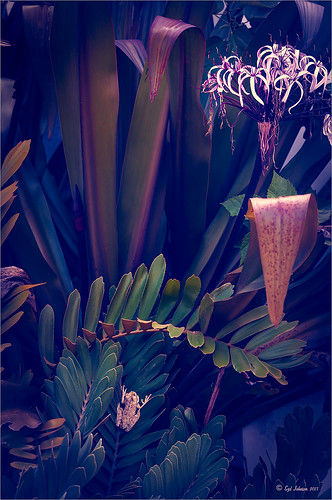
This huge Barking Treefrog got thrown out of a Palm Tree frond that was being trimmed and ended up in my Cardboard Palm. The blooming plant in upper right is a Queen Emma Lily Crinum . The lawn guys said he was the biggest frog they had seen in Florida (he was at least 4 inches long). Anyway, the frong was gorgeous and very calm and let me take his photo. This image was processed a lot in Lightroom using a Jack Davis Bluish Split Toning preset. The frog was sharpened slightly using the Adjustment Brush. A Radial Gradient was added to darken down the outside edge and give a slight vignette. It was taken into Photoshop and a New Layer was created to clean up the leaves with the Spot Healing Tool. A Curves Adjustment Layer was added to add some tone to the image. The layer was duplicated and converted to a Smart Object. My favorite filter was applied – Nik Viveza 2 – to add highlights to the frog and the plant by adding control points to these areas. This really gave the image the final look it needed. In this case Viveza 2 really popped this image!…..Digital Lady Syd

Boring Image to Fabulous Image!


As you can see, this little pink flowers pix taken at the ICW (Halifax River) in Ormond Beach, Florida, was not that great to begin with, but by adding this gorgeous texture from Painted Textures, the image was totally turned around. In Lightroom 5, the image was desaturated using an Adjustment Brush and just leaving the flowers pink. Two Radial Gradients were applied – one for the outside where the Exposure slider was further darkened, and one for the inside area where the Clarity and Sharpness sliders were reduced to make the flowers appear softer and Shadows increased to 20 to give just a glimpse of the background details. Screenshot shows how image looked as a RAW file, and then after Lightroom adjustments right before taking it into Photoshop.

The image was taken into Photoshop CC where a clean up layer was added to get rid of the spots on the flower petals. Next Painted Texture’s beautiful August Sand Texture was added and set to Linear Light at 77% layer opacity. A Hue Saturation Adjustment Layer was clipped (ALT+Click between the layers) and the Hue was set to -4 and Saturation -23. Then a Curves Adjustment Layer was added to increase contrast, which adding textures often requires, by dragging in the image with the little hand icon tool from the top of the panel and pulling down. A New Layer was added on top and set to Overlay – a burn layer was created using a black brush at 12% and following down the stems. (See my The Best Dodging and Burning Technique! blog ). It was also set to 44% layer opacity to keep it from being overdone. No layer masks or fancy selections or filters were used on this one – the texture totally made this image!……Digital Lady Syd

Flower Power!

This image was created from a single white daisy shot taken in my front yard. The flower was cut out of this image by selecting the flower using a layer mask and then applying the layer mask. The flower color was changed using a Hue/Saturation Adjustment Layer clipped to the flower layer (CTRL+ALT between the layers to clip). French Kiss Bohemian texture was placed underneath the flower and the color changed to the violet colors. Distressed Textures HR Strawberry Juice On My Finger was added on top and set to 52% opacity. Only the center of the flower was painted out using a layer mask. The flower was duplicated two more times and Free Transformed (CTRL+T) and rotated – different colors were chosen for the other flowers using Hue/Saturation Adjustment Layers clipped to the flowers. Kim Klassen‘s Unleashed texture was added as an overlay (see my How to Create an Overlay Out of a Texture blog.) A Hue/Saturation Adjustment Layer was clipped to the texture and set to a violet color. Some text was added using Rough Typewriter font. A New Layer was added on top and a grunge brush I had created a long time ago was added in pinks and violets and set to 66% layer opacity. A Curves Adjustment Layer was added as a last step. I just love to play with textures and make textures…..Digital Lady Syd

Digital Lady Syd Related Blogs:
Texture Resources – So Many Choices! So Many Choices!
Painterly Textures to Create a Beautiful Floral Image

Who’s Hiding in the Cabbage Patch?


Just a quick blog on this little guy who looks so much like a wonderful cat I had many years ago named Bobbin. He lives in Belarus, apparently at a cabbage patch. Very simple processing here. Initial processing was done in Lightroom. Some spot removal and clean up on a little bit of the image was done next in Photoshop. Then Topaz (see sidebar for website link) Detail 3 was used just to sharpen the cat’s face. To really enhance the eyes, a New Layer was added and the Sharpen Tool was used – 20% Strength and Sample All Layers checked. The last step involved adding a lovely Isabelle Lafrance Diaphanous Overlay called Ethereal. A Color Fill Adjustment was clipped (ALT+Click between the layers) to change to color to a dark blue. The Overlay layer was set to Multiply blend mode at 79% opacity. Another New Layer was added and the dark color was sampled – then the edges were painted darker to draw more focus on the cat and to get rid of a few extraneous items. I loved the way it turned out – wish I could have brought the cat home with me!…..Digital Lady Syd

Digital Lady Syd Related Blogs:
Using a Color Fill Adjustment Layer as a Spotlight
Keeping Focus Where You Want It Using Focal Point 2 and Color Fill Adjustment Layer
Spotlight Effect With the New Subtract Blend Mode

Image Saved With Shake Reduction Filter


Since horse images seem to be all the rage, I decided to post another one taken in Belarus at the Old Village of Ayaymku. This gal looks pretty scared as she was just caught after going for a romp around the place. See another image of the Horse I took on Flickr. If you like horse stories, you should check Shanna Rae’s (of Florabella Collection) personal blog called Velvet Willow – beautiful story and images of her horses.

In Lightroom the preset called GA B&W Infrared 01 was applied before bringing it into Photoshop. Since I wanted to try out the new Shake Reduction Filter in Photoshop CC, this filter was applied first. Wow – totally saved this image. It was soft and just a little off. Just one sample spot in a bad area and it was cleared up pretty nicely. Then just some clean up and eye sharpening using the Sharpen Tool was used. The last step added the Blending Frame from Tim in Ohio texture set to Linear Dodge at 100% layer opacity. That was all that was done. I think the black and white treatment really enhanced the mood of this image……Digital Lady Syd

Textured Sky Adds Vintage Feel


This is another tower image from London. Once again, I have no idea what it is connected to, but it is a beautiful cupola. I really liked the final cloth feel on the texture. This image was straightened and just the Basic Sliders were used in Lightroom. Once in Photoshop, I selected the tower, deleted the background, and tried several different texture backgrounds. I ended up with one of my very favorite Flickr Texture people, Lenabem-Anna Textures, Texture 278 – her textures are incredible! This one gives the cloth appearance with just a touch of clouds – perfect for an original image that had no clouds. For this image a Gaussian Blur was added using a Radius of 5.9 just to smooth out the texture in the background but leave the color in the texture. A Levels Adjustment Layer was added and the Midtones slider adjusted a little for more contrast to the whole image. To add the texture back into the whole image, the same texture was applied again on top. A Hue/Saturation Adjustment Layer was clipped (ALT+click between the layers to clip) to the texture and the Saturation  slider was set to -100. The texture layer was set to Overlay blend mode at 67% layer opacity. A Color Balance Adjustment Layer was added on top to bring out the gold tones more in the tower. That was it. …..Digital Lady Syd

Digital Lady Syd Related Blogs:
Clarity with Texture!
Where Am I? Edinburgh, Scotland
Getting a Nice Painterly Landscape Effect with Topaz Simplify and Texture

Take the Time to Get the Fun Shots!


Going through my older photos I found this crazy image of an ostrich at The Old Village of Ayaymku outside Minsk in Belarus. (At this point I think I am the only person who has posted images on this charming place.) This was a totally fun place to visit – I am not sure they have had too many American tourists, but it is a very popular place for the locals, especial for bridal parties. In fact we saw two brides having photo-shoots while there! Here are a couple links to some of my other images posted on Flicker: The Old Village of Ayaymku and The Old Candy Shop at the Village. This is a replica of an old Belarusian village where there are many beautiful craft and food shops. And then they had this little zoo area with all kinds of animals, including this crazy guy! (Here is another Ostrich image from the Village.) He was mainly retouched in Lightroom 5 where David duChemin’s Toxic Warmth preset was applied. In Photoshop, Nik Viveza 2 was used to emphasize his eyes and tongue and downplay the background. Hope to present some more images from this Village in the future…..Digital Lady Syd

Digital Lady Syd Related Blogs:
Unexpected Humor in an Image

How to Pop a Picture in Lightroom 5


This image of a pretty cupola taken in London uses several of the new Lightroom 5 features. In fact nothing was done in Photoshop to this image. First it was cropped down – only had the very top as shown but it needed to be composed. Then the basic sliders were set just like in previous versions of Photoshop (see my How to Use Adobe Camera Raw (ACR) or Lightroom 4 Quickly blog for tips on this). The HSL panel was used to set the color. Two Graduated Filters were added – one for the blue sky (Temp -22 and Exposure -1.18) and one to bring out the pretty sky and cloud effect (Exposure -0.42, Highlights -60, Shadows 87, Clarity 55 and a light orange color Hue 28/Sat 59). Some Sharpening was done with an Adjustment Brush (Sharpness 100, Shadows -68, and Clarity 100) and the detail painted over. A Radial Filter was applied to just the the cupola – used -1.18 Exposure with the Invert Mask checked. A Post-Crop Vignetting was added using Highlight Priority Style, Amount +100, Midpoint 18, Roundness -100, and Feather 0 – this gives the nice white frame. That was all that was done – a very plain image turned out to be quite striking!…..Digital Lady Syd

Digital Lady Syd Related Blogs:
Lightroom 5′s New Upright Adjustments Section
My Favorite Adobe Lightroom 5 Features