Anything Photoshop or Photography

Latest

Feeling Like a Walk on the Island

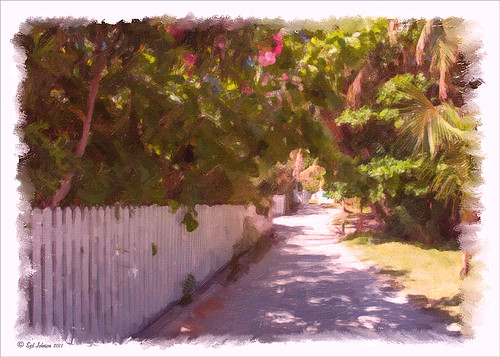
Image of path on Great Guana Cay in the Bahamas
Really loved how this image turned out – this is what the Bahamas (Great Guana Cay in this case) looked like to me when just walking around on some of the more deserted areas of the islands. This image was not that great to begin with, even with adjustments in Lightroom, but by adding Alien Skin’s Snap Art 3 Photoshop plug-in, it turned into a nice painterly effect. The Factory default preset was applied – I find I like it on many of my images. Using two layers in the plug-in, the focal point at the end of the path was painted with a more photorealistic slider detail and a few items in the foreground were slightly blurred. To finish up I used my free SJ Painter Oil Frame and painted around the edges with Fay Sirkis’s Mixer Brushes (used her Palette Knife Tap n Blend brush and Signature Palette Blender brush – brushes can be downloaded from her Four Seasons painting on-line training classes on NAPP – I think her brushes are the best out there!) to smooth the framing into the image a little more realistically. That was all that I did, but I think I might print this one for my wall……Digital Lady Syd

Fly Like a Butterfly!

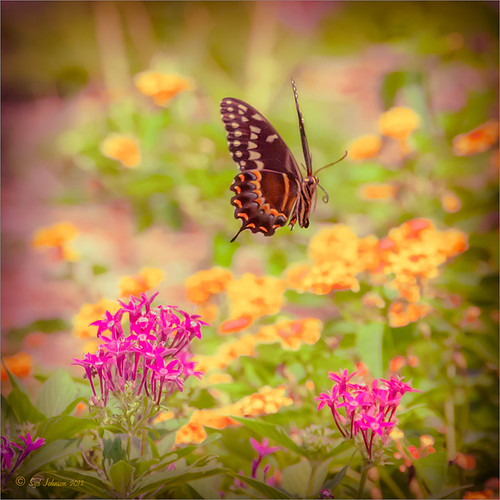
Image of Palamedes Swallowtail Butterfly flying over pink penta flowers
Just had to post this image of a beautiful Palamedes Swallowtail Butterfly flying mid-air in my pink penta flowers. I love the soft effect I got in this image even though the colors are so bright. So how did I get this pretty image? First I added the Retro Vintage preset I created earlier (see my Fun Photoshop How to Add a Little Retro to Your Shots Blog under Create a Lightroom Preset For a Vintage Feel) at 145% Strength by using The Fader, a Lightroom plug-in that let’s you adjust the strength of the preset from 0% through 150% – major cool to use at times. A vignette was added and some colors were adjusted in the Saturation section of the HSL panel. Noise was removed and a little overall sharpening was applied. The butterfly was sharpened more using an Adjustment Brush. In Photoshop, Nik Viveza 2 was opened and three control points were placed – one on the butterfly and one each on the pink penta flowers to bring out exactly the correct detail and color. I love this plug-in! Next a Curves Adjustment Layer was opened to lighten up the butterfly and pentas. The Layer Mask was filled with black and a soft low opacity white brush was used to paint back the butterfly and flowers to get just the right amount of contrast. That was it. Very easy and I love the way this turned out!…..Digital Lady Syd

Digital Lady Syd Related Blogs:
Great Free Plug-in for Lightroom – The Fader!
A Little Hollywood for My Butterfly Model
Butterfly Beauty!
Feeling Butterflies!
Butterfly Season is Here!
Yellow Dogface Butterfly in her Glory!

Flower with a Shadow

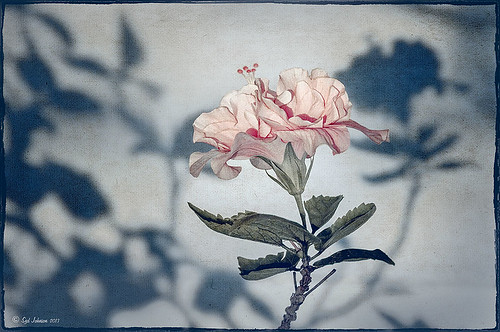
Image of a Peach Hibiscus Bloom with shadow in background
This beautiful hibiscus bloom was sitting just right to throw a shadow on a textured wall behind it. I bought some really beautiful Lightroom presets at Craft and Vision by Dave Delnea and applied his Washed Tropics Look 3 to this image. I have used it on a couple other images and really like the effect. The flower and stem were sharpened using an Adjustment Brush. Once opened in Photoshop Kim Klassen’s January Set 0801 texture was applied to add a little more texture to the image – it was set to Soft Light blend mode at 63% layer opacity. A Levels Adjustment Layer was added and the Midtone slider was set to 1.11 and the black tab moved to the edge of the histogram. The Output Levels slider was set to 19. A line grunge border was added to the edge. The image is now beige and light pink with a greenish shadow. It was taken into Topaz (see sidebar for website link) ReStyle and the Tiara Frost Preset was applied. A few changes were made to the Luminosity and Saturation of the colors and some Structure and Sharpness was added. These settings were applied and back in Photoshop the layer was set to 64% layer opacity. That is all that was done. I think the shadow looks fabulous in the background!…..Digital Lady Syd

Jack Davis Painting Action Really Works!
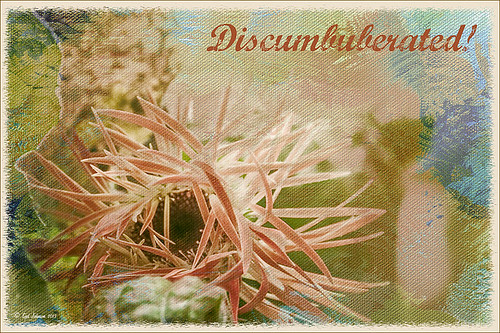
Image of painted white flowers
Just started playing around with Jack Davis’s Davis-Mixer Painting SetUp – BETA action and ended up with this. I thought they actually turned out pretty nice. (To download this and several other actions and brushes, go to Jack Davis Wow Facebook page – just Like his page and go to the Freebies button and select Jack’s Painting Presets.) Not totally following his workflow in the action, but with a little fiddling around with some of the colors, it turned out pretty nice. I actually left a bit of outline layer  in the image (67% opacity) as I thought it enhanced the lines of the flowers a little, but I had to erase out the image border on this layer. Also a Color Fill Layer was added just above the Pattern Fill Layer at the bottom of the stack and set to a peach color and set to 30% opacity. Other than that, it was just painting using Jack’s Mixer Brushes for his download. (For info on how to do this action, check out my Can You Get a Painting Look With a Photoshop Action? Jack Davis Can! blog and scroll down to the steps for Image 2.) This seems to be much easier for me to do than using Russell Brown’s Painting Assistant. Suggest you try them both out since they are both free……Digital Lady Syd

Digital Lady Syd’s Related Blogs:
Dr. Brown’s Painting Assistant Panel for CS6 and CS5!

Soft Painterly Effect

Chinese Hibiscus flower image taken from back and using Snap Art
This pretty Red Chinese Hibiscus Flower was basking in the sun one morning when I decided to snap it. This was a very simple image to post-process – just used Alien Skin’s Snap Art 3 and the Factory Default – no changes. A Color Balance Adjustment Layer was added to get the color right – only the Yellow to Blue slider was adjusted in all three Tone areas. A Curves Adjustment Layer was used to adjust a little shadow tone. The Frame is one that I created following one of Dave Cross’s Kelby Training Photoshop CS5 Finishing Touches for Photographers videos. That was it! Very simple, but very pretty!…..Digital Lady Syd

Mushroom to “Mission Control”

Image of a large Meadow Mushroom with morning dew on it
Recently a few Meadow Mushrooms grew to a large size very quickly in my yard. (Here’s is another mushroom image I took.) They actually were quite pretty, especially when the morning dew was on them. It really reminded me of a strange moon’s terrestrial surface. This image used very little processing to get this final look. In Lightroom the most important step was the crop to bring in all the interesting dew drops – the image was cropped quite drastically! The White Balance was adjusted and it was opened in Photoshop. Next Nik’s Viveza 2 was selected from the Filters list and three control points were placed to emphasize the structure of the larger drops and also to brighten up the center of the mushroom. Back in Photoshop a Curves Adjustment Layer was added on top and a couple points added to the curve to get the contrast needed. The last step involved adding a Stroke Layer Style – used the Fill Type Gradient set to an angle of -60 degrees and Photoshop’s Rainforest gradient. The Size was set to 21 pixels. That was all the processing done. Love the results! (I guess it is a good thing that I like own work – LOL)…..Digital Lady Syd

Never Thought I Would Use a Wax Crayon Effect!

Yep, this image was processed using the wax crayon brush in Snap Art 3. I totally love the vintage feel to this image. I am adding the Lightroom image as brought into Photoshop so you can see the difference – just click on the image. I really liked the before image as it was processed  using one of my favorite presets, GA B&W Infrared 01 preset which gave it a little bit of a blown out look. Jack Davis’s Bluish Split Toning preset was applied after this (the presets use different settings so both can be applied – Jack’s preset can be downloaded from his Facebook Freebies section and selecting his Lightroom Wow 4 Presets.) White rounded corners were created in the Post-Crop Vignetting section using Style: Highlight Priority, Amount +100, Midpoint 32, Roundness -93 and Feather 0. Once in Photoshop the background layer was duplicated and made into a Smart Object. Alien Skin’s Snap Art 3 was opened and the Pastel (sketch) preset was selected. Three layers were used to adjust the parameters for the Wax Crayon I was using on the image – just basically played around with the settings until I liked them. Since it is a Smart Object, I can always go back and change anything I don’t like. Next 2 Lil’ Owls Studio Color Bokeh Grunge (see sidebar for website link) Sweetness overlay was added using the Subtract blend mode at 58% layer opacity. Curves, Levels and Hue/Sat Adjustment Layers were added to add more contrast and color into the image. The last step used Nik Viveza 2 with a control point on the front of the building to draw attention to this area. That was it – I really like the final result! Not at all what I had in mind, but love it just the same!…..Digital Lady Syd

Digital Lady Syd Related Blogs:
Digital Lady Syd Reviews Alien Skin Snap Art 3
Get Great Results with Alien Skin Snap Art 3 and Topaz ReStyle Together!!
Snap Art and Simplify – Now That’s Painterly!

Snap Art and Simplify – Now That’s Painterly!

Image of a tulip that is half open that has been painted using Snap Art 3
Just a pretty tulip that cannot decide if it wants to be open or closed. (This link shows some of these beauties in their glory!) This image was converted to a Smart Object and taken into Alien Skin Snap Art 3 and the Oil Paint (dry brush) preset was applied with some adjustments. A stamped layer (CTRL+ALT+SHIFT+E) was created on top and the layer was opened up in Topaz (see sidebar for website link) Simplify 4 and the Oil Painting Toned IV preset applied. Back in Photoshop a black layer mask was added (ALT+click on layer mask icon to make it black), and just the forward leaves were painted back to add the Simplify filter effect. A Curves Adjustment Layer was added to increase contrast and my SJ Painter Oil Frame was added to give it a canvas feel. You can CTRL+T the frame to get just the amount of brushed effect to add. That was it. Fun to do!…..Digital Lady Syd

Butterfly Season is Here!

Image of Monarch Butterfly on a pink penta in yard

The butterflies are going crazy around my house this week! They love all the penta flowers and Bottle Brush bushes I have. This beautiful little Monarch was very busy totally enjoying all the different flowers to try out – there was some sharing going on with a huge beautiful Swallowtail butterfly and several varieties of bees! Very busy place today. This image used Matt Kloskowski’s That 70’s Look preset (in NAPP Lightroom presets – not sure when I got these) in Lightroom, which gave a very pretty look. But I decided to go into Topaz (see sidebar for website link) ReStyle just to see what would happen. I had created a preset on a Scottish image done earlier that worked very nicely. Got a little more of a colorful result. Nik Viveza 2 plug-in was then added on another layer and some of the color was adjusted using a few control points. A Curves Adjustment Layer was added on top for contrast. The text is a really old font called Abigail. That was it and I really liked the results…..Digital Lady Syd

Just a Simple Picture?????

This image definitely uses the colors I just love! Took a red spica and turned it into this gorgeous pink and turquoise rendition. What I did! Just regular Lightroom slider tone work before going into Photoshop. The image needed to be widened so the Canvas was extended on the left side to make room for the objects and text. Topaz (see sidebar for website link) Detail 3 was added using little medium detail and large detail settings and the Dark Foliage tone preset from drop-down in that section. I decided to select the spica using a layer mask and then applied it to make it an object. It needed Topaz DeNoise 5, so it was applied with just an Overall Strength setting set to 0.29. Topaz Simplify was added using the Oil Paint II preset. Then French Kiss Collections Tableaux Mirage texture was placed underneath the single spica object as a background texture and left at Normal at 100% opacity. A Hue/Saturation Adjustment Layer was placed above the texture and set Master to Hue -14, Saturation +48 and Lightness -22. At this point I did not realize I was going with the bluish color palette – I thought I was using the orange and yellow colors. I did a little clean up on the spica and then added a New Layer and added Diamond Head volcano as an object. Added some reddish clouds on a New Layer using my Clouds 5 brush at 54% and added an Inner Shadow, Color Overlay and Drop Shadow to them in brown and pink colors. Next French Kiss Collections Studio 3 White Wash texture (probably my most used texture) was set to Overlay blend mode at 100% opacity. Still had a brilliant yellow background so a Hue/Saturation Adjustment Layer was added on top. The Master was chosen and set to Hue +100, Saturation -35, and Lightness +22. Now I had this beautiful blue and turquoise color that really calmed the image down. On top of that a Photo Filter Adjustment Layer was added and set to Warming Filter 81 and Density 25%. Text was added using the Angelic War font and two layer styles added to it – Outer Glow and Drop Shadow. Next an overlay was added using 2 Lil’ Owls The Artisan Collection Big Set (see sidebar for website link) 2-2 texture. To turn textures into overlays check out my How to Create an Overlay Out of a Texture blog. Added a Layer Style by clicking on the FX at the bottom and moved the Underlying Layer black tab to 117/200 (this gives priority to the shadows of the underlying layer instead of the top one). See my How to Use Those Handy Blend-If Sliders! blog for more on this. Finally a Color Fill Adjustment Layer was clipped to the texture-overlay (ALT+click between the layers) and changed to a sampled color from the spica. Now I am done. Whew! Unfortunately this is how my brain works sometimes, but I really love the final result. I think it looks very Hawaiian and I could see this image on my wall!…..Digital Lady Syd