
Image of my pink Painted Lady Hibiscus on my porch – they are such beautiful blooms! Thought I better practice painting a little in Photoshop as I had not done anything recently so here it is. In Lightroom and Dave Delnea’s Backlight 002 vertical preset was applied, and the middles of the flower was sharpened. The image was brought into Photoshop and Topaz (see sidebar for website link) Clarity using John Barclay’s Basic settings (Micro Contrast 0.36, Low Contrast 0.20, Medium Contrast -0.11, and High Contrast -0.23 – then my settings of Red Sat 0.22; and Lum Red -0.17 and Green 0.72). Next Topaz Black & White Effects plug-in was applied using a plug-in I call SJ Church (Conversion Basic Exposure Contrast 0.06 and Brightness 0.05; Quad Tone Color 1 Region Color (R7/G0/B7) and slider 9.95, Color 2 Region Color (R59/G51/B53) and slider 69.66), Color 3 Region Color (R158/G143/B146) and slider 150.6, and Color 4 Region Color (R255/G253/B216) and slider 255.0: and Transparency 0.58 – in the Mask, painted detail on stem and pistal using Brush Opacity 0.25/Hardness 0/Edge Aware 0.50 brush. Using same brush set to a small size 73, selected Burn and painted in the pistil shadow and some detail in the flower top. Used Color adjustment and painted in a little on flower tips. Dodges the left side of pistil and stem.) On a layer above, Jai Johnson’s beautiful free Spring Blush Canvas texture was added and a layer mask was added. Used my SJ Pastel 11 brush (I used Pastel 11 in SDW Pastel Brushes-this comes in as a huge 2130 px brush! I made it a 70 px brush – added Shape Dynamics and Texture to make a nice painting brush) set to 29% or less brush opacity, the flower was gently painted back in the layer mask. Text was added and a Levels Adjustment Layer was used to add back some contrast. That was it!…..Digital Lady Syd

Latest
On Being Nine
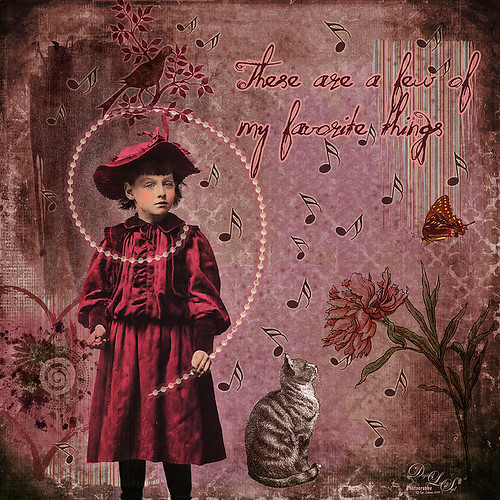
Great way to entertain myself on a very overcast wintry day. I have to honest and say I was watching on Creative Live a very good class called Advanced Digital Scrapbooking: Design Layouts in Photoshop by Traci Reed. I am not a scrapbooker, but I love to watch what they are teaching since it is a very good way to express yourself and your art. She was showing how to use templates and I remembered I had downloaded one a while back – that is how this little girl found a life of her own!
This image was started by adding the little girl that from Mary Bailey Vintage called Amelia. Next Anna Aspnes Inspired Edge Template 3-3 was added under the little girl – this acts as placeholders for the various items added in this image. 2 Lil’ Owls (see sidebar for website link) texture Vintique 42 was placed as the bottom layer and her Vintage Papers 20 was set on top using the Layer Style Blend If This Layer black tab split and set to 151/178 so some of the texture below showed through. I was unable to find download links for any of these scrapbook-like items. Paper was clipped to the different blocks in the template and clip art added to get all the elements into the image. The font is one I bought called Quilted Butterfly. The musical notes are from a brush I downloaded and set the size jitter and angle jitter to get the different directions. All in all it took several hours to finish this image, but it was so much fun to do something totally different……Digital Lady Syd
Using Topaz Glow to Add Color

Thought I would do a quick before and after on an image that Topaz (see sidebar for website link) Glow was applied to. Below is the original as I first processed it as an HDR image with a very wide angle lines.
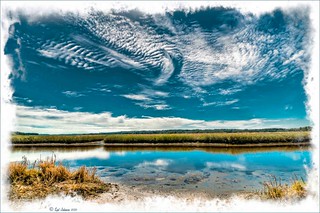
I like both renditions – they are just very different. You can see what mainly the color sliders can do to an image in Glow. Essentially that is all I did with this image. I did do a little painting on a New Layer on top just to make it look like I wanted it to look – used my Chalk 60 brush (with Angle set to 19%). (Here are the Glow settings if you would like them – TG-SJ Secondary Webbing preset are Primary Glow: Glow Type Light, Glow Strength 0.00, Effect Sharpness 0.00, Detail Strength 0.87, Detail Size 0.20, Brightness 0.03, Contrast 0.47, and Saturation 0.96; Secondary Glow: Glow Type Light, Glow Strength 0.56, Effect Sharpness 0.46, Electrify 0.00, Simplify Details 0.02, Brightness -0.13, Contrast 0.24, Line Rotation Rotation 0.00, and Glow Spread 0.26; Color: Yellow Saturation 0.20 and Yellow Lightness 0.34; and Finishing Touches: Effect Coverage 1.00, Coverage Transition 1.00, and the rest 0.00. Note you need to change this to Soft Light before the settings make any sense. Then here are the settings used to change it to the above: Added Orange Sat 0.78; Green Sat 0.40 and Lightness -0.41; and Blue Hue 0.18, Sat -0.27, and Lightness 0.26; and changed Yellow Sat 1.00 and Lightness 0.88. In Photoshop the layer was set to Overlay blend mode.) I find this transformation rather amazing!…..Digital Lady Syd
M&M’s Getting Their Last Breath of Air
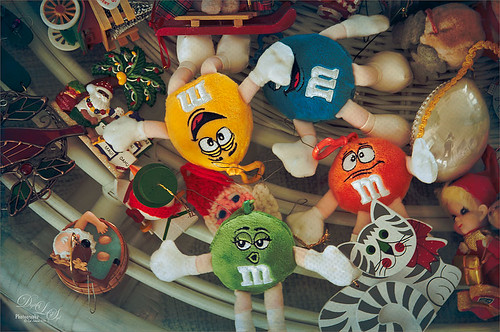
Sunday it was time to take down the Christmas ornaments. These adorable M&M ornaments my sister got me a few years ago are some of my favorites. In Lightroom 2 Lil’ Owls (see sidebar for website link) Fresh Color 7 preset was applied and then a couple adjustment brushes were used, one with Clarity and Sharpness increased and painted in the faces, and one with a little yellow color to draw the eye more towards the yellow M&M. In Photoshop Topaz (see sidebar for website link) Detail 3 with my Little Med Large Details preset applied (Detail Overall Medium Details 0.38 and Large Details 0.16 and Tone Contrast 0.30 and Shadows -0.01). Back in Photoshop a black layer mask (CTRL+I in regular layer mask) was added and just faces were sharpened again. A stamped layer was created (CTRL+ALT+SHIFT+E) and Topaz Adjust’s French Countryside preset (my favorite Adjust preset) was applied. This time a regular layer mask was added back in Photoshop and the bodies were slightly painted back with a 30% opacity black brush. The layer was set to Linear Burn blend mode at 40% layer opacity. I just wanted a touch of the Adjust in the image to soften the background area. Next R Gough’s Watercolour on Canvas Overlay was added. This overlay was in the a wonderful free holiday pack from Design Cut. A blue Solid Color Fill Adjustment Layer was clipped (ALT+click between layers to clip) to add a pretty bluish vignette. The last step was a Curves Adjustment Layer. That was it. This was a lot of fun to do a very traditional treatment to the photo!…..Digital Lady Syd
HDR Tree
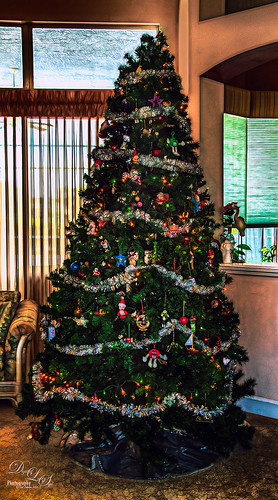
One last Christmas post this year. Someone said to take some HDR bracketed shots of your Christmas Tree and it will look really good – so that is what I tried here. As usual I get carried away with my favorite filters and started adding in some things, but I did process the three bracketed images in Nik HDR Efex Pro 2 using its Dark preset. Then in Lightroom Seims PW4 (see sidebar for website link) Super HDR and his Tint Warming 81A presets were applied before opening in Photoshop. Duplicated the Background layer and opened it up Topaz (see sidebar for website link) Glow – applied my SJ GrapIII Beach preset (settings listed at bottom) – this plug-in really added to the overall tone and color of the image, then set the blend mode to Color Dodge in Photoshop and the Fill to 74%. (Note: With Color Dodge blend mode, adjusting the Fill slider keeps the effect more pronounced than adjusting Opacity slider, which creates a more dull look). Did some clean up and applied Viveza 2 to add a slight vignette feel to the corners (could have used the Radial Filter in ACR). Next Topaz ReStyle was opened and the Dark Ecru preset was applied (these changes were done: ReStyle Opacity 73% and Texture Strength 0.44; Basic Color -0.31; Tone Black Level 0.11, Midtones -0.25, and White Level 0.08; Detail Structure -0.37 and Sharpness 0.56.). A Curves Adjustment Layer was used to add back a little contrast as the last step. It was a lot of fun to do an HDR – have not done this in a while…..Digital Lady Syd
(My SJ GrapIII Beach Topaz Glow settings: Primary Glow: Glow Type Dark, Glow Strength 0.17, Effect Sharpness 0.09, Electrify 0.23, Simplify Details 0.25, Edge Color 0.20, Detail Strength 18, Detail Size 0.24, Brightness 0.23, Contrast 0.17, Sat 0.01, Line Rotation 0.09, and Glow Spread 0.20; Secondary Glow: Glow Type Light, Glow Strength 0, Effect Sharpness 0.47, Electrify 0.17, Simplify Details 0, Brightness 0.36, and Contrast 0.62; Color Red Sat 1.00; Orange Sat 0.27; Yellow Sat 0.20 and Lightness 0.09; Aqua Sat 0.78 and Lightness -0.26; and Blue Sat 0.49; Finishing Touches: Effect Coverage 0, Smudge 0.00, Sharpness 0.25, Sharp Radius 0 and Vignette Size 0. For this image these changes were made to this preset: Changed Secondary Glow to Dark. Changed Red Sat to 0, Orange Sat to 0.79, Aqua Sat 0; and Green Hue 0.32, Sat 0.45, and Lightness -0.27.)
Merry Christmas from Digital Lady Syd
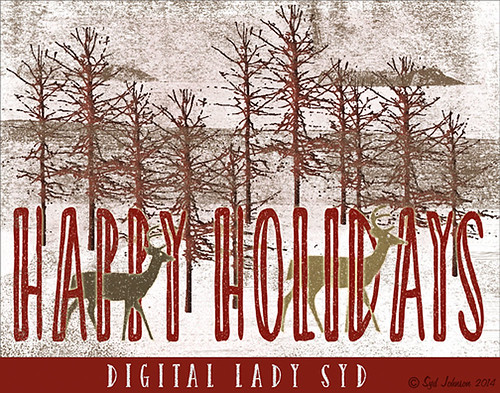
Happy Holidays to all my blog buddies! I so enjoy the people I have made friends with on the Internet and through blogging. I hope everyone is having a great time and is totally enjoying this time of year.
Just a few for those who wonder – how did I make this card? Well, this all started in Photoshop where I began with the cool Ink 3 png file that is in the Christmas Poster Freebies from Design Cuts (by Vintage Design Company). It was free transformed and flipped. A Solid Color Fill Layer using a brownish-beige color was clipped (ALT+click between the layers to clip) to the Ink 3 layer. The text was added. Then this file was taken into Corel Painter where the wonderful Karen Bonaker‘s Christmas brushes were used. The deer were added and the trees were added on separate layers. Then the file was brought back into Photoshop where a layer mask on the text layer was used to make the deer look like they are walking through the text. An Inner Shadow Layer Style was added to the tree layer (Distance 17, Choke 0, Size 17). On the deer layer a Stroke set to 5 pixels, inside, normal blend mode, and a light beige color was added. The Text used an Outer Glow set to the default yellow, but Size 17. The last step was my free Snow1-Overlay set to 43% layer opacity. Basically that was it. I so enjoy making cards!…..Digital Lady Syd
More Holiday Cheer!
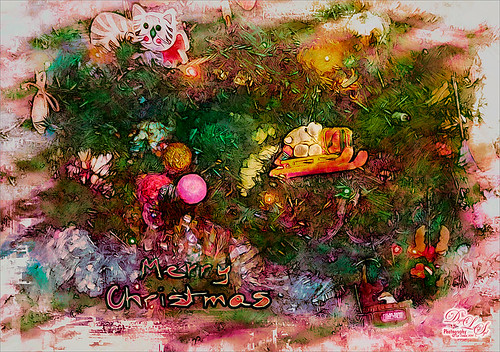
Just another Merry Christmas Card – hope all are enjoying the season. I was just adding different filters to layers to see what happens and this is what I got! Hum….. Anyway, this is what I did. Topaz (see sidebar for website link) Clarity was used to sharpen up the original tree ornament image. On a duplicate layer above, Topaz Glow’s Fur & Feather I preset was applied. Next Topaz Impression’s Abstract I preset was applied and I adjusted a couple sliders. In Photoshop the layer was set to Soft Light. Then the layer was duplicated and set to Normal blend mode at 77% layer opacity. A layer mask was added and some of the ornaments was painted back. I painted the text in Painter and placed it in as a layer with an Inner Glow layer style. On a stamped layer (CTRL+ALT+SHIFT+E) was created and taken into Smart Photo Editor. (Photo-art at a click 050; Changed Master fade to left just a little; Hue -0.298; and 2nd Hue 0.369. When brought into PS, it turned the color scheme very different but workable. Used Selective Color Adjustment Layers to get the color tweaked to where I wanted it.) The last step involved adding Nik’s Viveza 2 and adding focus on the ornaments. Just a lot of fun……Digital Lady Syd
On the Beach
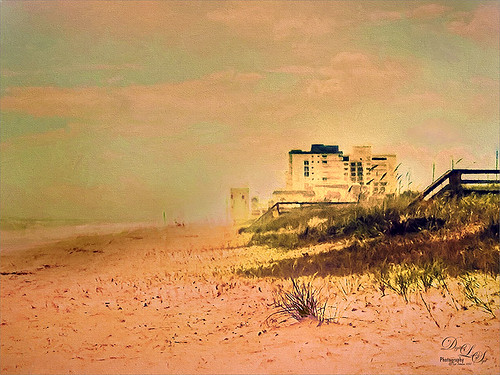
This is a nice little beach near my home called Ormond by-the-Sea. Thought I would try applying some of my new filters to this image. On a duplicate background layer in Photoshop, the Topaz (see sidebar for website link) Glow preset called Graphic III preset was applied. (Here are the adjusted settings I used: Secondary Glow: Glow Type Light, Glow Strength 0.23, Effect Sharpness 0.47, Electrify 0.17, Simplify Details 0, Brightness 0.36, Contrast 0.62, and the other two 0; Color: Red Sat 1.00, Orange Sat 0.27, Yellow Sat 0.20 and Lightness 0.09, Aqua Sat 0.78 and Lightness -0.26, and Blue Sat 0.49. Set to Multiply at 100% strength). This brought out the structure of the building very nicely. The background layer was duplicated again and placed on top. This time I used a preset I had created based on their Wonderland preset. (Here are the settings if you want to try them: Primary Glow: Glow Type Dark, Glow Strength 0.36, Effect Sharpness 0.29, Electrify 0.23, Simplify Details 0.21, Edge Color 0.13, Detail Strength 0, Brightness 0.37, Contrast 0.45, Sat 0.20, Line Rotation and Glow Spread 0; Secondary Glow: Glow Type Light, Glow Strength 0, Effect Sharpness 0.25, Electrify 0.11, Simplify Details 0, Brightness 0.77, and Contrast 0.60; Color Overall Hue -0.96, Sat 0.28, and Lightness 0; Red Sat 0.35; Orange Hue -0.46, Sat -0.34, and Lightness 0.79; Yellow Hue -0.34, Sat 0.41, Lightness 0.58; Green Hue -1.00; and Blue Sat 1.00; Finishing Touches: Effect Coverage 0, Smudge 0.05, Sharpness 0.30, Sharp Radius 0 and Vignette Size 0.) A layer mask was added and the sky and a little of the building was painted away so the first Glow preset settings appear above and the new ones below. Did a little clean up at this point using the Spot Healing Brush. A stamped layer was created on top (CTRL+ALT+SHIFT+E) and Topaz Impressions’s Dega Dancer I preset was applied as is. This really warmed up the image. Last, Nik Viveza 2 was used to add a little more focus on the large building in the distance. I believe this image is a pretty good representation of how it felt to be on the beach on a sunny early Fall day……Digital Lady Syd
Season’s Greetings!
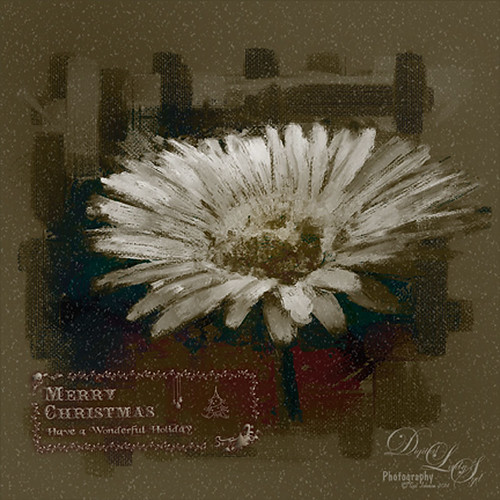
Really enjoying creating holiday items this year. This flower was painted in Corel Painter. Then brought into Photoshop where Painted Textures Winter Storm texture was added and set to Saturation blend mode. I am not sure I have ever used this one before, but by setting the Blend If Underlying Layer split black tab to 48/114 (ALT+click on tab and drag), some of the color came back – the blues and oranges mainly. A Selective Color Adjustment Layer was added. Next Nik Viveza 2 was used to pop the center where my focal point and reduce the background which pulls the eye a lot. Some clean up was done and my free Snow1-Overlay was applied and set to 14% layer opacity. Next my Merry Christmas PNG Overlay-01 (in same download link as above) was added. A Pattern Fill Adjustment Layer was clipped to the PNG layer (ALT+click between the layers to clip) and set to a beige colored pattern. Then in the layer style of the PNG layer, Bevel & Emboss effect was checked; an Inner Shadow was set to Blend Mode Normal and a deep gold color, and an Outer Glow set to Blend Mode Normal, Opacity 63%, black color, Spread 4 and Size 21 was set. I had to fiddle around with these settings to get a look I liked. But that was it. Have a Happy Holiday Season!…..Digital Lady Syd
Simply Glowing!
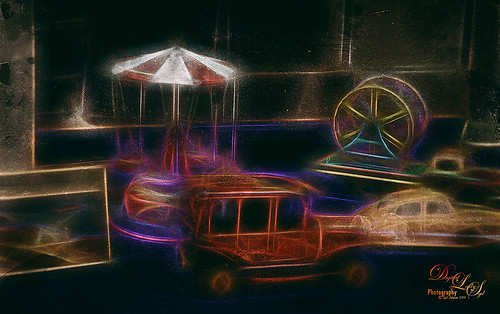
This an image of some vintage toys taken at a local antique show. The new Topaz (see sidebar for website link) Glow plug-in was applied to get this rather classic application of the plug-in. In Lightroom Seim’s (see sidebar for website link) Crosslight Warm preset was applied before bringing the photo into Photoshop. The layer was duplicated and Photoshop’s Shake Reduction filter was applied. This layer was duplicated and this time Topaz Glow’s filter was opened and Fractals II preset was used. Next Nik’s Analog Efex Pro 2 was applied and my SJ Wet Plate preset was selected. (Settings for this plug-in included: Basic Adjustments with 6 individual control points placed on each item to set the Detail Extraction, Brightness, Contrast and Saturation for each – this creates the darker background in the image; Photo Plate Strength 82% set to Corroded using the middle plate; Lens Vignette Amount -22, Middle between Circle and Rectangle, and Size 83%; Film Type Subtle 1st row/4th down set toward Faded, Strength 89%, Grain per pixel 500, and Soft/Hard in the middle; and Levels & Curves slight S-curve in Luminosity channel.) This is the really interesting final look that happened by combining these plug-ins. I do like the new Glow filter and am still learning how to use it to get some new effects. Just love trying new filters out – totally fun!…..Digital Lady Syd
Topaz Labs AI Gigapixel
Check out AI Gigapixel stand-alone software for upsizing your images. It’s incredible! And it can now be used as a plugin when in Photoshop. Also Topaz Labs Photo AI has some great sharpening and denoise tools along with Photo Video AI.
Luminar Neo
Click here to visit Luminar for more info and check out their new AI Filters.

GRUT BRUSHES – Photoshop Brushes for Digital Artists
Click here to visit GrutBrushes.com
And be sure to check out his Free Brush of the Week and Brush Sampler! These are the best brushes you can find!

Topaz Studio 2 and Legacy Topaz Labs Filters
Unfortunately Topaz Studio 2 and other Topaz Lab filters are no longer available for sale as of 2020. If you had bought these filters and would like to put them back on, here is a link to the Legacy Apps where they can be downloaded again. Below is an example of the wonderful Remix AI Filter from Studio 2. The wonderful Impression still works fine in Photoshop right now along with Adjust (all versions), ReStyle, and even PhotoFXLab!
On1 Photo Raw
Wonderful software to use as a substitute for or plugin with Photoshop. Many great filter effects and lots of AI capabilities!
