Anything Photoshop or Photography

Latest

Just Playing!

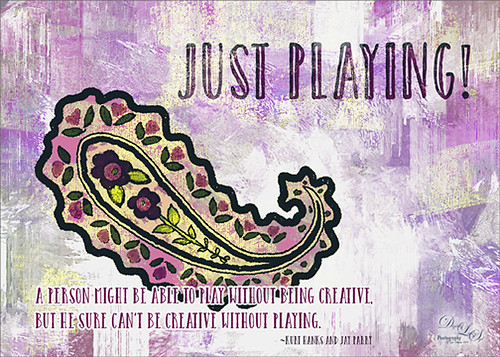
Image of a brush and quotation on playing
Just having some fun here. Did a wonderful tutorial by the great brush guru Obsidian Dawn called Multiple Colors (and Removing Transparency) with Photoshop Brushes Tutorial that explained how to colorize the brushes that she offers for free, I might add. I just sort of took the tutorial to a different level and ended up with this colorful final image. She included some very interesting info on selecting and adding the paint to the brushes so I would recommend checking it out if you like to use different types of brushes. I used Brush 19 in her Paisley Sketches Brush set. Since this required using several layers for the colors, they were put in a Group. Two textures, both by one of my very favorite texture sites, Painted Textures were used to finish up. Under the group the May Garden texture was applied and in the layer style, the Blend If This Layer black tab was split (ALT+click and drag on tab) and set to 189/196 and the split white tab set to 198/216. This gave the layer a lighter feel. A Hue/Saturation Adjustment Layer was added to give the texture more purple and pink colors. Added the Winter Storm texture set to Lighter Color blend mode and once again the layer style was opened and the Blend If Underlying Layer black tab was split and set to 84/139. Three Text layers were applied using the Catalina fonts that were bought in a Design Cuts package I bought recently. Love this font! The layer style for the longer lines of text once again used the Blend If Underlying Layers black tab split and set to 37/85. Also an Outer Glow was applied by setting the Opacity to Blend Mode Normal, Opacity 100%, White color swatch, Spread 67% and Size 10 px. This way the letters stood out but you could still see the design a little bit behind the lettering. For the larger top lettering, the layer style was opened and Blend If Underlying Layer white tab split and set to 242/255 and an Inner Shadow set to Normal Blend Mode using a sampled color from the green in the paisley brush, Opacity 100%, Distance 21 px., and Size 18 px. Just experimented to get the right look. But you can see some of the beautiful texture coming through the lettering by using the Blend If sliders. The last step was to add a Curves Adjustment Layer to pop the contrast and color. This was so much fun!…..Digital Lady Syd

Digital Lady Syd Related Blogs:
How to Use Those Handy Blend-If Sliders!
How to Get Blend If Slider Settings to Apply to a Layer
Painting in a Vector Pattern

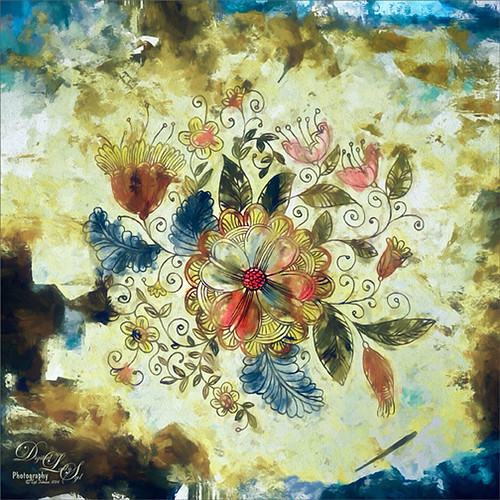
Image of a vector floral pattern that is painted
This is an image I was just having fun doing. Started with a layer that I placed a vector floral image on – Graphichive Floral vector flowers Swirls and Flowers 2 (there are some beautiful vectors on this site so check it out!). It was on a sheet with several other clip arts – had to open up the jpg, use the Rectangular Marquee Tool to select it and place on its own layer. Then select the background by going to Select -> Color Range – check Invert so that just the lines are selected and you now have transparent clip art that you can paint each flower and leaf the way you want. In this case I created a square file and copied the clip art layer over to this file. Used Free Transform (CTRL+T) and hold SHIFT key to adjust the size proportionately.

So to paint this, I used 6 different Pattern Fill Adjustment Layers – selected ones I liked, filled the Adjustment Layer masks with black (CTRL+I) inside the mask, and painted in white where I wanted that patterns to show up. If I did not like the color the pattern was, I just clipped a Solid Color Adjustment Layer set to Color Blend Mode to the Pattern Fill Adjustment Layer to change it. (ALT+Click between the layers to clip) I put all of the layers into a group by highlighting them and clicking on Create a New Group icon at the bottom of the Layers Panel. For a review of how to do this, see my Fun Photoshop Blog called How to Colorize an Old Photo. Next I placed a texture between the white background layer and the group – in this case it was Painted Textures Pilgrims’ Journey set to Pin Light blend mode. On top a Curves Adjustment Layer as added for contrast. Then because I could, Topaz (see sidebar for website link) Impression was applied using my SJ WC look on bldgs. (Settings used: started with Watercolor II preset and these were the final settings: Stroke Type 04, Brush Size 0.91, Paint Volume 0.42, Paint Opacity 0.87, Stroke Width 0.33, Stroke Length 0.89, Spill 0.23, Smudge 26, Coverage 1.00, Color Overall Hue 0.15, Saturation -0.20 and Lightness 0.06; Red Sat 0.47 and 0.14; Orange Sat 0.60 and Lightness -0.42; Yellow Sat -0.33 and Lightness 0.13; Green Sat 0.20 and Lightness -0.32; and Blue Sat 0.36; Lighting Brightness -0.04, Contrast 0.39, Vignette 0, and Light Direction X0.33 and Y0.06; and Texture Strength 0.78, Size 0.30, Canvas IV, Background Type solid white, and Background color used #d38967 – all other settings not listed at 0.) Next Topaz ReStyle using another one of my presets called SJ BW with greens – not sure how I got this one so I cannot give you the settings, but obviously I used some B&W setting in ReStyle. Last step involved Nik Viveza 2 to draw the eye to focal point, the main flower, in the image. It sounds like a lot of work, but it really was just experimenting and playing in Photoshop……Digital Lady Syd

Fall in Florida

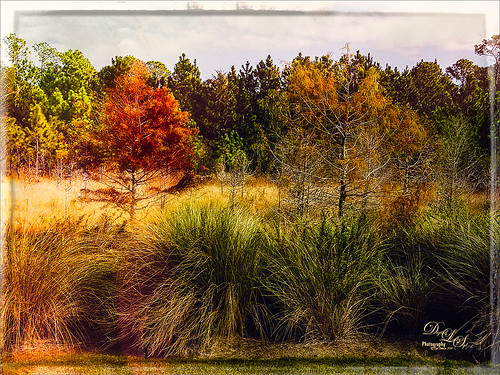
Image of the beautiful fall trees in Florida
This is a quick Android (yep – not an iPhone person) image taken from a tee box at one of our local golf courses. (For people who know – I-95 is hidden right behind the treeline.) Could not resist the slight feel of Fall that is almost over – not quite like Virginia when the trees are in their glory, but not bad on a wonderful sunny day! I have been so busy that I have not had time to look at the new OnOne Suite 9 (see sidebar for website link) and in particular my favorite module, Perfect Effects 9. This image was first processed in Lightroom using Seim’s (see sidebar for website link) Power Workflow 4 presets Magic Harsh Sun Fixer (definitely one of my top ten presets) and Controlled Contrast and Dave Delnea Backlit Vertical Left preset (I love his presets). The image looked pretty fabulous already! Then I added in OnOne’s Perfect Effects 9 plug-in and got this beautiful final result. Here are the settings used to get this final image: 1. Applied the Light Leaks & Lens Flares category Leaky Sun filter. 2. Changed the Lens Flare Layer opacity to 22%. Changed the Texturizer settings to: Opacity 76%, Saturation -49, and Brightness 16. 3. Added Filter Adjustment Brush and selected Glow Brush – painted in black mask white in the areas I wanted softened – that is the red and gold trees, midground areas and very foreground area. 4. Added from Filters section Borders the Russell border – set opacity to 45%. I have to say that OnOne has done it again – this is a pretty nice effect!…..Digital Lady Syd

Happy Thanksgiving from Digital Lady Syd

Image of a Sand Crab on Flagler Beach
Just a Sand Crab wishing everyone in the U.S. a Happy Thanksgiving. I photographed him on Ormond By the Sea Beach a few weeks ago.  First started in Lightroom and used Seim’s (see sidebar for website link) PW4 preset Les Miserables. In Photoshop the Shake Reduction filter was applied and then Topaz (see sidebar for website link) Impression’s Da Vinci Sketch I preset was applied (these are the adjusted settings: Strength 0.79, Stroke Brush Size 0.64, Paint Volume 0.08, Paint Opacity 0.74, Stroke Width 0.24, Stroke Length 1.00, Spill 0.24, Smudge 0.35, Coverage 0.55, and Coverage Transition 0.32; Color Orange Saturation 0.41 and Lightness -0.11; Yellow Hue 0.31, Saturation 0.70 and Lightness 0.01; and Texture Strength 0.24 Paper-1). Used a layer set to Overlay to darken the edges of the crab and an Exposure Adjustment Layer with just the eyes selected to sharpen them. Created a stamped layer (CTRL+ALT+SHIFT+E) and added Nicky Laatz,s paper 12. Painted back the crab and some of the surrounding sand. A Text Layer was added and the Architects Daughter font was used. Last step involved adding a little sharpening on the whole crab in Nik Viveza 2 by increasing the Structure and Contrast sliders……Digital Lady Syd

Vintage Post Card

Image of flowers at Epcot with vintage look
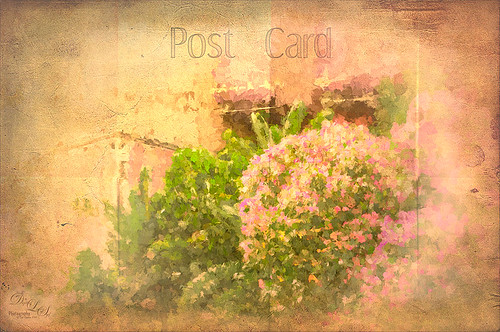
This image was taken at Epcot, Disney World, Florida. This is an example of just trying different effects to get a different look. Recently I have done several blogs on Photoshop plug-ins that give some wonderful results. Here is another example of using them together. First in Lightroom Seim’s (see sidebar for website link) Super Her X and Warm Classic presets were applied along with Delnea’s Backlight Vertical Left preset. Topaz (see sidebar for website link) Star Effect was applied and it place bright dots along the flowers to emphasize this area (Started with Jewel Sparkle I preset with these settings: Star Settings Combined, Burst Star, and Brush Size 99; Main Adjustments Threshold 0.13, Luminance 0.51, Size 0.50, Angle 70.40, Number of Points 8, and Spread 0.07; Color Adjustments Sat 0.64, Temp 0.54, Rainbow Strength 0.25, Rainbow Freq 0; and Additional Effects Secondary Points 0.01, Glow 0.26, and Ring Flare 0.) On a duplicated layer Nik’s Analog Efex Pro 2 was applied. (These are the settings for the preset I created: a Vintage Camera preset and the Basic Adjustments Detail Extraction 17%, Brightness 35%, Contrast -21% and Saturation 19%; Bokeh at 88% blur strength and Boost Highlights at 84%; Dirt & Scratches at 82% strength and 1st row/2nd texture; Photo Plate at 20% strength using 2nd row/2nd over texture; Lens Vignette set to Amount 37%, Rectangle and Size 77%; Film Type Warm 2nd line/2nd over with center Neutral to Faded, 52% strength, Grain per pixel 429 and center Soft to Hard; and Levels & Curves dragging RGB curve down in midtones were added.) Topaz Impression was applied. (Monet II preset: Paint Opacity 1.00, Stroke Width 0.14; Color Overall Lightness 0, Yellow Sat -0.50, Green Sat 0.27, and Magenta Sat 0.39; Lighting Light Direction x 0.84 and y 0.34.) On a duplicate layer Smart Photo Editor was applied. (Settings applied were: Folded paper texture by Andrew 2012 – set Master fade back just a little bit; next Vignette fade edges by Tony – Reduce Fade set a little left of center, Brightness 1.015, Contrast -0.247, Linear Contrast -0.258, and Radius 1757.) A New Layer was added and some clean up was done. Next Viveza 2 was applied with emphasis on the focal point. A Curves Adjustment Layer was added to add contrast back into the image. The last step added Shadowhouse Creations vintage postcard texture set to Hard Light at 85% layer opacity. A layer mask was added and the center was painted out so the image was not too dark in the focal point area. Whew! But overall it does have a distinct look and I really like it……Digital Lady Syd

Fall Mums

Image of some miniature mums on texture
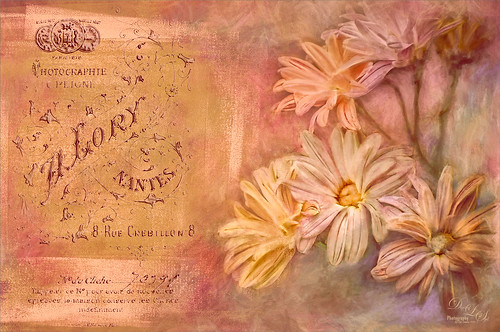
Just enjoyed playing in Photoshop with this image. Basically I put this image into Topaz (see sidebar for website link) Detail 3 to sharpen, added French Kiss (see sidebar for website link) Artiste Avril, a Feather Texture I created and set to 24%, Topaz Impression using Oil Glaze by Blake Rudis, than added two French Kiss Brayered Blocks, French Kiss Photo Studio2 Lory overlay with a Bevel and Emboss  and Color Overlay layer styles, next a Curves Adjustments Layer, a New Layer with clean up painting, Nik Viveza 2 to selectively color and sharpen, another Curves Adjustment Layer, and another New Layer and paint clean up. This turned out to be quite a little project, but lots of fun to do! That’s why I love Photoshop!…..Digital Lady Syd

Topaz Impression On a Portrait

Modeling image of Aliona with painterly effect
Wish I had taken this beautiful modeling image of my daughter-in-law, but at least I have it to try some nice post-processing effects on. In Lightroom the eyes were sharpened using the Adjustment Brush set to Clarity and Sharpen. Then in Photoshop I followed this nice little video that Thomas Churchwell shared called Topaz Impression Tutorial to get this final result. On a New Layer some clean up was done first. Then applied Topaz (see sidebar for website link) Impression and the Iris Blur filter in Photoshop. Used Shadowhouse Creations Old Photo 2 set to Overlay blend mode to add the little framing detail around the side and upper edges by adding a black mask and just painting back the areas I wanted. Then applied the Flypaper Raw Linen texture set to Overlay at 43% layer opacity. That was it – it does have a very old-fashioned feel to it!…..Digital Lady Syd

Digital Lady Syd Related Blogs:
Digital Lady Syd Speaks Out on Topaz Impression
Some Epcot Fun! (and More Impression)

Digital Lady Syd’s Rule No. 12: Try a New Tutorial and Experiment

Image of two pears painted in Corel Painter
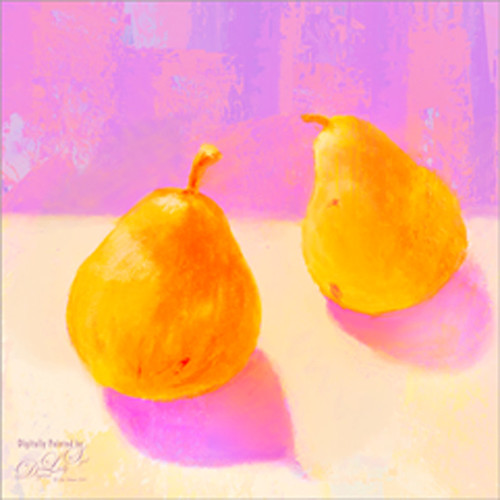
I have not done a Digital Lady Syd Rules (okay it s not Photoshop but the concept fits when doing Photoshop also) in a while. This image is just of some pears I sketched and painted in Corel Painter – I was informed that this is something first graders do but it was fun to relearn how to draw pears. I followed a tutorial posted at Peachpit Press by Corel Master Cher Threinen-Pendarvis called Blending and Feathering with Pastels in Painter-2015 – and once again I feel a bit like I was doing a Bob Ross painting. On the other hand, I learned a couple things while doing her tutorial: One is that I can sketch a little bit, and two is that I really like pastel brushes! So this was definitely worth my time to try. I finished up by using one of Melissa Gallo’s beautiful textures called August Copper, and I could not have done this tutorial justice if I had not taken her workshop and studio course on Painter. This was so much fun and I got a couple new brushes to play with at the same time!…..Digital Lady Syd

Just a Frame Flower

Image of a flower in a block frame
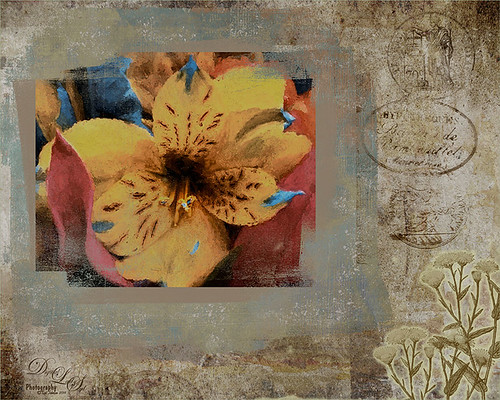
Another example of photo masks that French Kiss Collections (see sidebar for website link) sells.  These block masks really make for interesting results when stacked and different textures and colors are added. I like the vintage feel of this image. Check out my Fun Photoshop Blog called How To Use a Photo Frame Mask  to learn more about how to apply this cool effect. Since the process is pretty much the same as in my other blog, I will not bore you with the steps. The flowers were processed using Topaz (see sidebar for website link) Impression using a preset I created from Watercolor II. Two of French Kiss’s Brayered Blocks were used, one with a texture clipped to it and the other with a Pattern Fill Adjustment Layer clipped to it. Then just an old stamp effect and flowers were added. Not too difficult and the results are really unique!…..Digital Lady Syd

Hanging With the Gondolas!

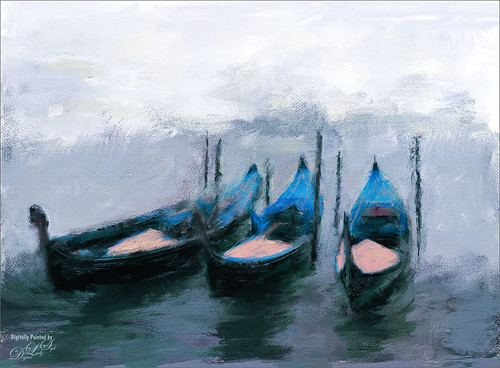
Painted image of some gondolas
Not sure where I got this stock photo image, but thought I would use this one while learning to paint with Corel Painter and Painted Textures wonderful videos. I can see it takes a lot of practice to get good at this. Not too much to this one – just painted on the Canvas and used the Clone Source Panel to do the underpainting. Used several of Melissa’s different brushes and finished up by applying Topaz (see sidebar for website link) ReStyle. The Cold Frosty Day preset was used. Back in Photoshop her Impasto Texture 2 texture was applied and set to Overlay blend mode at 68% layer opacity. That was about it. I am really getting into the beautiful paint effects Painter has. Until I get creative again…..Digital Lady Syd