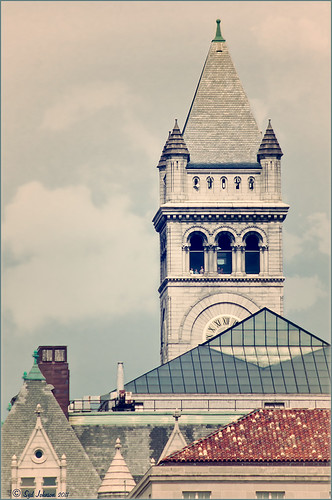
This is an older image I did several years ago of some building roofs on The Mall in Washington, DC. On a couple extra layers, Obsidian Dawn clouds were painted in the sky. On a stamped layer (CTRL+ALT+SHIFT+E) Nik Color Efex Pro was opened and Film Efex Vintage (Film Type 15), Pro Contrast (just Dynamic Contrast 28%), and Darken/Lighten Center filters. The last step was a Curves Adjustment Layer to increase contrast. Pretty simple for what I consider a nice High Key image with interesting architectural lines…..Digital Lady Syd

Latest
Only in Florida!
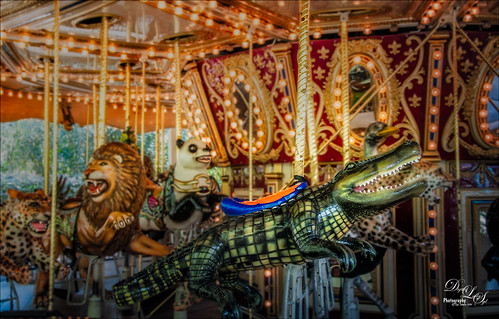
Had to take this image of the alligator that can be ridden on the Jacksonville Zoo‘s Merry-Go-Round in Florida. I had to take it quick when it was stopped. I could not get the angle I wanted, but the lion and polar bear look kind of nice behind my main subject, so I think it actually looks like a zoo carousel. This took a lot more work than I wanted since in the original image it looks like the alligator is swallowing a jaguar whole with an ostrich head coming out of the top of his head. What a disaster! About all I could do was to blur the background with a Gaussian Blur set to Radius of 5 and paint the foreground back in. Got the nice color effect using Nik Color Efex Pro 4 using Darken/Lighten Center, Glamour Glow, and Pro Contrast filters. Had to do some selective dodging and burning using layers set to Overlay blend mode and using black and white brushes set to 12% brush opacity. Last step was using Nik Viveza 2 to direct attention to his head. I really wanted to ride that alligator!…..Digital Lady Syd
Here’s Looking at You!
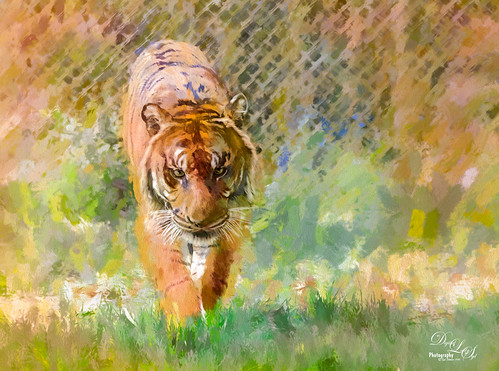
This beautiful tiger decided to saunter towards a window I was standing behind, so I had to take a few shots at the Jacksonville Zoo. This time I did not hand paint him, although it would have been fun to paint, but instead added several Topaz (see sidebar for website link) filters to get this effect. First used Detail 3 to sharpen image all over. Then on a stamped layer used Topaz Impression and applied and my SJ WC like effect on bkgds preset with just some color adjustments (see settings below). Used a 50% Gray Fill Layer set to Overlay blend mode to dodge and burn in some details to separate his ears and eyes from the colors behind. On another stamped layer (CTRL+ALT+SHIFT+E), Lens Effects’ Neutral Density filter was used to darken foreground slightly, Reflector filter Gold Left preset to lighten his side a little, and a light orange Vignette. Did a couple clean up layers and a Camera Raw filter in PS to soften the background. I really like the way he looks!…..Digital Lady Syd
Preset settings for Topaz Impression: Stroke: Brush Type 04, Brush Size 0.91, Paint Volume 0.42, Paint Opacity 0.87, Stroke Rotation 0, Stroke Color Variation 0, Stroke Width 0.33, Stroke Length 0.89, Spill 0.23, Smudge 0.26, and Coverage 1.00; Color: Overall Hue 0.15, St -0.20, and Lightness 0.06; Red Sat 0.47 and Lightness 0.14; Orange Sat 0.60 and Lightness -0.42; Yellow Sat -0.33 and Lightness 0.13; Green Sat 0.20 and Lightness -0.32; and Blue Sat 0.36; Lighting: Brightness -0.04, Contrast 0.39, and Light Direction x0.33 and y0.06; and Texture: Strength 0.78, Size 0.30, Canvas IV, Background Type Solid, and Background #d38967 (soft melon color).
The Mighty Jaguar
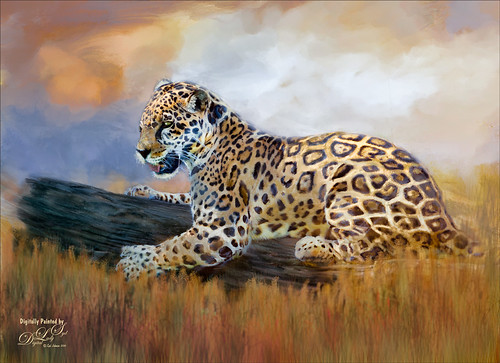
Took this image at the Jacksonville Zoo a couple days ago – the original is totally unremarkable and I did not think it would turn out nice at all. Just thought it would be a good challenge to see what I could do with it. I will actually post some much better pictures of these beautiful cats later. Normally I would give you step-by-step, but this was a pretty heavy workflow so I will just tell you what all it took. The biggest problem was the chain-length fence that went through his body. Since I could not get close enough to the fence to get rid of the distortion, I had to paint it away. The fence was selected and a Curves Adjustment Layer was used to reduce the effect. Then three more Curves Adjustment Layers before I was ready to paint him. Topaz (see sidebar for website link) Adjust using French Countryside (my favorite) preset and several slider adjustments to get the color in the cat that I liked. Then I went into Corel Painter and painted a background that matched his colors. Put the background on top of the cat and painted the cat in with a layer mask. Next painted using 7 layers and both mixers and regular brushes (my SJ Pastel 3 painting brush mainly – do a search at my Fun Photoshop Blog for settings). Used Nik Viveza 2 to emphasize his face. Used Blur Gallery to soften the foreground, Liquify Filter to make his eye a little larger, Topaz Lens Effects for some special reflector and graduated filter effects, and Camera Raw Filter to bring out the orange effect just a bit more. Last step, Topaz Restyle using the Tawny Tint. That about did it but it was a pretty big process. I just love painting the big cats!…..Digital Lady Syd
An Old Victorian House
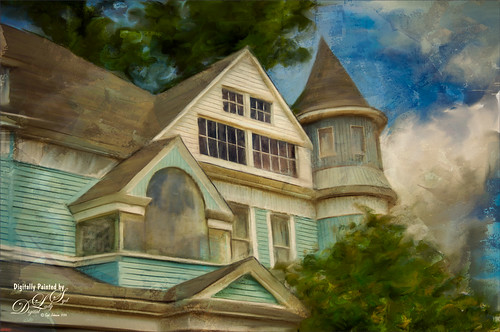
I recently bought a set of videos from Udemy called “Turn Photographs Into Digital Paintings Using Photoshop” by Lori Jill. If you watch their sales, you can get all kinds of videos on photography for a very reasonable amount. The above is my first image created following her instructions – she instructs on how to create Mixer (cloner) brushes to get effects you like. She also uses the Photoshop action called Mixer Brush Cloning Paint Setup. This appears to be very similar to the original Dr. Brown’s Painting Assistant Extension for CS5 and CS6. Anyway, I was very pleased with my first attempt. I also used one of Melissa Gallo’s beautiful textures, Pilgrims Journey, twice to get the vintage feel to the strokes. I still have a few lessons to go, so hopefully I will post a new image soon using this technique……Digital Lady Syd
Digital Lady Syd’s Related Blogs:
Dr. Brown’s Painting Assistant Panel for CS6 and CS5!
Jack Davis Painting Action Really Works!
Desolate Roller Coaster
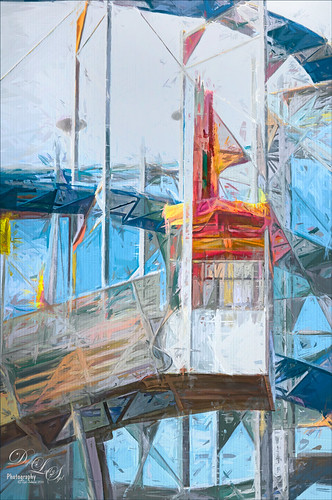
I really enjoyed doing this image – lots of structure and texture in this coaster image. Just Basic slider adjustments in Lightroom before opening up in Photoshop and duplicating the layer. Topaz (see sidebar for website link) Simplify was opened and the BuzSim preset was applied with a couple of changes (Simplify Size 0.76, Feature Boost 1, and Structure 2.38). This caused lots of webbing up in the track that really looked good – usually don’t but it made this picture more interesting. This layer was duplicated and Topaz Impression was added. I created a new preset to get this effect called SJ Illustrative Painting Effect (SJ Illustrative Painting Effect preset – Settings: Brush Type 01, Brush Size 0.70, Paint Volume 0.42, Paint Opacity 0.72, Stroke Rotation 0, Stroke Color Variation 0, Stroke Width -0.65, Stroke Length 0.20, Spill 0.48, Smudge 0 and Coverate 1.00; Color only – Red Sat 0.38 and Lightness 0.10; Orange Sat 0.75, Yellow Sat 0.68, Aqua Hue -0.15, Sat -0.47, and Litness -0.60; and Blue Hue 0.10, Sat -0.34, and Lightness 0.41; Lighting 0.25, Contrast 0.04, Vignette 0.18, Vignette Transition 0.34, Vignette Center x: 0.32 and y: -0.03; and Light Direction x: 0.59 and y: -0.01; and Texture Metal Sheet Strength 0.60, Size 0, Background Type solid white, and Background white.) A layer mask was added to remove some of the paint in areas that did not look quite right using a low opacity and flow black brush. The last step was to use Nik Viveza 2 to emphasize the focal point where the loading area is. That was it – just liked the sort of grungy painterly look that resulted. Lots of fun here!…..Digital Lady Syd
A Wintry Scene
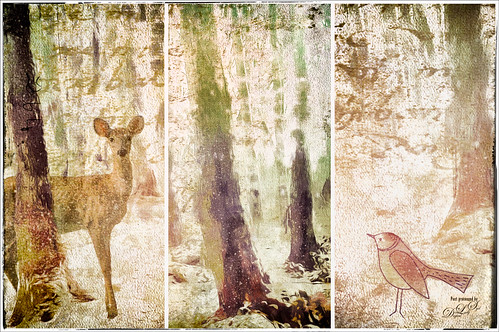
Just having some more fun here using a free wintry tree scene from stokpic and adding some of my own elements. In Lightroom Trey’s Free Packs A Marshmellow Happysmell preset was used. Then in Photoshop Topaz (see sidebar for website link) Impression was applied using an abstract effect. Added the deer, a bird and some snow. 2 Lil’ Owls (see sidebar for website link) Freebie Set 3 texture was added for the beautiful lettering in the background. Her Starry Night 5 was added on top and set to Overlay blend mode at 50% layer opacity. Next Nik Analog Efex Pro 2 was opened and the Multilens was used to get the three frames – really a fun effect! And there you have it, my wintry scene!…..Digital Lady Syd
A Windy Beach!
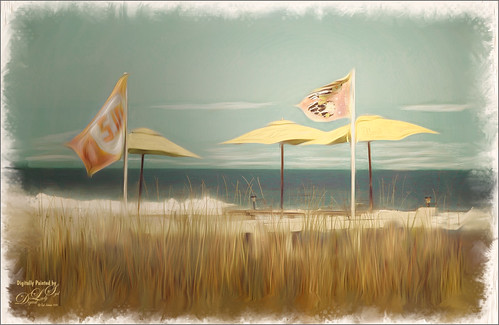
One of my favorite local place, beautiful Flagler Beach on the Atlantic Ocean in Florida, shows a pretty windy day. This image was one I was experimenting on and came up with this effect. The Oil Paint Filter was used on the image and on a layer mask the sky was painted out so the filters only affected the foreground, flags and umbrellas. The original image had red umbrellas and a much brighter blue sky. I wanted to use softer colors so the color palette was changed in Topaz (see sidebar for website link) ReStyle that used the tones from another image. (See How To Use a Topaz ReStyle Trick for Improving Your Image showing which image colors were used here.) On a stamped layer Nik Color Efex Pro 4 was used to further soften and tweak the colors. On several New Layers the mixers were used to create the edges and Nik Viveza 2 was used to add a little focal point emphasis. I really love the final colors!…..Digital Lady Syd
Little White Convertible
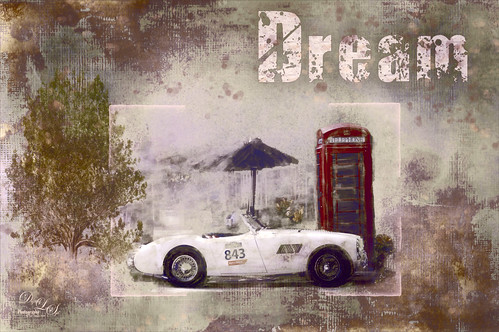
This is just a pretty little white car next to an old British Phone Booth in downtown Savannah, Georgia. Don’t know why I took the picture, but the car was so cool looking. This image really need to have a lot of background clutter removed, so one of my favorite texture people, 2 Lil’ Owls (see sidebar for website link) had a texture from their Mosiac Set called darcy. I also created an Oak Tree in Photoshop using the Filter -> Render -> Trees command. The Dream lettering is from Kim Klassen’s Dreamy Brush set. On layers above some paint splatters were added. The last step was to open a stamped layer (CTRL+ALT+SHIFT+E) and applied Topaz (see sidebar for website link) ReStyle, one of my favorite Photoshop plug-ins! Wish I owned that car!…..Digital Lady Syd
Putting Your Best Side Forward
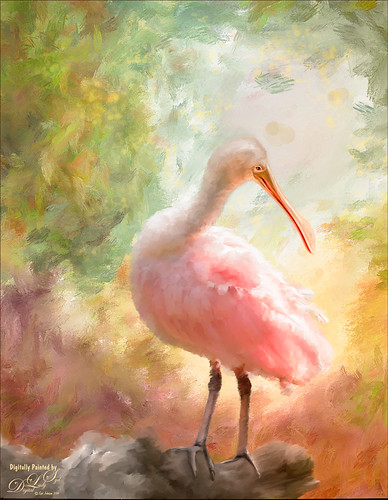
This lovely Roseate Spoonbill is totally enjoying a beautiful morning. This type of bird always seems to have a happy expression on their face – totally a joy to watch them. This image was taken at my favorite bird place, the St. Augustine Alligator Farm. Not much new with the painting workflow – just a painted background I did in Corel Painter and some Mixer brushes and Regular brushes in Photoshop. As you know I am a big fan of Fay Sirkis’s Photoshop Mixer brushes and this image used her Palette Knife Tap n Blend brush to get the fluffy effect on the body. The only place I know where her brushes are available is over at KelbyOne, and sometimes at Photoshop World when she is presenting. The light effect was created using Topaz (see sidebar for website link) Lens Effects’ Reflector filter set to Gold Right preset – gives a soft subtle light effect. Used Nik Viveza 2 to bring the face in focus. Totally enjoyed painting this beautiful bird!…..Digital Lady Syd
Topaz Labs AI Gigapixel
Check out AI Gigapixel stand-alone software for upsizing your images. It’s incredible! And it can now be used as a plugin when in Photoshop. Also Topaz Labs Photo AI has some great sharpening and denoise tools along with Photo Video AI.

Luminar Neo
Click here to visit Luminar for more info and check out their new AI Filters.

GRUT BRUSHES – Photoshop Brushes for Digital Artists
Click here to visit GrutBrushes.com
And be sure to check out his Free Brush of the Week and Brush Sampler! These are the best brushes you can find!

Topaz Studio 2 and Legacy Topaz Labs Filters
Unfortunately Topaz Studio 2 and other Topaz Lab filters are no longer available for sale as of 2020. If you had bought these filters and would like to put them back on, here is a link to the Legacy Apps where they can be downloaded again. Below is an example of the wonderful Remix AI Filter from Studio 2. The wonderful Impression still works fine in Photoshop right now along with Adjust (all versions), ReStyle, and even PhotoFXLab!

On1 Photo Raw
Wonderful software to use as a substitute for or plugin with Photoshop. Many great filter effects and lots of AI capabilities!
