
Anything Photoshop or Photography

Latest

More Adobe Photoshop Firefly AI Fun!

AI image of a lady in the tropics

Practicing using Adobe Firefly AI so that it does not overrun my creative expression. Image was created by drawing the lady’s head on a layer using a David Belliveau curly hair brush and one of Grut‘s pencil brushes for the skin and details on the face. Duplicated this layer and turned off the original for backup. On this layer the Contextual Taskbar was used to Generate the rest of the image using the prompt “Watercolor background of beach and add female body to woman” showing different poses with a white bathing suit on the body connected to her head. Pretty cool! The chosen variation was turned into a new layer (see my Fun Photoshop Blog called Placing Any Photoshop Generative Fill Variation on a Layer Easily to do this) and the other variations layer was turned off in case other parts would be needed later. Placed a New Layer under the newly created body variation layer (turned off at this point), a different AI background was generated the same way using the prompt: “Beach background in watercolor with pastel colors.” After selecting this new background variation and turning it into a regular layer, the original body AI layer was turned on above. With a layer mask, its background was painted out where not needed.

Painting Details: On separate layers, the face drawing was painted like I do with my Selfie AI images. The highlights and shadows on the body were created using Sam Peterson’s technique. (See my Fun Photoshop A Few Photoshop and Lightroom Tips and Tricks Blog-see #2 for this.) The skirt effect was created by following Carol Tayler’s Silk Texture short video for net brush settings, and the gold Scatter Brush added on top of the skirt was from Jessica Johnson’s video Creating Custom Photoshop Pattern Brushes (and Layer Styles) Inspired by High Couture: Rahul Mishra Muse on Behance. Lots of clean up especially on the body and several Adjustment Layers were added at this point – AI still is not perfect in Photoshop! Though I did enjoy trying out a different way to use it …..Digital Lady Syd

Native American Woman

AI generated sketch by Grok 3 and digitally painted by me

Just had a lot of fun getting back to digitally painting portraits. Tried out the Grok 3 AI image generator and used as a prompt “Sketch of a Native American Portrait of a Younger Woman with jewelry.” Not exactly sure what kind of hocus-pocus occurred, but I was able to get a sketch somewhat similar to the one above. Lots was changed, and I noticed the exact facial proportions are not totally perfect, but overall it is a very pleasing image. Two backgrounds were used – one was my own Jaguar Texture and the other one was Melissa Gallo’s Summer Silk texture (not sure it is still available). Wanted an overall warm feeling to the image so the textures provided this. All the brushes used were ones discussed in numerous AI portrait images I painted in other blog entries – just in this and my Fun Photoshop Blog for more on this. Only the earrings and necklace had one of Jessica Johnson‘s lovely gold Pattern Stamp Brushes called Gold Leopard Exclusive from one of her Luxe sets. I decided I wanted the hair to look a little unkempt instead of perfect like a model. …… Digital Lady Syd

The Rose

Image of a pink rose

Just one of the beautiful blooms in my recent Mother’s Day flowers. Major filter applied to the image was the wonderful, but now defunct, Lucis Pro. Always gives a unique feeling to images. Also painted using my SJ Pastel 3 brush (that I have used for years – see How to Create my Favorite Brush for settings if you are interested.) Also used a Smudge Brush created a long time ago after watching Robert Ardell watercolor videos. The settings I used are very simple: Small soft round brush like 16 pixels, Spacing 25%, and in Options Bar set Strength to 81% – adjust to fit what you need. I usually have Sample All Layers checked also. It is a very handy Smudge Brush for small places. Robert’s older YouTube videos are still really good – see Watercolor Painting In Photoshop – Blenders and Erasers – Video 5 where he discusses the Smudge Brush. The last step added a Color Lookup Adjustment Layer set to 49% layer opacity (used an On1-Summertime1). That was it and no AI needed! Refreshing that a flower can be beautiful without having to fake it!…..Digital Lady Syd

The Lioness

Drawing of a Lioness

This drawing is one created by following the great Disney drawer Aaron Blaise’s tutorial on creating Lion Heads in his How to Draw Big Cats set. He provides a head skull drawing to use as a template to draw the actual structure of the head for eye, jaw, cheek, and ear placement. Fabulous technique! He also gives lots of tips about the actual animal and its traits. The background was created using three different textures: the bottom one was just a middle gray color; the one on top was one I had previously created in his Wildlife Painting Bundle – Lion Painting Tutorial (87% layer opacity); and the top used one of the free Japanese textures (to convert to pattern go to Edit -> Define a Pattern) from Resource Boy at DealJumbo (Pat 268 rev at 10.23 Angle and 297% Scale) – it was converted into a pattern. To get the pretty orange and turquoise colors in the background a Color Lookup Adjustment Layer using SparkleStock Clover 3DLUT file SS Sham Rocker 02.cube (link for the free ones but can’t fine direct line to the free Clover LUTs) with the Table Order set to RGB (was set to BGR), Lighter Color blend mode, and Layer Opacity of 88%. A couple other adjustment layers and a Camera Raw filter for a slight vignette were added to finish up. I totally love Aaron’s drawing tutorials and all the great tips he gives you!…..Digital Lady Syd

The Basketball Guy

Drawing of a basketball player

Just had fun painting this guy since I have been watching so much college basketball recently. The background is of Mackey Arena at Purdue University – my alma mater – used Alien Skin’s Snap Art 4 with a Pastel preset on this. Decided to give him a light beard and mustache by using David Belliveau’s beard brush. The eye iris’s were created using Kristina Sherk’s striations brush (not sure when I got it) and Grut’s OI Chip Gimble brush for the speckles (watch for his free brush of the week-some great brushes at this site). The chalk brushes used are in most of my recent drawings for the skin and uniform. Just followed my regular workflow of doing a rough drawing, then a refined drawing, before adding color below. Next details, shadows and highlights were added…….Digital Lady Syd

Dancing Maiden

Grok AI image of a young maiden dancing

Had a lot of fun just being creative with this one. First ran a Grok AI Image Generator character using the prompt “create vector black and white full length sketch of a young lady dancing gracefully” to get the pretty maiden dancing. Then decided to put her in a free file called Scribble Portrait Effect by Deeezy. Also downloaded Deal Jumbo’s 500 Free Photoshop Brushes and added a couple to the image along with the scribble border (use Free Transform to get the brush stroke to fit the image). An old Melissa Gallo impasto texture was added at the bottom. After making all the changes, put a stamped image into an old filter by Topaz called ReStyle to get the pretty frozen look. Added in some snow and free text also from Deeezy is Fladeo inline grunge. That was it!….Digital Lady Syd

Guarding the House

Black and white image of a Viking Statue at Epcot

This rather boring and cluttered looking image of this Viking Soldier at Norway Pavilion in Epcot Center in Disney World definitely looks more interesting as a black and white. Now that Lightroom/ACR can do so much, it is easy to isolate the subject to stand out. For a good explanation on how to do this, check Serge Ramelli’s YouTube video called Do Black and White in Lightroom like a Pro. In Photoshop Topaz Sharpen was used and a little dodge and burning to get the final result. Very simple workflow and easy to do!….Digital Lady Syd

Contemplating Life

Digital drawing and painting of a lad

Still using the Chalk Brush to paint. And Mark English does always inspire me even though my drawing does not look like his work. This image used a Melissa Gallo Pastel Texture for the background. A Pattern Fill Adjustment Layer was applied to create the shirt patterning. My old version of Viveza 2 was added to pop the colors (still my favorite overall filter). PS’s Camera Raw Filter was used to brighten up his face. Enjoying making these little portrait images!….Digital Lady Syd

Looking Forward

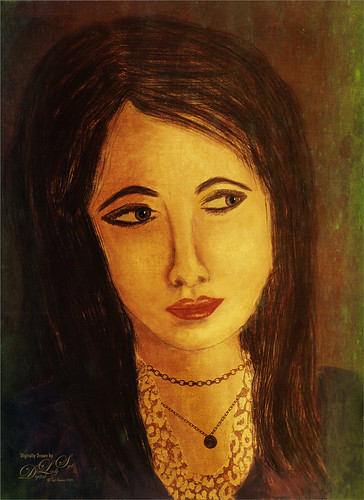
Digital drawing and painting of a portrait of young lady look sideways

No AI – just drawing and painting. Another Mark English inspired image. Love using a Chalk Brush to paint these little portrait images. This one used the same brushes as in my short Tidbits Blog called How I Am Feeling ATM. Used one of my older Melissa Gallo textures – she used to sell the most beautiful textures and this is one of them. The netting and detail on the dress are all brushes by Jessica Johnson (need to get her E-mail as she gives away some really fun brushes). And to get this nice bright color feel, a little tip I learned using the Photo Filter Adjustment Layer. Try setting to Warming Filter 85 to start with and a Density of 85 – change layer blend mode to Multiply and reduce the layer opacity to taste. Instead for this image, the Filter was set to Red, Density to 52 with Preserve Luminosity on, Linear Burn blend mode, and 48% opacity. Can really adjust as you wish! ….. Digital Lady Syd

Flats in Minsk

Image of various types of flats in Minsk, Belarus

This older image had a big tree trunk in the middle of it. Now that Photoshop has improved so much, it was easily removed and the buildings were blended together beautifully. I actually did this image with pastel oranges and yellows and a bright blue sky which looked pretty good – this is how the original appeared. But I decided to give it a more industrial look using the now defunct filters Lucis Pro and Topaz ReStyle’s Rum Purple preset. Did a Sky Replacement using the PS Night Skies Package1-001 by Clifford Mervil. Added a Color Lookup Adjustment Layer using On1 Moody Clouds preset (if you own On1, you probably have this one – they do work in PS). Otherwise lots of clean up. I love the fact that unusable images from a while back can now be saved! ….Digital Lady Syd

