Anything Photoshop or Photography

Latest

Think Pink! Rally for the Cure Pink Rose

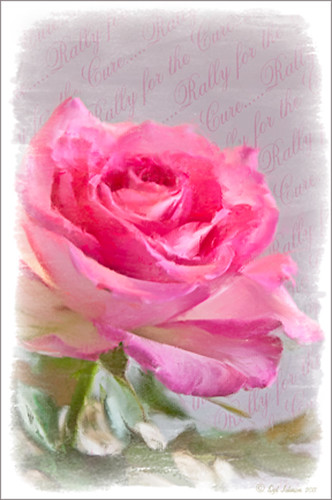
Since October is Breast Cancer Awareness month in the United States, last week I participated in a “Rally for the Cure” golf tournament. This beautiful pink rose came from this event. I am really pleased with the results for the above image that used the new Mixer Brush panel from one of my favorite Photoshop gurus, Russell Brown. Hover over the image to see the before photograph used to create this painterly effect.

One of the best new features in Adobe Photoshop CS5 are the Mixer  Brushes. (See my Fun Photoshop Blog “Adobe Photoshop CS5’s Mixer Brushes” where I talk about how to use and create your own Mixer Brushes.) Dr. Brown created a new panel to load into Photoshop called the Painting Assistant that makes the whole painter process much simpler. I was able to create the above in very little time using this new panel. Basically it contains six button steps with very clear instructions listed – just click each button after you finish each step. This is pretty ingenious in my mind, but then that is what Dr. Brown is known for! To download the panel and a video, click here and scroll down to the 6th item. A text layer using the “Old Script” font was created and set on a slant using Free Transform – then a layer mask was used to paint out the lettering from the rose.

Give this technique a try, especially if you like the painterly look. It is very easy to do since the Mixer Brushes are already set up for your use. And if you get a chance to participate in a “Rally for the Cure” event, please do – they are always lots of fun and the proceeds could not go to a better cause!…..Digital Lady Syd

Where Am I?

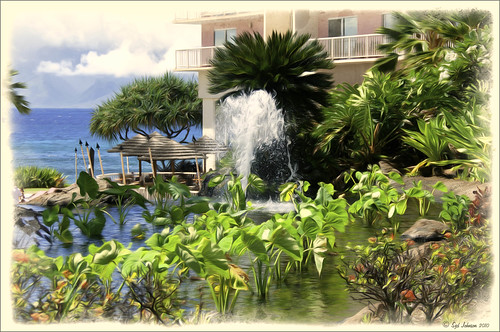
What I think turned out kind of nice is the application of the free Adobe Pixel Bender plug-in using the favorite Oil Paint effect. It is very easy to figure out the 5 sliders. I did this awhile ago and thought it shows one of my best results. A layer mask was used to remove the effect from certain parts of the image.

Okay – guess you could tell this was in a beautiful tropical place. This is an image of the Ka’anapali Beach Club in Maui, Hawaii.

Go ahead and download Pixel Bender if you have not tried it already and take a whirl at something quite different and fun to do!…..Digital Lady Syd.

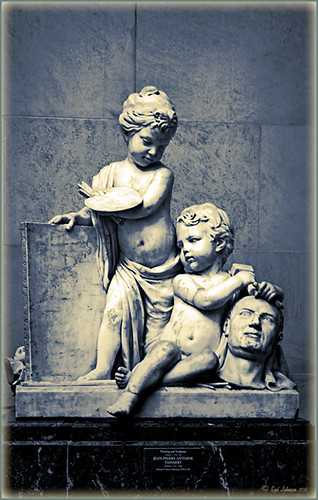
The Art Corner: Painting and Sculpture by Tassaert

The above piece of artwork is found in the East Sculpture Hall of the National Gallery of Art in Washington, DC, and was sculpted in 1774-1778 in Paris by Jean-Pierre-Antoine Tassaert, a lesser-know Flemish sculptor who lived from 1727 to 1788. I found this piece to be very charming once you understand what the head in the artwork represents. The children are so detailed and sweet looking.  From the National Gallery of Art’s website: “With Clodion’s Poetry and Music (also located in the same area of the Gallery), this allegory was one of four that were meant to bring to life the abstract concepts of the arts and sciences. They were commissioned by Louis XV’s finance minister Abbé (Joseph-Marie) Terray for his elaborate Paris residence (to decorate the dining room of his Parisian mansion). The subject was an appropriate one for Terray, since he also served briefly as the director of the king’s buildings with overall responsibility for the state of the arts in France. Painting, sculpture, music, and literature are celebrated by the young cupidlike figures in the two works here; other children carved by two other artists represented geometry, geography, architecture, and astronomy.” The last two pieces, Geometry and Architecture by Jean-Jacques Caffieri created in 1776 and Astronomy and Geometry by Felix Lecomte created in 1778 are located at the National Trust, Waddesdon Manor, Buckinghamshire, England. I think Tassaert’s sculpture is the best of the four in the series.

I processed this piece in the Photoshop plug-in Topaz’s Black and White Effects (see sidebar for link) using the Warm Tone I preset as a starting point, then adding a Quad Tone Effect (Color 1 Region was set to black with slider set to 0.oo, Color 2 Region set to R75/G78/B96 with slider at 142.5; Color 3 Region set to R222/G220/B172 with slider at 228.9 and Color 4 Region set to White with slider at 255.0 – these tones made a very nice soft contrast for this type of image). Some Local Adjustments using the Details and Burn Brushes were used on the sculpture itself. Finally a vignette was added and centered on the children to make them appear spotlighted. Be sure to create a preset if you like the results.

If you get a chance, try to go to one of the two places showing the sculptures discussed. They are very interesting pieces. I did not get an image of Poetry and Music so that is on my list for my next trip to the National Gallery of Art!…..Digital Lady Syd

Colorful Blown Out Look Lightroom and Adobe Camera Raw Preset

While in Hawaii, after taking a lot of beautiful flower images, I created the above effect as a Lightroom preset that I have used many times. It looks especially nice for a calendar image. Hover over image above to see the original.

This preset I call “Colorful Blown Out” and mainly has Basic and Luminance settings. You can download the free Lightroom preset here and the Adobe Camera Raw preset here. For a softer look, try increasing the Recovery slider and the Brightness slider. It is a good starting point for a very nice flower look. For information on where to download the calendar template and how to apply it, see my Photoshop Fun Blog Free Calendar Template for instructions.

Give it a try on other types of images too. Hope you enjoy!…..Digital Lady Syd

Sunny Preset for Topaz Black and White Effects

This image of Camachee Cove Yacht Harbor in St. Augustine, Florida, was adjusted using Topaz Black and White Effects. I wrote a longer blog on trying to achieve this same effect using other plug-ins on my Fun Photoshop Blog “Same Image – Different Plug-ins.” Hover over the image to see original. It took literally two minute to get this effect. There was just one further adjustment made in Photoshop which, unfortunately when adding most plug-ins, there is some noise created. I took the image back into Adobe Camera Raw (see my blog “Edit Layers with ACR Script“) which I prefer over the other Noise Reduction plug-ins. The Luminance was set to +75, Detail +37 and Contrast +48. I was really pleased with the color and how it looks on the water and the sky, especially around the horizon line.  I wanted to share with you how I created this sunny preset in Topaz’s Black and White Effects.

First the Van Dyke Brown Collection was used with the Wenge Dynamic Preset. This gives the correct settings in the Conversion Section on Basic Exposure sliders and the Adaptive Exposure sliders.

In the Finishing Touches Section, Film Grain should be unchecked unless you want some graininess. This image does not use it. Next the Quad Tones needed to be changed for this effect. By clicking on each of the color swatches, the following colors can be changed: Color 1 Region set to R1G1B12 and slider to 9.60; Color 2 Region set to R63 G78 B85 and slider to 95.97; Color 3 Region set to R216G211B129 and slider to 141.2; and Color4 Region set to R255G254B255 and slider set to 237.0. This is the key to the effect and gives the preset the sunny feel.

The Edge Exposure area is optional but the above image used these settings. The Edge Exposure settings should be set to: Top – Edge Size o.26, Edge Exposure (-0.22), and Edge Transition 0.32; Bottom – Edge Size 0.19, Edge Exposure (-0.43), and Edge Transition 0.27; Right and Left set to their defaults since there is no edge on the sides – Edge Size 0.20, Edge Exposure 0.00, and Edge Transition 0.20.

Finally check Transparency and set the Overall Transparency slider to 1.00.

It is important to create a preset now either in My Collection or the individual Effects Presets so it can be reused again and again.

Hope this will give you a chance to try out a new Quad Tone look (see Tidbits Blog “Quad Tones in Topaz Black and White Effects Plug-in“) – I plan on making some more presets in this program soon. Try out this look and see if you like it as much as I do…..Digital Lady Syd

“Perfect” Perfect Layers!

I keep finding excuses to use Perfect Layers, this fairly new plug-in for Lightroom, by OnOne Software. I really did not think that I would use it that much, but then I start playing around with an image, and there I go, back into Perfect Layers! It is so easy to try out the effects of my favorite textures on my images, and it is easy to stack virtual copies (and other textures or images – the layers can be dragged up or down in the stack) to get a totally unexpected look.


For this image of the London Eye, I cropped the original image and then created a Lomographic Preset (follow this very simple video from Michael Rather at the Digital Photography Connection on “Creating a Lomography Image) on a Virtual Copy of the cropped image. Select both the original and virtual copy images and open them up in Perfect Layers to create two layers stacked. A new image, Shadowhouse Creations Oil Painting-5 texture, was then imported and stacked as a layer on top and set to Hard Light. The top two layer’s opacity was adjusted to taste, and voila – a pretty nice texturized image! (By the way, I keep using this set of textures all the time – gives a real painterly canvas look to the image.) Here is a link to Lomo Presets from Matt Kloskowski’s Lightroom Killer Tips that have similar settings but a slightly different color and look. I have actually seen presets with a blue tint instead of green for this effect.

Definitely give this plug-in a try if you have Lightroom. I believe there is room for a lot of creativity and it is much quicker than going into Photoshop to see what results you are getting. Have fun creating!…..Digital Lady Syd

Quad Tones in Topaz Black and White Effects Plug-in

This image is of an old cannon on the grounds of the Historic Fairfax County Courthouse in Virginia. I do love NIK’s new Color Efex Pro 4 plug-in, but I keep going back to Topaz’s new Black and White Effects plug-in. (Hover over image to see original shot.)

The Topaz Black and White Effects preset I created gives a really nice sunny vintage feel and I think it is great for that historic look. To create the preset, select the Van Dyke Brown Collection Effect and Chamoisee Cyan preset as a starting point. The trick to getting this look is to set up in Finishing Touches the Quad Tones using these settings:  Color 1 Region (R1 G1 B12) – 15.08; Color 2 Region (R63 G78 B85) – 143.9; Color 3 Region (R216 G211 B129) – 227.5; and Color 4 Region (R255 G254 B237) – 225.0. The sliders will need to be adjusted depending upon the image used. The Transparency setting was set to 1.00. For this image a small light Edge was added.  Also, I was able to brush away the distortion over the back part of the left wheel using the Burn tool with a large brush and lightly clicking a few times, then using a smaller brush to run over the details just a bit. It totally disappeared! These brushes work wonders! To bring out the cannon a little more, back in Photoshop the image was sharpened using a High Pass Filter set to 9.1 Radius, a black mask was added to cover up the effect, and then by painting just the cannon on the mask, only it becomes sharp.

I really like the Quad Tone effect in this plug-in. Topaz has created a very nice video on how to use this section called “Quick Tip – Quad Toning Explored.”  This may be the key to why it is hard to reproduce this look in other plug-ins.

For more information on this plug-in, see these related posts:

Fun Photoshop Blog: “Topaz B&W Effects Plug-In-A Real Winner!
Tidbits Blog: “Topaz B&W Effects vs. Nik’s Silver Efex Pro
Tidbits Blog: “Just Another Topaz Black and White Effect Example

The New Film Efex-Vintage Filter From NIK CEP 4

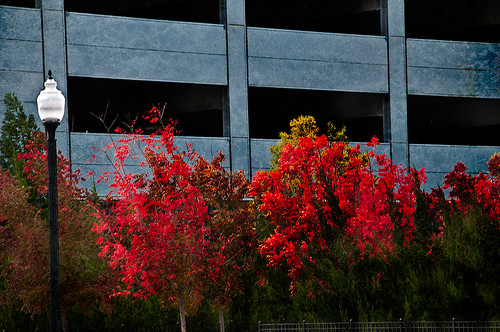
I love this image – the clouds reflecting in this building on I-4 in Orlando were beautiful! Hover over image to see original image. The stack contains these filter effects: Darken/Lighten Center, Brilliance/Warmth, Tonal Contrast, Image Borders, Dark Contrasts, and Film Efex: Vintage (another one of the new filters that has so many different film types that it is hard to choose one). Below is what the Film Efex: Vintage screen looks like to give you an idea of how many choices you have just for this one new filter.

In this NIK interface image, you can see how all the filter effects stack. For just this filter there are 29 film types to choose from – the one showing is Type 17 but I actually ended up using Type 11. There are so many sliders to adjust to get just the look you want. (In case you cannot read them, from top to bottom they are: Saturation, Warmth, Vignette, Brightness, Grain per Pixel, Film Strength, Film Type (drop down list) and Opacity. The Opacity slider at the bottom will do a final effect amount so the image does not look overdone. Below is another example of what a nice effect this filter will give. Only this filter with Film Type 16 was applied and it brought out the texture of the wall very nicely.

Just using this one filter and trying out different effects will be a lot of fun! Definitely give this filter a second look – much more than it appears at first glance!…..Digital Lady Syd

PS:  Check out my Fun Photoshop Blog “NIK Color Efex Pro – Digital Lady Syd’s Review” and my Tidbit Blog “NIK Color Efex Pro 4 – First Try!” for more information on this great plug-in from NIK.

Tree Brushes and a Little Grunge

Having some Lightroom and Photoshop CS5 interface problems today so I am just going to post a little more tree fun I had a few days ago. I guess with the Fall coming upon us, I think about the trees losing their leaves and winter around the corner.

Both these images use tree brushes from Winter Trees by Melbrushes and Trees from c4grfx brushes. The first image used a texture from Shadow Creations Old Canvas 4 and the Glitter Brush Set by Obsidian Dawn. The bottom background was created using Paper Damaged brushes, Gorguss Grunge Again 3 and 9 (click upper right hand corner for link), my SJ-Basic Soft White Cloud Brush (for dark area behind trees), and the plug-ins: Topaz Effects Black and White plug-in (see sidebar for link) , a Nik Color Efex Pro 3.0 Bi-color filter plug-in, and an OnOne PhotoFrame plug-in (see sidebar for link). Check out my Tidbits blog called “Just a Tree!” for another example.

Hopefully I will be back up and running with both my programs by next week.  Until then, try downloading some of these brushes and play around a bit. You can get some pretty interesting looks!…..Digital Lady Syd

NIK Color Efex Pro 4 – First Try!

Well, here is my old standby image from the London Eye used as an example of what the long-awaited NIK Color Efex Pro 4 upgrade will do. Hover over image to see original. I am still sorting through all the new features they have added to this wonderful plug-in. Check out my Fun Photoshop Blog “Nik Color Efex Pro 4 – Digital Lady Syd’s Review” for a more in depth discussion.

One of the major new features allows you to stack any number of filters and save the whole group as a preset to use again. I really stacked up this image just to see what results I could get. The filters in the order they are stacked are:  Tonal Contrast, Brilliance/Warmth, Vignette: Lens (a new filter), Contrast Color Range, Remove Color Cast (Plus Control Point set on faded green trees on left – click to see original problem area), Graduated Filter, and Image Borders.

I believe the final result is quite striking. In the meantime I will still be playing with the filters and trying different stacks to see what really looks good. If you get a chance, go download the trial version and see what you think…..Digital Lady Syd