Anything Photoshop or Photography

Latest

Ice Princess

Image of a model with ice hands and white hair

Just a quick blog to give some credit here. Loved how this wintry effect turned out thanks to a really fun video by Paul Trani called Photoshop Masterclass: Surreal Winter Poster at Adobe Creative Cloud. He did his image really fast, but it took me a while to get my image looking right. This beautiful model image is by Jerzy Gorecki at Pixabay (check out this his other model images – really fabulous!). The background is a Laura Kuhn image from Pixabay that was deeply blurred and desaturated using Gaussian Blur and Hue Saturation Adjustment. Otherwise lots of “hand painting” to get the total effect wanted. Paul gives you a lot of information on how to get this effect, but lots of my own brushes and adjustments were used since this is a very different picture from his. Overall, lots of fun for this wintry season…..Digital Lady Syd

Winter in Indiana

Just practicing my painting and decided to do an abstract from one of my childhood haunts. The originals of this image were really of the lake trying to freeze but I decided to add a little more drama for my image. In this case, the lake has frozen and melted several times to get this rough edge.

One reason this image was done was to try out a couple Smudge brushes created since I discovered I don’t have any in my favorite painting tool set. Basically followed the older Digital Painting Techniques Volume 1 from Brian Recktenwald tutorial. It served the purpose and several brushes were made and used on this image. Also a lot of painting was done with my SJ Pastel 3-Painting (have used this brush forever – great for just painting in solids with a little texture in it.) I also downloaded Daarken’s brushes and used one called Texture Sample Brush 45 3 to add the icy feel to the image. Used Carlos Cabrera’s brush for the overcast clouds from the same book. The bird set is called Bird Brushes by Canmax Stock-SB 3. Lots of other brushes were used like Kyle’s Animator Pencil 2016 and his Glide Sketch Pencil and David Belliveau Mixer Brush. Last step used Viveza 2 to get a nice focal point to the birds……Digital Lady Syd

B-24E (Liberator) Bombers – 1943

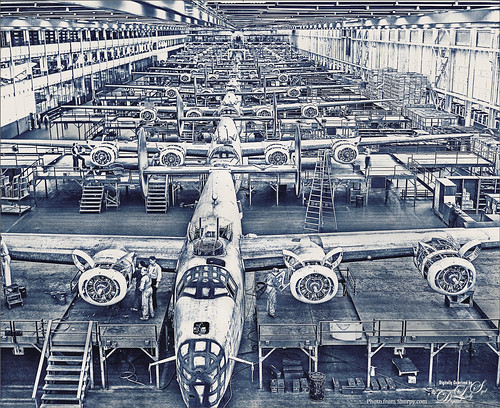
Image of Vintage B--24E Bomber assembly plant

I love Shorpy.com and whenever a really interesting image appears, I love to try and do something unique with it. This image is called Avenging Angels 1943 and is of the Assembly Plant that was in Michigan and it was a huge facility. I love seeing the woman looking at the engine and another in the front center window – very busy people in this place! Check out the comments for some really interesting information.

Since the original is a black and white image, First I ran the image through Lucis Pro to really sharped the edges of the image. I wanted to add a little color so a Gradient Map Adjustment Layer with purples and blues set Soft Light blend mode and a Color Lookup Table Adjustment Layer using my Sharply Dark LUT at 86% layer opacity. Painted in some lightening and darkening using Sam Peterson’s brush and technique (see my Fun Photoshop Blog – A Few Photoshop and Lightroom Tips and Tricks-Step 2). Last step was to add a Black and White Adjustment Layer set to Luminosity blend mode and setting the Blues and Cyans to get a good contrast. …..Digital Lady Syd

The Christmas Tree

Christmas image of a Pixabay image

This image is from ISO Republic and is one of my favorites to try new techniques on. This time a Photoshop file was used to get the original painterly effect, then I painted on a black and white version and added a free music sheet to give a holiday flair. The PS file is from Deeezy called Free Paint Art Creator – has a smart object in it and you just add your own folder and adjust all the layer settings – no PS action involved. Lots of fun! Then obviously several adjustment layers were added on top. A black and white version was created. Painted over layers set to Linear Burn blend mode for the dark red paint layer and Soft Light blend mode for the lighter green and beige layers. No particular brush is needed – just something you like to use. I will caution that the file gets quite large due to all the layers in the PS file. After doing this changes, I created a stamped layer on top and made a new document – to do this right click on the layer and select Duplicate Layer – in drop-down Document field, chose New and rename it to a new name. Then immediately save it as a new document using this name. Now there are two documents and you can finish up the post-work on one that is not so large. Happy Holidays Everyone!….Digital Lady Syd

American Goldfinch

Digitally drawn and painted image of a Baltimore Oriole

Spent what seems like hours working on this gorgeous Goldfinch. The reference photo was by Stephen Walker at Unsplash. Totally drawing and painted following the technique in the Behance Video called Painting Beautiful Birds in Photoshop with Maddy Bellwoar. I am still working on the second half, but the technique used on this bird is from the first part. She provides brushes to draw and paint with and spend a lot of time showing how to draw birds. Excellent tutorial! The flower brushes are from her Hand-Painted Gouache Brushes for PS and Procreate that she just released. I used some of them as Pattern Stamp brushes. The Pattern used was from Jessica Johnson at Creators Couture using her Romantic English Garden Multi-color Floral Set – this set has some beautiful floral patterns, and some great Pattern Stamp brushes too. The background was created using Kyle T. Webster’s 2020 Summer Set’s Brix Brush in Photoshop. A Lookup Table using the Cerulean preset gives it this bold dark blue/purple effect. Otherwise bunches of layers and brushes and hours but lots of fun to do!…..Digital Lady Syd

A Duck Enjoying his Habitat

Image of a male Mallard Duck swimming in a pond

This beautiful and rather friendly male Mallard Duck was swimming all over the place while several people were trying to take his picture at Ames Park, Ormond Beach, Florida. His coloration is what attracted me to this image. Did my basic workflow on this image but thought I would share that Topaz (see sidebar for website link) Sharpen AI was used to really sharpen him up. The Lucis Pro filter was also used – too bad no one has decided to make this great little filter available again. Also Viveza 2 was used – my go to filter to finish up a look. ……. Digital Lady Syd

Red Hot Music!

Digital Art Image of a violin

Had some fun today working with the wonderful violin image from Pixabay which I use a lot for practicing. Created the lines on the violin by following a YouTube video from Unmesh Dinda called Turn Yourself into Line Man with Photoshop. Once the lines were made, a layer style was added to the stripes layer with Bevel and Emboss, Pattern Overlay and Outer Glow. Pretty simple and just followed his tips and tricks in the video. Above the black background, just used Kyle’s Brix Brush (found in Kyle’s Summer 2020 set) with a bright orange red to add the texture. Used the Notes brushes made from Adobe Creative Live’s Paul Trani’s video called Create a Custom Brush with Music Notes. On this layer another layer style was added using Bevel and Emboss and Color Overlay. Next Shadows and Highlights layers were added using Sam Peterson’s tip (see my A Few Photoshop and Lightroom Tips and Tricks blog – tip number #2) – lowered the opacity on these layers. The last step was a Color Lookup Adjustment Layer using a film look to give a sort of poster feel to the image. Lots of fun to do and enjoyed trying some new things…..Digital Lady Syd

Pretending I’m Driving My Dream Car

Image of the Instrument Panel of a 1961 Corvette

This 1961 Chevrolet Corvette was sitting in the Classic Car Museum of St. Augustine just waiting for me to take its picture. I so wanted to take this baby out for a spin! Not much post work was done on this image – just used a couple settings in Lightroom before beginning work in Photoshop. Had to do some cropping and a bit of Clone Stamp work to get it to line up correctly. Then Topaz Denoise AI (see sidebar for website link) Standard effect was applied. To further sharpen those little numbers on the dials, Viveza 2 came to the rescue with just the right amount. A Green Channel Luminosity Curves Adjustment Layer was added to further enhance the instruments. See my How to Use a Red Channel to Create a Nice Blended Image Effect blog – works pretty similar with the Green Channel if the Red Channel does not look that great. Last step was a regular Curves Adjustment Layer to set the Red color just right. That was it. What a great day to see this little beauty!…..Digital Lady Syd

Let’s Have a Little Chat

Image of a digitally painted lion

Going to make this short and sweet. Been practicing my digital painting and thought I would post this guy whose image is from a pack from ISO Republics 30 Free Images (be sure to change Image Size from 72 ppi to 300 ppi before starting so image is of a manageable size). The real trick is to find the right brushes to use – mainly the Mixers, Regular Brush and Smudge Brushes. The main Mixer Blender brush is from one I brought into Photoshop from Corel Painted and just make a bunch of iterations of regular, smudge and mixers from the tip. (See my older blog called How to Bring a Corel Painter Brush into Photoshop – it still works!) Most of the painting effect was placed on a layer above the original painting (Option Bar setting were Load the Brush After Each Stroke off, Wet 100%, Load 50%, Mix 80%, Flow 100% and Sample All Layers check on. Then used several layers to do whiskers, eyes, nose, etc. A Shadow and a Highlight layer was added to distribute the lighting correctly. Added an Autumn Colors Color Lookup Adjustment Layer at 63% and a Gradient Map set to light yellow to white, Multiply blend mode, and 47% opacity. That’s about it. Lots of fun here!…..Digital Lady Syd

Who’s Looking at You?

Composite image of a large deer in a landscape image.

Had some fun creating this rather strange composite using the landscape file Autumn 18 by Moonloop and a free deer object from Tara Lesher (this guy has shown up in several of my images). The first thing was to go into Edit -> Sky Replacement and choose a new sky (in the Photoshop Spectacular group – 005byJKost) and several of the sliders were adjusted to match the sky tones to the overall image. This layer was duplicated and a selection of the foreground with the trees was made – used the Quick Selection Tool to select the sky and inverse the selection (CTRL+SHIFT+I). Added a layer mask to the duplicated image layer and the sky is now removed with only the foreground on the layer. Placed the Deer object under this layer and moved it around so his head sticks out from behind the trees. To make him blend in better, a Multiply blend mode Shadow layer was created and clipped to the Deer using a light gray tone to paint some shadow on the left side of his face and lower body. Then a Color Balance Adjustment Layer was clipped to the Deer also and just the Shadows were adjusted. Above that a Levels Adjustment Layer was clipped to the Deer where the Output black slider was set to 28 to remove some of the dark contrast on him. Clean up was done in the mask on a few of the tree edges that did not get selected completely. Added a Color Lookup Layer Adjustment set to Choi Hung Estate LUT from SparkleStock. Used the Sharpen Tool to slightly sharpen the Deer eyes, whiskers and right ear. Then created another Multiply Shadow layer and Color Dodge Highlight layer to tweak the lighting effects just a bit. Last step was to make a very light vignette on image using a Levels Adjustment Layer (see my Using a Levels Adjustment Layer for a Vignette blog). To learn how some of these steps were done in more detail, check out Sam Peterson’s Photoshop Daily Creative Challenge Day 3 on Photoshop Manipulation YouTube video from Adobe Creative Live – he explains this whole process very well. Lots of fun here…..Digital Lady Syd