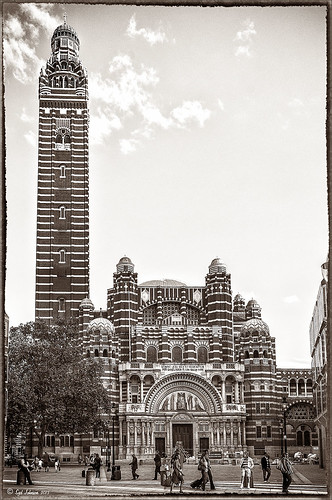
Hover over the above image of Westminster Cathedral to see what the original RAW image looked like or (here to see on flickr)- pretty awful! Wanted to show you what Lightroom 5 did with one click of the Lens Correction section’s new Auto button in the Basic Upright area. I was blown away! I did not adjust it any more – it is not perfect but much faster than anything I could get by using Photoshop’s Puppet Warp or filter tools. Check out a short blog by Julianne Kost, one of the Adobe Photoshop Evangelist, that gives some good info on when to use the Reanalyze button. In Photoshop a couple little items were cloned out on a separate New Layer. Nik’s Sharpener Pro 3’s Raw Presharpener was used at default values on a duplicate layer. A Hue/Saturation Adjustment Layer was added to get rid of a little yellow cast the sharpener filter gave to the top of the tower – used a black layer mask and painted back the correct color where needed in white on the mask. Next Nik Silver Efex Pro 2 was used and the custom preset called Sepia Grain Border was applied. Just a few little changes were done on the sliders to make the image sharper, but that was all that was done. Pretty nice sepia tone image!…..Digital Lady Syd

Latest
Coral Pink Blanket Flowers

Just bought some beautiful textures from Distressed Textures and had to try one out. This is just a point and shoot image from my little Kodak camera that I used to take these pretty pink flowers called Gallardia Galya Coral Spark or common name Blanket Flower. Just did the regular adjustments in Lightroom and then opened it up in Photoshop. The background was duplicated and this new layer was opened in Topaz (see sidebar for website link) Detail 3 and set to Medium Details 0.38, Large Details 0.16, and Contrast 0.30 was applied. A New Layer was created above and the Mixer Brush was selected. Fay Sirkis‘s Signature Watercolor Smooth Blender brush was used to smooth out and sharpen the edges of the flower in the front since the low end camera does not always give sharp edges. Next I added Distressed Textures The Artist’s Palette Museum Canvas texture. A layer mask was added and the flower painted out softly. French Kiss Savoire Faire Overlay was added and set to Color Dodge at 100%. A layer mask was added and the writing was painted off the flowers. The last step was to add a Curves Adjustment Layer to increase the contrast of the image just a little. I wish I had had my better camera with me, but at least I got the shot – some beautiful pink flowers!…..Digital Lady Syd
Macro Magic

I just love Melissa Gallo’s textures – they are so soft and beautiful and they never cease to surprise me how pretty they look on an image. The macro shot above is of my Painted Lady Hibiscus Tree that is growing on my back porch. She blooms year round for me with these huge soft pink blossoms! Basically all I did was a little noise removal and then applied Topaz (see sidebar for website link) Simplify 4 using a preset I created called Hawaii Landscape. (Settings are Simplify Section: Simplify Size 0.20, Feature Boost 0, Details Strength 0.66, Details Boost 1.00, Details Size 0.27, Remove Small 0.06, and Remove Weak 0.10; Adjust Section: Brightness 0, Contrast 1.00, Saturation 1.04, Saturation Boost 1.32, Dynamics 0, Structure 1.00, and Structure Boost 1.00; and Edges Section: Color Edge – Normal, Edge Strength 1.89, Simplify Edge 0.58, Reduce Weak 33.33, Reduce Small 0.20, and Fatten Edge 0.) Next Melissa Gallo’s Painted Textures Winter Wheat from her Cyber Monday Set 1 was set to Linear Light blend mode at 100% layer opacity, and Seafoam from her 2 for Friday Set 2 was left at Normal blend mode and 67% opacity. A layer mask was added to Seafoam and the pistil and stamen were softly painted out to remove the texture and color on these parts. Kim Klassen’s Cloth & Paper Magicfilm 3 texture was added on top and set to Linear Dodge blend mode at 79% opacity. This one gets a little tricky as I used the Blending Options dialog in its Layer Style – turned off the B Channel and set the Underlying Layer right white tab to 197/255 (split the tab by pressing ALT and sliding). This gives the pretty yellow glow grunge effect throughout the image. French Kiss’s Tour Eiffel 1903 overlay was added and set to 25% opacity. A Linear Gradient Fill Adjustment Layer was clipped to the overlay layer using a free colorful gradient called Picasso-16 from Graphix1 Picasso Inspired Gradients set. (To clip to a layer, ALT+click between the layers so only the top layer will affect the layer below.) French Kiss’s free Glorious Grunge Edging was added on top as a border and set to an aqua color. Try the Layer Style trick for an added dimension to your images…..Digital Lady Syd
My Parisian Violets!
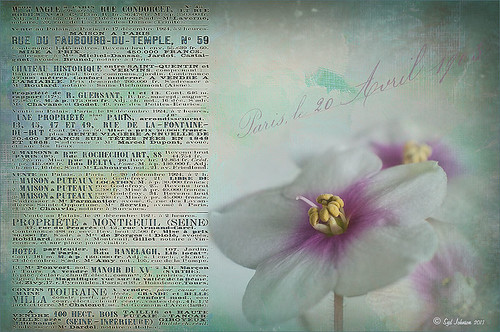
These beautiful violets I recently bought at Wal-Mart and they are so pretty. They really like the filtered light from my south facing window in my kitchen. I used my handy, dandy 60 mm Nikkor macro lens at F/4.8, 1/90 sec, and ISO 200. A Bower 0.5 x High Resolution Digital Lens with Macro was added to the lens. In Lightroom 4 I just followed my workflow in my blog How to Use Adobe Camera Raw (ACR) or Lightroom 4 Quickly. I painted over the center of the flower using an Adjustment Brush set to a high sharpening and just a little Clarity. In Photoshop a Curves Adjustment Layer was used to selectively remove a shadow behind the front flower (see my Using Curves Adjustment Layers to Get Rid of Shadows and Highlights blog). Painted Textures Seafoam textures was added and just the flower lightly painted back using a white layer mask and painting in black. Next 2 Lil’ Owls Affetto Grunge Mosaic texture (see sidebar for website link) was added and the center painted out so only the darkened edges remained on most of the image. French Kiss’s Vintage French Brush No. 2 set -Dec 1924 was placed on the left side of the image and set to 89% opacity. A Layer Style was opened on this overlay layer. A dark Stroke set to 3 pixels inside was added, a Pattern Overlay using that wonderful default Photoshop pattern Bubbles was checked to add some variation in the text (I think this is the first time I have ever used it!), and an Outer Glow at 39% opacity was used. A Color Fill Adjustment Layer was clipped to the overlay and set to a light blue color. On the upper right French Kiss’s Vintage French Brush 1903 (same link as above) writing was applied and another Color Fill Adjustment Layer was clipped using the purple color from the flower. That was it! Lots of fun to do!…..Digital Lady Syd
What a Cute Little Alligator!
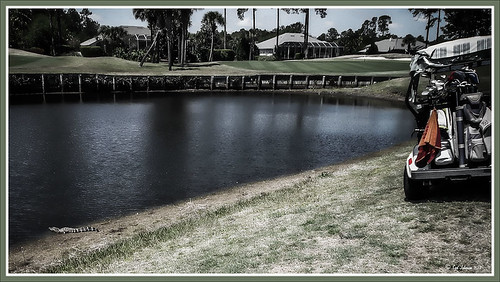
Thought I would post my wonderful recent golf experience – we were almost done playing – hole 18 – and then I shot the ball in the water. (That’s how good I am!) Almost clobbered this little sunning alligator, but he did not even move when we pulled the ball out of the water. First alligator I have seen this year, and I would not have gotten the shot if I did not have my cheap Kodak point-and-shoot camera. The image was processed very simply. First I used a Lightroom preset created a while back from a video called True Grit by Michael Rather. (Since I keep referencing it, here are the settings from the short video: Basic Panel – Contrast +100, Highlights -80, Shadows +100, Whites and Blacks sliders to taste, Clarity +100, Vibrance -82, and Saturation -7; and Lens Correction Panel – in Manual tab set Lens Vignetting Amount to -76 and the Midpoint to +19. Use these settings as a starting point and adjust them to taste. My preset actually is set to Clarity of +67 and Vibrance of -82 and were used in the image above.) Next my favorite sharpening plug-in, Topaz (see sidebar for website link) Detail 3, was applied using the Soft and Dreamy II preset. In the Effect Mask section, the effect was removed from the alligator using the brush strength set to 1.00 and partially on the golf clubs and cart canvas top using a o.21 brush strength. The Overall Opacity was set to 0.87. Back in Photoshop a Levels Adjustment Layer was added setting the middle tab to 0.86. Next a Darken/Lighten layer was created (see my Best Dodging and Burning Technique! blog for info on how to do this). The last step involved adding my free SJ B&W Border Frame Layer Style – changed the black color to a sampled green color from the image. It was great to get outside after a pretty cold and ugly winter/early spring and it was fun to see this little guy, even though he was a little scary. …..Digital Lady Syd
Digital Lady Syd Related Blogs:
Trying Out Some New Techniques!
Vintage Toy Processing
Eastern Swallowtail Butterfly
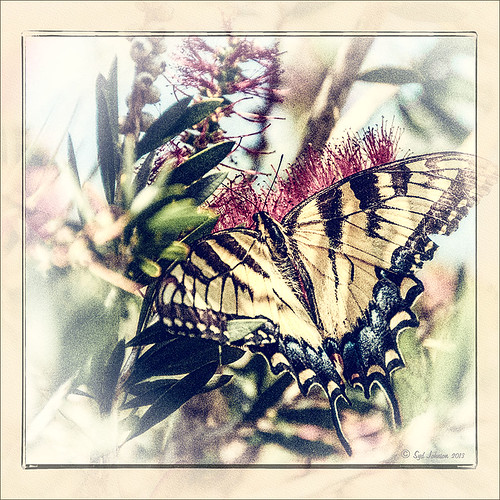
Just had to display this beautiful butterfly that appeared on my Bottle Brush bush recently. This is a female Eastern Tiger Swallowtail and had at least a 4-inch wide wing span. I did basic processing in Lightroom and then opened it in Photoshop. Just did a clean up layer and a Topaz (see website link in sidebar) Detail filter using the Overall Medium Detail II preset. I tried several different textures and nothing seemed to look right. So the layer was duplicated and the image was opened in Nik Color Efex Pro 4. These filters were stacked: Detail Extractor, Monday Morning using the Neutral color set and an opacity of 58%, Film Efex Vintage set to Film Type 13, and Vignette using a white color. These are all favorite filters of mine in this plug-in. Next OnOne’s (see website link in sidebar) old PhotoFrame 4.6 filter was applied using Kevin Kubota’s preset Kinky set to 63% opacity and a size increase of 7% and using a creamy color sampled from the image. Back in Photoshop a Hue/Saturation Adjustment Layer was added and the Reds Saturation was set to -58 to tone down the bottle brush color. I love the vintage feel of this image. I am sorry that OnOne is not longer releasing PhotoFrames – I am having trouble duplicating these effects in their new suite……Digital Lady Syd
Red Flower-Blue Bokeh
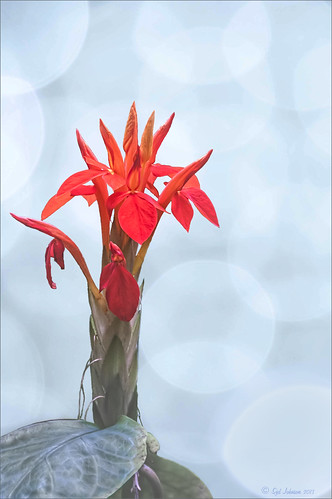
This Canna Lily flower is similar to a bright orange variety I have growing in my front year but this one was at the Hawaii Botanical Tropical Gardens on the Big Island. To post-process, the flower and plant were selected from the background which had lots of shadows and highlights from other leaves nearby that was very distracting. Topaz (for website link see sidebar) Detail 3 Overall Medium Detail II was applied to this layer. Jill Wellington’s Bokeh free 94 textures – texture 24 was added behind the flowers. Once placed above the light blue texture, several rough edges appeared – the flower and plant were selected (CTRL+click on the thumbnail), then Select -> Refine Mask was chosen where Feather was set to .5 and the Shift Edge set to -40. A Hue/Saturation Adjustment Layer was clipped to the flower layer (ALT+click between the layers so only flower layer is affected) and the bottom leaves’ color was adjusted from bright green to darker tones – the layer was mask was turned to black by clicking CTRL+I in the mask. The last step involved using a Levels Adjustment Layer to increase the contrast just a little and to soften the whole look (Output was set to 60 and flower painted back gently in layer mask to bring out color a little)…..Digital Lady Syd
Digital Lady Syd Related Blogs:
Soft Bokeh Texture for a Flower Image
Happy New Years!
Windsor Castle
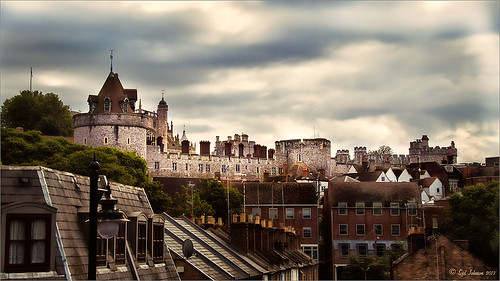
Here is another example of an image that used a Curves Adjustment Layer to adjust the color of the stone in this image of Windsor Castle in England. It turned too brown due to a filter treatment applied to the total image – Topaz (see sidebar for website link) Adjust 5’s French Countryside preset was applied to the image once it was brought into Photoshop – this preset is one of my very favorites but it definitely has a very brown tone to it. Nik Viveza 2 was applied next to selectively sharpen parts of the image. A regular Curves Adjustment Layer was added to increase the contrast in the image. Next another Curves Adjustment Layer was added and this time the Blue Channel Curve was adjusted to get rid of some of the yellow tones in the stone. The Layer Mask was filled with black and just the castle stonework was painted back in with a low opacity soft white brush. That is it! I love the final result – it really gives a different perspective on how large this castle really is!…..Digital Lady Syd
Digital Lady Syd’s Related Blogs:
Using Curves Adjustment Layers to Get Rid of Shadows and Highlights
I Didn’t Know That! Curves Adjustment Layers
Textured Pink Orchids
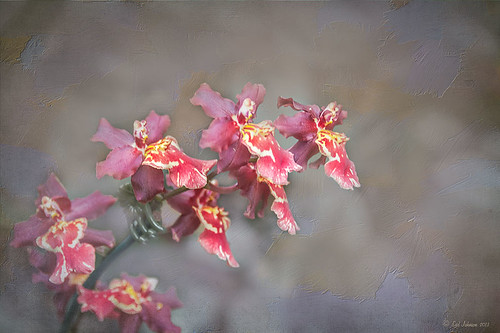
Just loved the way these beautiful orchids look with this luscious texture applied to them. These orchids were growing at the Hawaii Tropical Botanical Garden on the Big Island in Hawaii. Just did my basic image adjustments in Lightroom – used the Adjustment Brush to add some Clarity and Sharpening to the foreground flowers, and another one to smooth out the highlights and soften the background which was pretty harsh. Once in Photoshop, the background image was duplicated (CTRL+J). Next the texture Winter Wheat from Painted Textures Cyber Monday set was added between the two layers. A layer mask was added to the top orchid layer and the background was painted out with a soft black brush to cover up most of the background color. A Curves Adjustment Layer was added using a slight S-curve to add a little contrast to the image. The last step involved a black vignette set to 59% opacity so it barely is noticeable. Very simple processing and I loved the results. Melissa Gallo’s textures are so pretty!…..Digital Lady Syd
Digital Lady Syd Related Blogs:
Painterly Red Berries
Red Flowers in the Snow
Beautiful Christmas Flowers
A Vintage Landscape Look on a Scottish Monument

I loved the way this image turned out – never expected it to be this pretty considering it was an image I snapped while standing on the street in front of our hotel. It is Nelson Monument (in center) and Acropolis (aka National Monument of Scotland on left corner) on Calton Hill – I did not get to visit this site but wish I had. This was not difficult to process once I got going. After cleaning up a rather boring image, Topaz (see sidebar for website link) Simplify 4 was opened and a preset I call the John Barclay BuzSim Setting preset was used, (The settings are: Simplify: Colorspace RGB, Simplify Size 0.19, Details Boost 1.00, and Details Size 0.20; Adjust: Brightness 0.01, Contrast 1.08, Saturation 1.03, Saturation Boost 1.15, Structure 1.00, and Structure Boost 1.00; and Edges: Edge Type – Color Edge Normal, Edge Strength 0.00, Simplify Edge 0.30, Reduce Weak 10.00, Reduce Small 0.20 and Flatten Edge 0.00.) I listened to one of John’s excellent videos on Topaz Labs and created this preset which has a very subtle result. Next I added 2 lil Owls (see sidebar for website link) Workshop 6 – Texture 1 which has the beautiful turquoise and light yellow sky color – the layer was set to Overlay Blend Mode. The beautiful text was supplied by my favorite Shadowhouse Creations – his Text Brush 5. I actually clipped a bright green Color Fill Adjustment Layer to the text (to clip just ALT+click between the two layers and the color fill adjustment layer will only affect the layer below) – then the text layer was set to 55% opacity. Another 2 Lil’ Owls Texture – texture 4 was used as an overlay frame (follow the steps in my blog How To Make Frames or Borders – scroll down to the section called “To save the frame you created as an overlay to use again”). A light yellow Color Fill Adjustment Layer was clipped to the texture file. A Curves Adjustment Layer where the red, green and blue channels were adjusted to get this slight vintage feel. The last thing done was to add a Color Fill Adjustment Layer to the whole image using a soft cream color (#c6c3bd) and then Nelson Monument was painted out in the layer mask so the eye is drawn to that area of the image. Had a lot of fun as usual – never get tired of this!…..Digital Lady Syd
Topaz Labs AI Gigapixel
Check out AI Gigapixel stand-alone software for upsizing your images. It’s incredible! And it can now be used as a plugin when in Photoshop. Also Topaz Labs Photo AI has some great sharpening and denoise tools along with Photo Video AI.
Luminar Neo
Click here to visit Luminar for more info and check out their new AI Filters.

GRUT BRUSHES – Photoshop Brushes for Digital Artists
Click here to visit GrutBrushes.com
And be sure to check out his Free Brush of the Week and Brush Sampler! These are the best brushes you can find!

Topaz Studio 2 and Legacy Topaz Labs Filters
Unfortunately Topaz Studio 2 and other Topaz Lab filters are no longer available for sale as of 2020. If you had bought these filters and would like to put them back on, here is a link to the Legacy Apps where they can be downloaded again. Below is an example of the wonderful Remix AI Filter from Studio 2. The wonderful Impression still works fine in Photoshop right now along with Adjust (all versions), ReStyle, and even PhotoFXLab!
On1 Photo Raw
Wonderful software to use as a substitute for or plugin with Photoshop. Many great filter effects and lots of AI capabilities!
