Anything Photoshop or Photography

Latest

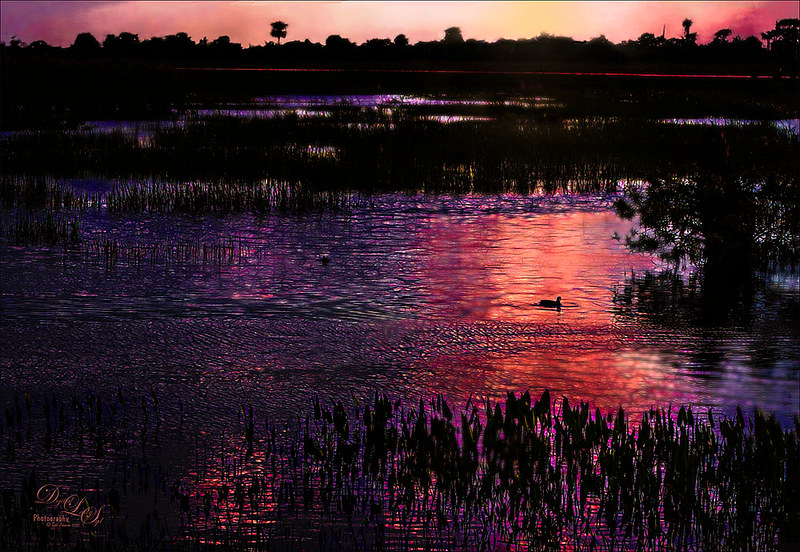
Sunset at Viera Wetlands

Image of the Viera Wetlands at sunset
This image was not near as interesting in its Raw version. Had to add some filters and was pleasantly surprised at what a pretty sunset effect could be achieved. In Lightroom Seim’s (see sidebar for website link) PowerWorkflow Super HDR X preset was applied. Once opened in Photoshop Topaz (see sidebar for website link) Clarity’s Color and Contrast Boost II was applied. I like to use Clarity when dealing with nature scenes – sometimes it gives better results than Detail. On a duplicated layer, Topaz Glow filter was added – used my SJ Mysterious II Water preset and set the layer to Hard Light blend mode – this is how I got all the beautiful colors in the image. (Here are the preset settings if you are interested: Primary Glow:  Glow Type Dark, Glow Strength 0.30, Effect Sharpness 0.63, Electrify 0.14, Simplify Details 0.17, Edge Color 0.28, Detail Strength -0.06, Detail Size 0.20, Brightness -0.56, Contrast 0.44, Saturation 0.00, Line Rotation 0.00, and Glow Spread 0.00; Secondary Glow:  Glow Type Light, Glow Strength 0.00, Effect Sharpness 0.22, Electrify 0.03, Simplify Details 0.00, Brightness 0.45, and Contrast 0.64; Color Overall – all set to 0; Red RedSat 0.34; Orange Sat 0.33; Yellow Sat 0.03 and Lightness -0.29; Blue Sat 0.42 and Lightness -0.43; and Magenta Sat 0.75 and Lightness -0.35.) A clean up layer was created and layer to add some yellow sun glow. On a stamped version (CTRL+ALT+SHIFT+E) placed on top, Photoshop’s Iris Blur filter was centered around the duck with the blur set to only 2 pixels. A black layer mask was added so just a few areas that I wanted softened could be back with a white brush. That is basically how this image was post-processed, and the Glow filter made it into something quite nice!…..Digital Lady Syd

Viera Wetlands

Image of the Viera Wetlands

Decided I wanted a different look for this image. I was upset that I did not bring my wide-angle lens when I went to the Ritch Grissom Memorial Wetlands in Viera, Brevard County, Florida. The sky is actually what I saw – it was not replaced. Nik Color Efex 4 helped give the image this effect by using two of my favorite filters in the plug-in:  for the diffused effect the Monday Morning filter was applied, and for the slight Nostalgic feel the Film Efex Vintage filter. The real trick to this image was to use Topaz (see sidebar for website link) Lens Efex and the Fish Eye Adjustments with the Distortion set to 0.26. Totally loved the result even without ever using my wide angle lens!…..Digital Lady Syd

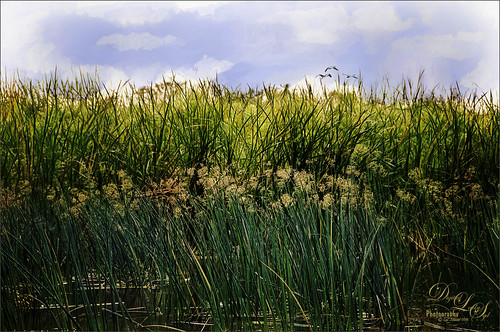
Wetlands Getting Ready for Spring

Image of the Ritch Grissom Memorial Wetlands in Viera, Brevard County, Florida
Just another quick snap I took while at the Ritch Grissom Memorial Wetlands in Viera, Brevard County, Florida recently. It really did feel like Spring is on its way which I am really glad to see. I took this image because I thought the water looked interesting where it intersects the reeds. It turned out to be a lot of fun since I got to paint a sky in using Fay Sirkis’s Photoshop brushes to make it. (These brushes can be downloaded from KelbyOne if you are a member – just go to her Four Seasons webinars.) Used a couple Cloud Highlighter brushes and a Cloud blender. Created several layers and put them in a group which was set to Multiply blend mode at 35% group layer opacity. Also used Topaz (see sidebar for website link) Glow and my SJ Inter Web Variation preset (see Image 4 Information for settings at my How to Get the Soft Glow In Topaz Glow blog). This layer was set to Overlay Blend Mode at 61% layer opacity. Since it almost wiped out my sky, I copied my painted sky group on top to add it back in again with the same layer settings. Nik Viveza 2 was used to even out the image and add a focal point in the center of the image. Obsidian Dawn’s Flying Birds Grouping 1 was added just because the image needed them – the layer was set to Multiply at 77% opacity. On a New Layer above lightly painted in white to get a water bird look to the birds. Next 2 Lil’ Owls Studio (see sidebar for website link) Color Bokeh Grunge Set 1 was added and set to Color Dodge blend mode at 72% layer opacity. The last step was a Curves Adjustment Layer to bring back the contrast. Totally fun to do!…..Digital Lady Syd

Keeping an Eye on Things

Image of a Blue Heron at the Viera Wetlands
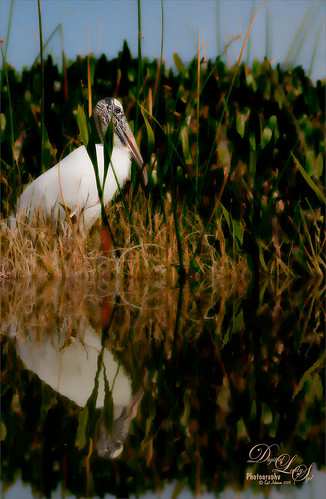
This was one of my crazy bird shots (Great Blue Heron) taken at the Ritch Grissom Viera Wetlands in Brevard County, Florida. Just had total fun working on this image! In Lightroom used Seim’s (see sidebar for website link) Ultra Color and Magic Ugly Shade Fixer presets before opening the photo in Photoshop. The layer was duplicated and Topaz (see sidebar for website link) Black and White Effects was applied. Mainly set the preset to a Transition of 100% so some color came through and used its layer mask to sharpen the bird and add some additional color. A stamped layer was created (CTRL+ALT+SHIFT_+E) and this layer was taken into Topaz Glow where Blake Rudis’ Animal preset was applied. Then the layer was set to Multiply blend mode at 88%. (See my How to Get the Soft Glow in Topaz Glow.) On yet another stamped layer, Nik Viveza 2 was used to really emphasize the beautiful bird head. That was it and I just loved the results!…..Digital Lady Syd

Birding at Viera Wetlands

Image of a man using a large camera lens and taking pix of birds
This man is taking photos at the Ritch Grissom Viera Wetlands which is in Brevard County, Florida. It was a beautiful day to see the birds in their natural habitats and this guy had this huge lens – he was actually shooting to an equivalent of 1400 mm! Totally amazing! This image used 2 Lil’ Owls Studio’s (see sidebar for website link) Matte Glam 17 preset in Lightroom along with a Gradient Filter to increase the blue color slightly in the upper water. Brought the image into Photoshop and ran Topaz (see sidebar for website link) Detail 3 to slightly sharpen the overall image using my Little Med Large Detail preset – (Set to Overall, Medium Details 0.38, Large Details 0.16, and Tone Contrast 0.30). Created a duplicate layer and created a Smart Object where the Liquify Filter was used to slightly slim the man down. A Curves Adjustment Layer was applied and the Layer Mask was filled with black. Just the water area was painted back to give the background a little more contrast that I wanted. That was it. Wish I had a lens like that!!!!!…..Digital Lady Syd

Wintry Scene

Wintry Image of trees and snow that I painted
So how do you create this tree effect? About all I can say is by following Painter for Photographers videos from Melissa Gallo, a Corel Painter master who really knows how to paint. She supplies the brushes and and papers to get this result. It was a lot of fun to create this little image from scratch……Digital Lady Syd

Sunny Desert Day

My watercolor paintined called Sun the Desert
Just went back and listenedd to Karen Bonaker’s wonderful Corel Webinar called Corel Painter Mixed Media Painting and thought I’d try some of her tips.  Many of the steps and brushes used in her examples were used along with several brushes created by following Jason Moranto’s Brush Engine Essentials videos offered at Karen’s Digital Art Academy – this is a great way to learn Painter! Topaz (see sidebar for website link) ReStyle’s Desert Dust preset set to Soft Light blend mode was applied and set to 50% layer opacity. Nik Viveza 2 to draw out the focal point a little bit. Need to try this one if you like a watercolor look. Creating this image was totally fun!…..Digital Lady Syd

Adding Some Background Texture

Red Hibiscus bloom image with new texture in background
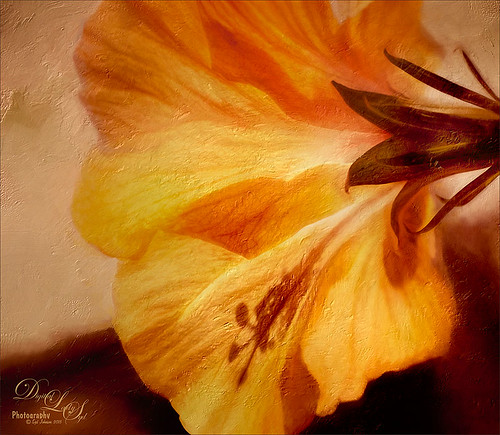
Just used my red hibiscus object image again to try out some texture effects with the background. I really liked the results. The flower was brought in and it was duplicated. Topaz (see sidebar for website link) ReStyle’s Cream and Plum preset was applied to the duplicated layer and set to Darken blend mode at 66% layer opacity. A texture that was made in Corel Painter using the Coarse Smear Blender Jitter brush (a FB friend used this brush quite effectively on an image) in a brownish beige color was added underneath the flower. It was also duplicated, Free Transformed (CTRL+T) where it was reduced and flipped horizontally, and lined up under the flower. A Levels Adjustment Layer and a Hue/Saturation Adjustment Layer were clipped (ALT+click between the layers to clip) to the top texture layer to get the pinkish color. The last texture added just below the flower was made in Corel Painter using the Gravity Bristle Particle Brush (learned how to do this at the end of Commercial Packaging Illustration with Michael Bast Corel video where he shows the technique – I really liked it! Saved it as a PSD to open in Photoshop as a texture.) It was set to Multiply blend mode and an olive green Solid Color Adjustment Layer was clipped to this texture to make it a soft olive green. A stamped version was created on top and Blend If sliders applied before some clean up work was done. A final Levels Adjustment Layer was used to get the effect. Loved creating the textures for this!…..Digital Lady Syd

My Glowing Porch Flowers!

Image of my porch flowers using Topaz Glow on them
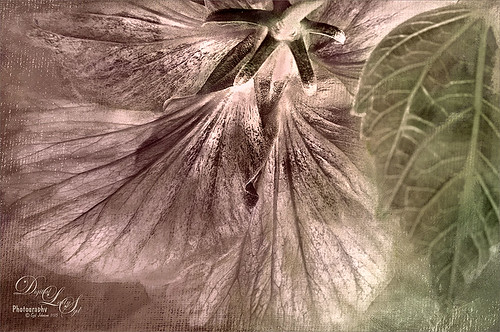
These are more flowers on my porch – Painted Lady Hibiscus and a Boston Fern. Clean up was done, Topaz (see sidebar for website link) DeNoise set to Overall 0.09, and Topaz Clarity (My John Barclay Basic Settings preset-Micro Contrast 0.36, Low Contrast 0.20, Medium Contrast -0.11, and High Contrast -0.23; then Tone Level Black Level 0.14, Midtones -0.30, and White Level -0.20; Hue Yellow -0.58 and Green -0.19; Sat Green 0.27 and Blue -0.34; and Lum Red -0.08, Orange -0.52, Green 0.11, and Blue -0.42). On a stamped layer (CTRL+ALT+SHIFT+E) Topaz (see sidebar for website link) Glow was applied. (SJ Painterly Wonderland preset-Set to Overlay. Primary Glow change Effect Sharpness to 1.00, Electrify 0.38, Secondary Effect Sharpness 0.48, Brightness 0.23, and Contrast -0.01; Color – Overall Hue -0.29, Orange Sat 0.43, Yellow Hue 0.14 and Lightness 0.50, Green Sat -0.77 and Lightness -0.44, Aqua Sat -1.00, and Blue Sat -0.50. Set back to Normal to take into PS – then adjust there.) Topaz Black and White Effects was applied. (SJ Soft Color Effect preset – Conversion section – Basic Exposure Contrast 0.04 and Brightness 0.05; Adaptive Exposure 0.24, Regions 16, Detail 0.98 and Detail Boost 1.05; Creativity Effects Diffusion Softness 0.71, Diffusion 0.67, and Diffusion Transition 0.56; Finishing Touches section – Silver and Paper Tone Tonal Strength 0.85, Balance 0.22, Silver Hue 27.00, Silver Tone Strength 0.61, Paper Hue 45.00, and Paper Tone Strength 0.42;  Quad Tone Color Region 1 black set to 7.46, Color Region 2 set to Color (R67/G48/B32) and 77.12, Color 3 Region to Color (R173/G148/B104) and 181.6, and Color Region 4 set to white and 255.0; Vignette Strength -0.28, Vignette Size 0.61, Vignette Transition 0.83, and Vignette Curvature 0.83; and Transparency Overall 1.00.  In Local Adjustments set to Detail – Brush Size 254, Opacity 0.25, Hardness 0.05 and Edge Aware to 0.50 – painted back the front flower and the orange colored dish so that it was a focal point. The Overall Strength was set to 1.00. Set same brush to Color and painted back the pink flowers. Vignette Strength set to -0.32, Vignette Size to 0.68, Vignette Transition to 0.63, and Vignette Curvature 0.82 – center vignette on just above the center pink flower. Changed Overall Transparency to 0.75.) On another stamped layer the Camera Raw Filter Radial filter was applied to adjust the focus on the orange pot and center pink flower. That was it. Lots of Topaz on this one!…..Digital Lady Syd

Painted Apples

Image of painted apples in a bin
Not sure what inspired me to paint these apples from image taken at the local grocery store, but I did. The image was first opened in Lightroom where the basic image was adjusted, then in Photoshop. After some clean up, a stamped layer was created on top (CTRL+ALT+SHIFT+E) where Topaz (see sidebar for website link) Clarity was applied using the Landscape III preset. Next on a duplicate layer, Nik Color Efex Pro 4 was used (used Cross Processing Method L05 at Strength 27%; Darken/Lighten Center set to Shape 1, Center Luminosity 73%, Border Luminosity -46%, and Center Size 24%; Low Key Glow 0%, Standard Low Key 6%, Dynamics Low Key 0%, Sat 56%, Whites 3%, and Contrast 72%; and Detail Extractor 22%, Contrast 14%, Sat 25%, Shadow under ow, and Highlights under hl). On a New Layer above, used a Blender Mixer brush using property bar settings of Wet 100%, Load 1%, Mix 100%, and Flow 100% and set to Sample All Layers – turn off Load Brush After Each Stroke so it will just be a blender and mix the colors underneath. I am not sure which brush I used, but any brush you like should be a nice blender with the above settings. On a new Stamped Layer, Nik Viveza 2 was used to add focus to the center area. Last step was a Curves Adjustment Layer. I also painted this in Corel Painter and got a much more abstract look. Will probably show that version in a later post. Anyway, love the Photoshop Mixer Brush effect on these apples!…..Digital Lady Syd