Anything Photoshop or Photography

Latest

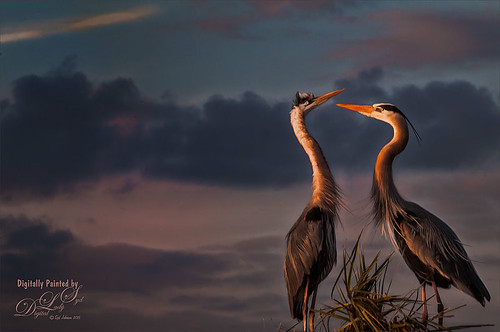
Courting Herons

Image of two courting gray herons
These two beautiful Great Blue Herons were in the middle of a mating ritual in their new nest on top of a palm tree during a recent visit to the Ritch Grissom Memorial Wetlands in Brevard, Florida (also known as the Viera Wetlands). Image was painted with the Mixer Brush – mainly just blending. Since the bird on the left was missing an eye, I had to copy the one from the right over, flip and adjust into the eye socket. Topaz Glow’s Room Glow preset by Blake Rudis (check out Integrating Topaz Glow into Your Workflow for info on this) was applied and set to Multiply blend mode at 48% layer opacity. Nik Viveza 2 was used on the background to even it out just a little. Since the lighting was perfect, there was little else that needed to be done. What beautiful birds!…..Digital Lady Syd

Digital Lady Syd Related Blogs:
How to Get the Soft Glow in Topaz Glow

Thinking of Pink Tulips

Abstract Painting of Pink Tulips
This is an abstract I painted from some beautiful tulips that was taken with my phone. It was first painted in Corel Painter using just some very basic strokes. A Karen Sperling texture brush from back when Painter 11 was popular was used. Color were just block in. Then the image was taken into Photoshop and on a New Layer a sketch brush was used to define the form in a few places. A Curves Adjustment Layer was used to add a little contrast. A stamped layer was created and turned into a Smart Object. Nik Viveza 2 was opened and the pink flower in the middle was accentuated to further emphasize the focal point. The last step involved adding a New Layer on top and in white, add a few spatters using Kyle’s Real Watercolor-Spatter Mixed and set to a low layer opacity to add just a little texture in certain places. Very simple to do…..Digital Lady Syd

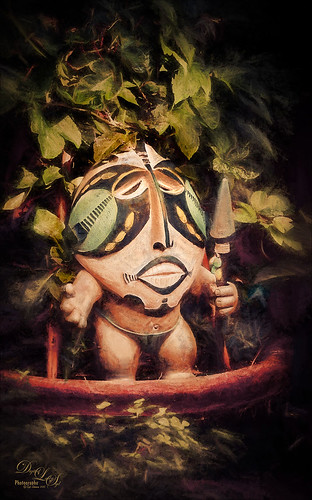
Where Are My Eyes?

Image of a tribal character at the St. Augustine Alligator Farm
This image was taken at the St. Augustine Alligator Farm website link. I don’t know anything about it, just that it greets you when entering the attraction. Very little was done to this image. In Lightroom Trey Radcliff’s Dramatically Clean Chipmunk preset was applied. In Photoshop Topaz (see sidebar for website link) Impression’s Turner Storm II preset was applied. A white layer mask was added in PS and a little bit of the lighter areas were painted back in the face to draw some focus to it. On a stamped layer (CTRL+ALT+SHIFT+E) that was converted into a Smart Object, Nik Color Efex Pro 4 was opened. The Graduated Neutral Density filter selected (Upper Tonality -25%, Lower Tonality 7%, Blend 27%, Vertical Shift 43%, Rotation to adjust the light 158 degrees, and Highlights 1/4 of the way to right). In the same Smart Object Nik Viveza 2 was applied. A Focal Point was added to the eyes and nose area (Brightness 33%, Contrast 40%, Saturation 38% and Structure 58%). Two Curves Adjustment Layers were added – one a darken curve to separate the head from the busy leaf background, and one to add contrast to the face since an S-shape curve was used. Both layer masks were turned to black (CTRL+I inside the mask) and just localized areas were painted back with a soft white brush at 17% brush opacity. Last step involved adding a New Layer and actually painting in some color where it was needed using a very low opacity brush (12%) and sampling in the image to match areas. That was it. Lots of fun to do!…..Digital Lady Syd

Beautiful Spring Flowers!

Spring Flowers including Pink Hydrangea image
Just a little digital fun here with a phone image taken at the local Lowes Home and Garden Center. I recently purchased an inexpensive introductory Corel Painter video on Painting Portraits from Corel Master Karen Sperling. It comes with some of her great brushes – found one I really love!  I had to reduce the size of the brushes since the image size was reduced to make Painter run smoother for me.  I also added Topaz (see sidebar for website link) ReStyle’s Zambezi Zest preset as a source image before starting as I liked the color palette it gave me. Overall I was very pleased with her video and brushes, and it was fun to try out a new technique. This is a very easy way to get started learning Painter. Also I added afterwards in Photoshop the two Curve Adjustment Layers technique for dodging and burning that I blogged on recently. Loved the results!…..Digital Lady Syd

Digital Lady Syd Related Blogs:
How To Use Curves Adjustment Layers To Dodge and Burn an Image

Bear Checking You Out!

Image of bearskin face
This image is of the bearskin that is usually at the Native American Festival in Ormond Beach, Florida, this year. In Lightroom Seim’s (see sidebar for website link) Magic Harsh Sun Fixer preset was used. In Photoshop on a duplicate layer, Topaz (see sidebar for website link) Detail was applied to overall sharpen. Topaz Impression was applied using Oil Painting by Jim Salas (light direction was changed to fit image and Texture Strength slider set to 0 since textures were added to image outside of plug-in). A couple of Flypaper Textures were applied. Then I really cropped image in to get a close up of the face. The final step involved adding my favorite filter Nik Viveza 2. Control points were placed on the nose to enhance the color and sharpen it a little to draw the eye to that part of the image. This was originally a great big image that I could not get a look I liked so the crop really made the image…..Digital Lady Syd

Here’s Looking At You

Image of a Wood Stork
I really love these big gentle birds. This wood stork was giving everybody some serious eyeball at the St. Augustine Alligator Park recently. In Lightroom just did the Basic Slider adjustments and applied Dave Delnea’s Backlit Vertical Right and Custom Tone 002 presets. In Photoshop Topaz (see sidebar for website link) Detail 3 was applied next for overall sharpening. Topaz Glow was applied on a stamped layer. A Selective Color Adjustment Layer was added where just the Yellows were changed.  Nik Viveza 2 was opened on a stamped layer and a control point was placed on the head to add more detail. Painted Textures Sunrise Canvas texture was set to Linear Burn at 50%. In the Layer Style the Blend If white tab was set and split to 190/212.  Some clean up layers were added throughout to sharpen up various areas. I really liked the artsy look this bird ended up having!…..Digital Lady Syd

Singing Spoonbill Duet Takes Rookery by Storm!

Image of two beautiful spoonbills
Recently our Photo Club took a trip to the St. Augustine Alligator Farm’s Rookery to check out the birds. What a riot, as usual. I had never gone quite this early so the birds were doing a lot of mating and nest building, but not a lot of babies yet. It was total craziness and the Roseate Spoonbills were in all their splendor. I had never had a chance to see this many at one time and they were practically tame! They would get so close you could hardly focus your camera. Needless to say, it was a great time. These two birds were either doing mating clacking song, or totally entertaining the photographers. I was less than 5 feet from them and they were there all morning.

This image was mainly just sharpened up a bit and the basic tonal correction was done in Lightroom. In Photoshop Topaz (see sidebar for website link) Clarity using John Barclay basic settings preset (Micro Contrast 0.36, Low Contrast 0.20, Medium Contrast -0.11, and High Contrast -0.23) was applied. On a stamped layer (CTRL+ALT+SHIFT+E) Topaz Glow was applied using my SJ Mysterious II Water preset (Primary Glow:  Glow Type Dark, Glow Strength 0.30, Effect Sharpness 0.63, Electrify 0.14, Simplify Details 0.17, Edge Color 0.28, Detail Strength -0.06, Detail Size 0.20, Brightness -0.56, Contrast 0.44, Saturation 0.00, Line Rotation 0.00, and Glow Spread 0.00; Secondary Glow:  Glow Type Light, Glow Strength 0.00, Effect Sharpness 0.22, Electrify 0.03, Simplify Details 0.00, Brightness 0.45, and Contrast 0.64; Color Overall – all set to 0; Red RedSat 0.34; Orange Sat 0.33; Yellow Sat 0.03 and Lightness -0.29; Blue Sat 0.42 and Lightness -0.43; and Magenta Sat 0.75 and Lightness -0.35) set to Strength 64% and Overlay blend mode in the plug-in. A clean up layer was placed on top to clone out a few distracting bush edges and that was it. This was a really fun image to take!…..Digital Lady Syd

Springtime Wishes from Betsy

Image of Betsy McCall in a painted tree image.

Was organizing the wonderful Photoshop Foliage Brushes from Aaron Blaise I recently purchased. I came up with this tree while checking out the different brushes and looked who popped up in the image! Why that is Betsy McCall of paper doll fame from 1958. She just looked like she belonged in this image. Basically just followed Aaron’s workflow and used his brushes to created the tree, reeds and flowers. Also added Frostbo Set 2 Grass (brush 010) for the front smaller grass. Used Kim Klassen’s December Collection Unexpected texture set to Multiply blend mode and 51% layer opacity. Used Bird Brushes II bylpdragonfly-brush bb114s2220.jpg and the was expression was included in a Design Cuts package (ldavi-sendingalittlehappinessyourway-wordarttitle1). Downloaded Betsy from the Betsy McCall website called Download and Print Vintage Betsy McCall Paper Dolls. Selected one of her dresses to pretty up the image. I am enjoying using these brushes so much!…..Digital Lady Syd

Very Busy Snowy Egrets

Image of Snowy Egrets at St. Augustine Alligator Farm rookery
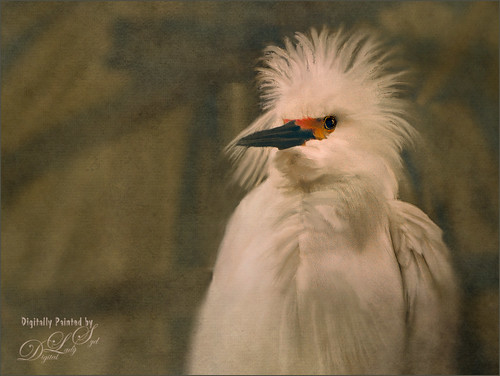
This is one of the shots I got at the St. Augustine Alligator Farm rookery. This is such a fun place to visit this time of year – the birds are totally distracted and let you take really great photos. The above is of the beautiful Snowy Egrets – at this time only a few baby birds were seen, most were nest building and mating.

Here is a quick run-down of what was done to this image: In Lightroom Seim’s (see sidebar for website link) Super HDR X preset and Dave Delnea’s Develop Preset Forestwalks Look 03 were used before bringing photo into Photoshop. A little clean up and then a stamped layer was created (CTRL+ALT+SHIFT+E) on top. Topaz (see sidebar for website link) Clarity was used to do an overall sharpening – this time I wanted a little more of an artsy look so my SJ Artsy with Highlights preset was used. (Settings: Clarity Dynamics Micro Contrast -0.86, Low Contrast -0.86, Medium Contrast 0.63, and High Contrast 0.94; Tone Level Black Level -0.19, Midtones -0.36, and White Level 0.19; HSL Filter Hue – no changes; Sat Orange 0.06, Yellow 0.63, Green 0.13, Blue 0.25 0.25, and Overall -0.45; and Lum Orange 0.36, Yellow -0.34, Green -0.42, Blue 0.61, Purple 0.11, Magenta 0.75, and Overall -0.27 – all other colors were 0.00.)  A layer mask was added and the birds were faces and beaks were painted out to maintain the sharpness since this preset smooths out colors. Nik Viveza 2 was used to draw focus to the babies and help remove a bit of yellow in the bird feathers. A Levels Adjustment layer was added to add back some contrast into the image. On another stamped layer, John Derry’s Varnish-Matte-Light layer style was used to apply a little painterly feel to the whole image. That was it. I love working on these bird images!…..Digital Lady Syd

Looking Through You!

Image of a pink hibiscus bloom from the back

Took this image recently when the sun was shining so beautifully through the peach Hibiscus bloom. These are the most beautiful flowers but they only last a day. What a shame! This image was put together very simply. In Lightroom Trey Radcliff’s Sunday Alone preset was applied. Then in Photoshop, the Shake Reduction filter was applied – did not make much of a difference in this case. On a duplicate layer, Flaming Pear’s Flood preset was next used so that it covered up about 3/4 of the bloom. (Here are the settings used: Horizon 45, Offset 0, Perspective 57, Altitude 50, Waviness 78, Color dark blue #0b1b4e, Complexity 47, Brilliance 65, Blur 54, Size 0, Height 31, Undulation 40, and Glue Normal.) A layer mask was added and the bloom and leaves were painted back. On a New Layer above, Kyle’s Real Watercolor Big Rough Small Grain was painted onto the image to get a pretty soft sun glow. Used the same layer mask but this time painted back around the top of the blossom. On another New Layer, used a Pastel Brush set to 35 pixels, Multiply brush mode, 53% brush opacity, Pressure Sensitivity for Opacity icon on, and 100% Flow. By sampling in the blossom, I tried to smooth some of the shadow transition lines. Next 2 Lil” Owls (see sidebar for website link) Color Bokeh-Grunge Set 5 was placed on top in a layer mask, the center was cleared of the hazy feel to focus on the flower. The last step was a Curves Adjustment Layer. I really like the colors in this one…..Digital Lady Syd