Anything Photoshop or Photography

Latest

Teacher and Student

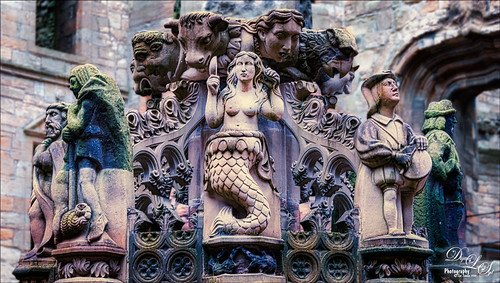
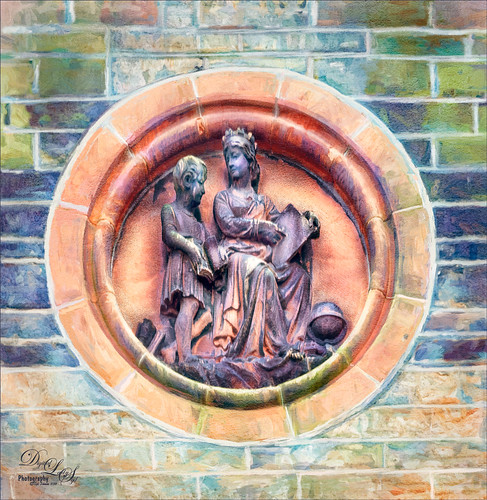
Image of architectural sculpture of a Teacher and Student on the College School Building in Edinburgh, Scotland
Am planning on taking a few weeks off from blogging to get some things done around the home – blogging takes up a lot time, so this will be it for a few! This image is of some architectural sculpture associated with the “Castle School” building connected to the Camera Obscura building in Edinburgh, Scotland, near the castle. I thought the sculpture was really charming of a teacher and her student. In LR the image used a Profile by VoxColor called NC to get the interesting tones. In Photoshop just did some normal clean up, used a Black and White Adjustment Layer, a Curves Adjustment Layer, and a Dodge and Burn layer. On a stamped layer, opened up Topaz Studio (see sidebar for website link) and applied the Impression Adjustment and Topaz AI ReMix Adjustment at 0.14 to add some painterly effect into the image. Then added several painting layers using my SJ Pastel 3 brushes (see my How to Create my Favorite Brush Blog and my Painting Fun in Photoshop Blog) to smooth out some of the paint strokes from the Impression filter. A New Layer set to Overlay was used to add a little spotlight effect on the figures. French Kiss (see sidebar for website link) Solstice Initiation texture was set to Color Burn blend mode at 59%. A Hue/Saturation Adjustment Layer was clipped to it and the Saturation was reduced to -43 to reduce the color effect of the texture. Finished off with Nik Viveza 2 to draw focus a little more into the sculpture. Last step was to create a vignette using Matt Kloskowski’s technique (see my How to Create a Subtle Vignette blog). That was it – lots of fun here! Will try to add some more blogs as time allows!…..Digital Lady Syd

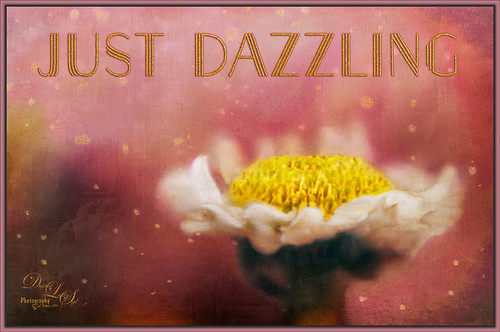
Just Dazzling

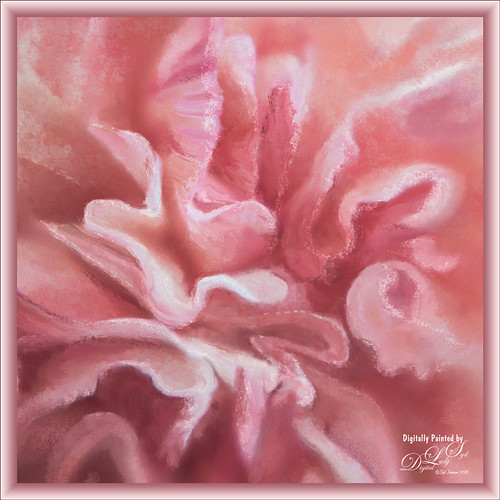
Image of a Little Daisy
Got some beautiful flowers for my kids this past week so I pull out the old trusty Nikon and added my old LensBaby Composer to it. Got some really nice soft effects like the one shown above using a 2.8 aperture and a +10 Macro 37 mm lens. It is a lot of fun to experiments with this lens – always give surprising results. Used Nicolesy Contempo 02 profile on the image and used a Daylight White Balance in Lightroom. Did a few Basic Panel adjustments and on into Photoshop where the background was cleaned up. Nik Viveza 2 was used on the image to clean up all the edges and sharpen the focus a little. Then some clean up with both my regular SJ Pastel 3 painting brush and a mixer brush. Added two textures: one of my textures that is gray and white and set to Linear Burn blend mode at 44% layer opacity and one of 2 Lil Owls Studio (see sidebar for website link) workshop texture set to Multiply blend mode. Added text using the Naive Deco Sans font with a Bevel & Emboss and Outer Glow layer style. Last step involved adding the frame created in one of my You Tube videos to finish up. I really like the LensBaby effect – still looks good even when using an older version……Digital Lady Syd

Having a Snack

Image of a Pink and Yellow Sunflowers from Belarus
These two little bees were quite happy hanging around with this beautiful colored sunflower at the Old Village of Ayaymku restoration in Belarus. It was really simple to post-process. In Lightroom the new Artistic 02 profile was applied and then just a few Basic panel changes. The flower was selected from the busy background in Photoshop’s Select and Refine dialog. A background was placed behind the flower – one I had painted in Corel Painter that had some nice green and pink strokes. Created a Color Burn blank New Layer and painted with white to emphasize some of the color in the petals and set it to 70% layer opacity. Cleaned up the bees just a little so they stood out a little more. Added the text using the Castile Inline Grunge font. A Light Leak was applied using a pink to yellow leak. A little Nik Viveza 2 was applied and one of my borders using a layer style was added. (See my How to Create a Quick Layer Style Border or Frame blog). That was it. Have a great day!…..Digital Lady Syd

Beautiful Hibiscus

Image of a pink hibiscus bloom
Had fun with this image. This is one of my peach hibiscus that I turned into a beautiful coral color. Used On1 (see sidebar for website link) Photo Raw 2018 Effects Dynamic Contrast on parts of the image by using the filter’s mask, and Sharpening filter. In Photoshop painted on the layer to fill in areas that were blown out. Added a Texture from Melissa Gallo Paints called Garden Canvas (from her Painting with Photoshop Workshop – excellent course and comes with some great brushes) at 26% layer opacity. Duplicated it and set Blend If Underlying Layer white tab split to 30/60. Three colored spotlight effects were painted on the petals. On a stamped layer, Topaz (see sidebar for website link) Studio was opened and the AI ReMix adjustment applied twice and Dehaze adjustment once. The image had a really bright red and orange effect color. Nik Viveza was opened to add some focus. Then applied my SJ Nastalgia profile (from a preset) in Camera Raw Filter. (See my How to Create Profiles in ACR from LR Presets and some PS LUT Files blog for info on this.) Now the colors are this pretty pink color. A couple layer of painting and burning and that was it. …..Digital Lady Syd

Posing for my Portrait

Image of a Bald Eagle at the Jacksonville Zoo
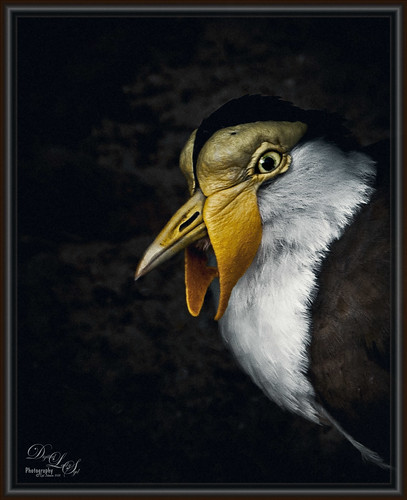
I love this shot of the Bald Eagle – he looks like a king posing for his portrait. I have no idea how he got his feathers this way – I took the image at the Jacksonville Zoo and he was sitting on an old tree stump I think. It is interesting to see his white feather plume. In Lightroom the Adobe Vivid profile was used. Then in Photoshop this guy was separated from the background using Topaz (see sidebar for website link) ReMask 5 as I could not get PS’s Select and Mask to give a good result. I usually can get a better result with ReMask if the selection is complicated. I used two of my own textures behind the eagle but could not quite get the look I wanted. So I took the Eagle layer into Corel Painter and created this soft version for a background. Back in PS the the other two textures were blended in. Used a couple Exposure Adjustment Layers for the eyes and the beak. Curves Adjustment Layers were clipped to each Exposure Adjustment Layer to get the right color in the eyes and beak. Several layers were created for painting out the edges a little with different mixer brushes. On a stamped layer Nik Viveza 2 was used to set the focus on the Eagle’s head and to clarify the feather detail. A Black and White Adjustment Layer set to Luminosity blend mode was used to further adjust the overall color. This is not really a painted image, but it has a painterly feel to it. …..Digital Lady Syd

Bathing Beauties

Image of some flamingos at Jacksonville Zoo
These birds look just like bathing beauties stepping into the water daintily. I just love Flamingos – they are so much fun to watch and photograph. Took this image of some Flamingos a while back at the Jacksonville Zoo and did not think it was that great. After watching a couple videos on On1 Photo Raw 2018 (see sidebar for website link), I decided to give it a go and see if I could get this image to look better and I was pretty pleased. When I did a Fun Photoshop blog on sharpening (see my Comparing Some Sharpening Techniques blog), I mentioned how good both On1 Effects Dynamic Contrast and Sharpening filters were. Well once again, I am pretty pleased with the results. If you have On1 software, check out Colby Brown’s video on Top 5 Tips for Wildlife Photography where he discusses how to use these filters. Then the rest of the image was post-processed in Photoshop. A stamped layer set to Hard Mix blend mode at 6% Fill Opacity was used to add an overall sharpening to the image (this was also mentioned in my sharpening blog). A Spotlight Layer set to Overlay blend mode and white was painted on the feathers (see my How to Add a Spot of Light blog.) Then a little vibrance was added using the Channel Mixer Adjustment Layer – learned this nifty trick from Denny Tang in his Vibrancy Masking Photoshop Tutorial video. Nik Viveza 2 was used to direct the focus, a Black and White Adjustment Layer set to Luminosity blend mode at 36% layer opacity, and a darken/lighten layer to emphasize the eyes and beaks a little. and a Matt K vignette (see my How to Create a Subtle Vignette blog). I might add that I used Artistic Profile 03 in the new Lightroom update to begin working on this image. I love it when I try out a new technique and it works really well……Digital Lady Syd

New York! New York!

Image of NYC
Just having some fun with this image using a little High Contrast Sketch tutorial from an older book called Photoshop Blending Modes Cookbook for Digital Photographers. This is good for low contrast images. This image was from a set of New York images from Deeezy to try this out on. Basically duplicate the background layer, turn it to Overlay blend mode, and set the layer to 60% opacity. Next go to Filter -> Stylize -> Find Edges. Do these steps two more times. If too much, try adding a Filter -> Blur -> Gaussian Blur Filter on the second Overlay layer using a Radius of 60 px. (This image did not need it.) A text layer using Naive Deco Sans font was applied. Obsidian Dawn’s single bird was added. Then a Curves Adjustment Layer was used so the grain would show up more in the sky and a Color Lookup Adjustment Layer using a new LUT called Dystopia…16 (they are in with the Lightroom presets) was added. This was a lot of fun to do and pretty simple…… Digital Lady Syd

Planet X

Planet X image
Just had some fun creating this. Design Cuts gave everyone a freebie pack called Vintage Style 3D Lettering Moon Phase Graphic and Sunbeam Photo Overlay (Phew!). It contained the moon in the above and got me thinking about what I could do with it since Astronomy is one of my major hobbies. Created an New Image and added the Moon image into it. Next added a Solid Fill Adjustment Layer set to black on the white background layer since it is a space scene. Decided to use the Starfield png in the pack and put it behind the moon. Then added one of the smoke layers from the psd in the pack. Then just started adding in elements. Used one of my Corel painted backgrounds that created the lighting effect for the whole image by placing it just above the Solid Black Fill Adjustment Layer. The satellite was from the space satellite in orbit image from Free design file.com. Some brushes called Galaxies by LoRdaNdRe were used to add in little elements to the sky. The foreground Planet X was created by first just painting an orange corner into the image. Then took just this layer into Topaz Studio and applied the Impression adjustment (settings: Darker Color blend mode, Stroke Type 16, Number of Strokes Medium, Brush Size 0.89, Paint Volume 0.93, Large Brush Volume 0.58, Print Opacity 0.60, Stroke Rotation 0.26, Rotation Variation 0.22, Stroke Color Variation 0.18, Stroke Width 0.18, Stroke Length 0.04) which created the interesting cracks on the surface. The spewing fountain on the planet was created by using another galaxy brush and then adding a watery flume to it with a sparkle brush. The moon in the distance is in the Moon Brush Set by EMelody – changed the angle of the moon to fit the image. A Color Grading Action called Blackberry Stain by Chris Spooner was also used to get a little bit of a cinematic effect. The font is Naive Deco Sans. That was it – just a lot of fun to put together!…..Digital Lady Syd

Darling Dahlia

Image of a pink dahlia flower
Image of a little dahlia that just poked up its head in my winter spring bed a month ago. It was only about 2 inches wide but just lovely! First sharpened the image using Photoshop’s Shake Reduction filter. Then sharpened again by duplicating the layer, setting it to Hard Mix blend mode, adding a Gaussian Blur set to Radius 3, and setting the Layer Fill slider to 5%. Next took Belle Fleur called Rose Garden texture into Alien Skin’s Snap Art 4 and set it to Watercolor Abstract preset (Brush Size 81, Photorealism 58, Coverage 57, Stroke Length 62, Color Variation 43, and Default Brush Style. It was set to Soft Light blend mode. Added another texture, one of mine named SJ The Phyllis Sky (created with Grut’s Charcoal Shin Ding Brush – painted a texture background in three colors – blue, turquoise and brown –  gave a lovely texture and cloud feel that was saved to use again). A Hue/Saturation Adjustment layer was clipped to the texture so it became purplish in color (Hue 292, Saturation 19, and Lightness -8). A layer mask was added to paint out a lot of the flower to bring through the warm color of the flower from the texture underneath. On a layer above some painting clean up was done on some of the petals. Added a New Layer filled it with 50% gray using the Edit -> Fill. Set it to Soft Light blend mode and used a black and white brush to paint back areas for lightening or darkening the image. Added a Curves Adjustment Layer to add back some contrast – painted in the layer mask to lighten the effect in the center of the flower. Added a Text Layer using the Dancing Script OT font – in layer style turned on the Bevel & Emboss default settings and a Stroke effect using the Structure Size of 18, and Fill Type Pattern – Graphic 09 at 47% Scale. A Canvas Vignette was added on top to give a painterly look. This flower was so pretty…..Digital Lady Syd

Enjoying the Attention

Image of Hamish McKay Denovan, the Highland Cow
Here is an image of one of the most beloved creatures in Scotland – Hamish McKay Denovan, the Highland Cow. This guy was as tame and sweet as could be. (Another Flickr contributor noted that “Hamish the Highland Bull at Kilmahog, a popular stop off point on the road through the Trossachs to Lochaber and the western isle” in Scotland is where this guy can be found.) It had not been post-processed since it had a fence going everywhere in the image, but Photoshop’s terrific spot healing brush took the lines out completely. Just Basic Panel changes were done in Lightroom. Then in Photoshop, after removing the fencing, a stamped layer was created. Topaz Studio (see sidebar for website link) was opened and once again and three Adjustments were added, Precision Contrast and two AI ReMix (settings were: Precision Contrast: Micro -0.52, Low 0.72, Medium 0.27, High 0.45, Shadow 0.51, and Midtone 0.12; AI ReMix: Opacity 0.79, Low, Row 13/Col 2 swatch, Brightness 0.14, Contrast 1.15, Sat 0.75; and AI ReMix: Opacity 0.89, Color bm, Low, Col 17/Row 1 swatch, Painted out the animal slightly). The sign on the fence post was different and faded so I put some text in it for this highland cow – three different text layers were used, grouped, duplicated, turned off, and the copy was rasterized. Then the text could be transformed using the Warp to fit the paper. Some clean up was done and some darkening and lightening using two Curves Adjustment Layers with black layer masks. Google Nik Viveza 2 was used to emphasize the focal point. Then my final workflow steps were done: added a Red Channel Luminosity Curves adjustment layer, a Gradient Map adjustment layer using a reddish tone to light blue color gradient, added a layer for a white spotlight effect on his face, and finished up with Matt Kloskowski’s vignette. Love how the Topaz AI ReMix can produce this type of interesting texture…..Digital Lady Syd