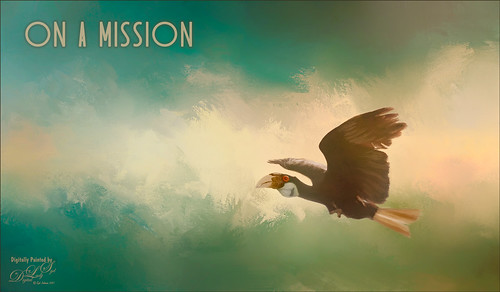
Felt like doing a bird painting – have not done one in a while. I felt a connection with this guy at the Jackonsville Zoo a while back. This Hornbill was showing off by flying back and forth in his cage for me. I think he would rather be flying free as I visualized in my painting, but he and his buddies seemed to be very happy and healthy at the Zoo. It always amazes me that a chained fence and shadows can be removed from a photo when it is painted. The bird was selected using the Select and Mask filter in Photoshop – it did a really good job. It did not hurt to have a beautiful texture to put behind him – this was a free texture from Jai Johnson called Captured Light at Sea 4 and just suited the lighting on the bird and his coloring. Some textures just did not blend well so several had to be tried. Then basically lots of blending and painting with the Mixers and the Regular Photoshop brushes. Just do a search on my blogs to find my favorite brushes. Topaz (see sidebar for website link) Lens Effects Reflector filter was added to give a more pronounced lighting effect on the right side of the image and Nik Viveza 2 was added to smooth out the whole effect. This basically was just a lot of fun to paint and very relaxing!…..Digital Lady Syd

Latest
Sunny Winter Trees
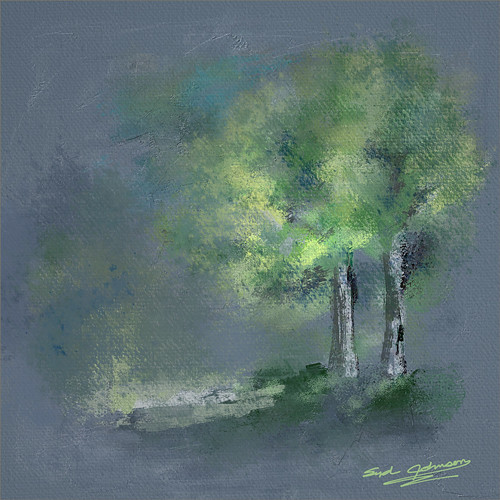
Just having some fun painting trees, my favorite thing to paint. This image was painted for starters in Corel Painter with a solid color light gray color for the background and using several different brushes. Then Photoshop was used and mainly Aaron Blaise’s Photoshop Canvas Texture brushes were used to add more leaves and color into the image. Then I decided I did not like the image but did not know why so I walked away for a couple of weeks. Today I decided to try again and decided the overall color was not what correct. A Hue/Saturation Adjustment Layer was used to change the background to a bluish color which I prefer. A Red Channel Adjustment Layer (see my How to Use a Red Channel to Create a Nice Blended Image Effect Fun Photoshop blog) was used to pop the original tree luminosity and it turned out much better. I am really enjoying getting back into Painter again, but I still have to have my PS brushes to help out!…..Digital Lady Syd
Hello from a Queen
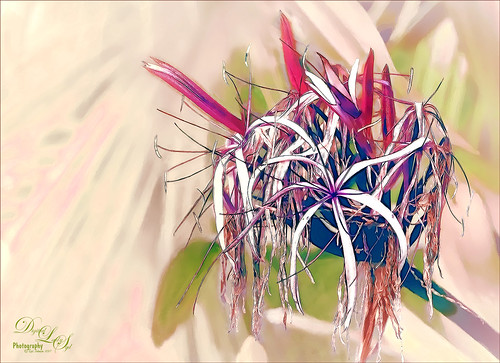
I was updating all my Topaz (see sidebar for website link) plug-ins this morning (many were updated in December 2016) and ended up experimenting with a few. I was using this beautiful Queen Emma Lily bloom, which was a difficult image to remove the distracting green background from the bloom. So I just started applying filters as I was checking update info. Topaz Black and White Effects was used to create an image with some color in it. Then on a stamped layer (CTRL+ALT+SHIFT+E) Topaz Clean’s Cartoon Desaturated preset was used to get a more detailed effect. On a duplicate layer Topaz ReStyle’s Zombie Ziggurat preset was applied. On another duplicate layer Topaz Glow was used. Lots of clean up layers were created to make sure it looks right. I finally found a fabulous Photoshop Pencil – Grut’s P Tin Softy – a new one he recently included in a great collection of 43 pencils. This brush was used to fill in black lines which were missing and adding a little color in little areas. Last step was adding Nik Viveza 2 to even out the background. That was all that was done!…..Digital Lady Syd
Happy New Year
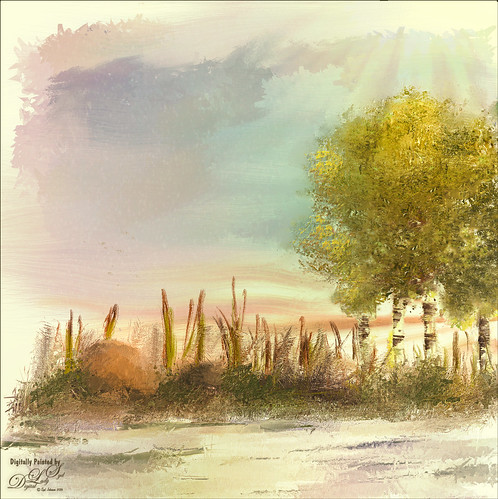
Wishing everyone a very Happy New Year and hope all your days are sunny as above in the coming year! I just created this image in Corel Painter – have not digitally painted in quite a while so it was fun to poen up Corel Painter and see what happened! Original painting used various brushes from Karen Bonaker, Melissa Gallo, John Lowther, and a few of my own. Then it was saved as a PSD file and brought into Photoshop where a few clean up layers were created using the Clone Stamp Tool and some regular brushes to even out the tones. The image was then taken into Topaz (see sidebar for website link) Texture Effects 2 to just give a nice overall effect to pull it all together. Last step, used Nik Viveza 2 to adjust the lighting to my liking. This was so much fun to create. Feels good to paint again!…..Digital Lady Syd
2017 January Calendar
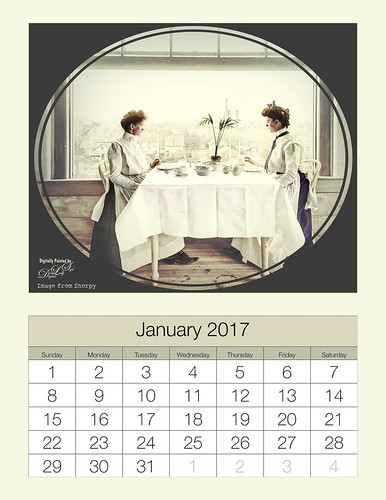
I just love this image of these two women eating by a window and it makes a perfect calendar image I think. This vintage image is from Shorpy.com, my favorite site for the old historical images, taken in 1902 at the National Cash Register Company‘s restaurant in Dayton, Ohio. In my How to Hand Tint a Vintage and Create a Brush To Do This blog, I show how I colorized this image. It was then put into the Calendar using the 8 1:2 X 11 1-month Lightroom template provided by Ed Weaver at Red Photographic – also used his January Calendar image. The calendar headers were set to matching colors in the Develop module so everything blends together nicely. Now that Lightroom 6 has a Reference Photo option in the Develop module, it is easier to compare the calendar color with the image being added. The Split Tone section works nicely for changing the header colors as well as the Adjustment Brush using a Color sampled from the image and then adjusting all the other sliders. Check out my How To Create 2017 Calendars in Both Lightroom and Photoshop blog for more info on using these templates. Just remember that if the templates do not look right, check out your Page Setup Printer properties – see if you have it set to Landscape instead of Portrait or vice versa. Also if the background color does not fit quite right, check out the Print Job section, set to Print to JPEG File and check Custom File Dimensions to fill out. These are mistakes I have made. Lightroom templates can be a bit tricky, so keep at it as eventually they will line up. Enjoy making your calendars!…..Digital Lady Syd
A Wintry Florida Holiday
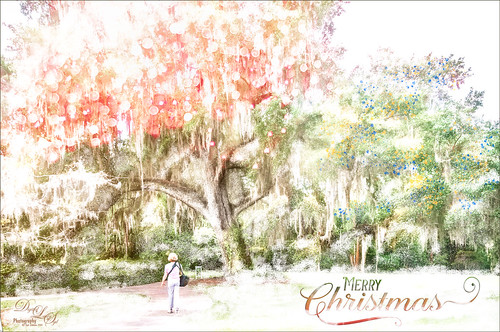
Having some Holiday fun here – spent a long time getting this beautiful entrance to the Henry P. Leu Gardens image to look like it was under the snowy spell of the Northern US. I would go over all the steps in detail, but it would end up pretty long. Just say that lots of layers were used which included: the Liquify Tool, the Clone Stamp Tool, Content-Aware Move, a couple Dodge Curve Adjustment Layers, Corel’s ParticalShop filter, Magic Dust Pretty Actions Brush layer, 100 Silver Lights Photo Overlays 16 and 17, Stroke and Spatter Dual Brush by John Derry layers, Topaz (see sidebar for website link) Impression 2 Chalk Smudge I preset, Alex Ducal’s Sketch Splatter brush layer, Pretty Actions Merry Christmas overlay, Grut’s FX Cloud Gumbo 01a brush layer, Topaz Lens Effect Reflector filter, and Nik Viveza 2 filter. Lots of fun! Have a Merry Christmas and Happy New Year!…..Digital Lady Syd
Red Hibiscus Holiday Cheer!
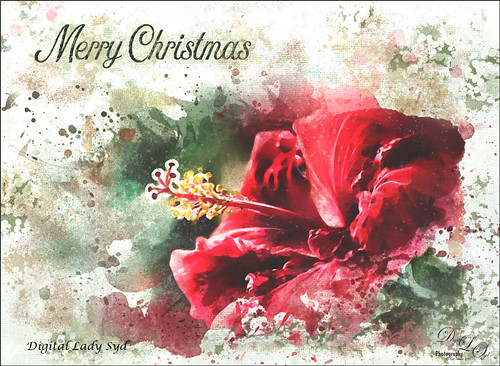
Thought I would post a little Holiday Cheer with this beautiful Chinese Hibiscus flower. Just had fun doing a little painting and playing to get this image. There was one really handy items that was used with this image – a Watercolor Mockup Template from Edimahendra – a set of wonderful watercolor splashes set up to use in Photoshop file as Smart Objects. I put these layers in a group and then added my own layers on top using different brushes – Magic Dust Pretty Actions Brush, Kyles Real Watercolor Spatter Dense brush, Melissa Gallo’s Scatter Brush, and Grut’s Inky FX Romato Brush. I put one of my Corel Painter textures on top and clipped a Hue/Saturation Adjustment Layer on top with Saturation set to -37. Then in a layer mask, used a soft round brush and painted out some of the texture over parts of the flower. Text layers were added to finish up. Merry Christmas Everyone!…..Digital Lady Syd
Tiger in Snooze Mode
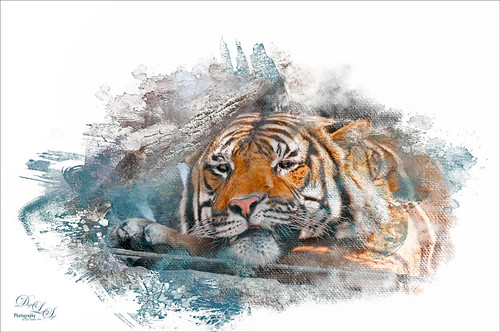
This Sumatran Tiger was trying to get a little snooze at the Jacksonville Zoo. What a cutie – guess he had to keep his eyes open a little just keep up with all the goings-on in his part of the zoo. Since he made an appearance in my 2016 Inexpensive Gifts for the Photoshop Lover on Your List Fun Photoshop Blog, I thought I would cover some of the things done to get this interesting effect. First the fencing in front of his face had to be removed and the very handy Spot Healing Brush worked wonders on this. A stamped layer (CTRL+ALT+SHIFT+E) was then placed on top. Lucis Pro 6.0.9 (no longer available) was applied. On another stamped layer, Topaz (see sidebar for website link) Lens Effects Reflector filter was used to even out only the parts of the face in the shadows. The eyes were brightened using an Exposure Adjustment Layer (see my How To Do a Quick Eye Sharpening In Photoshop blog.) All these tiger layers were grouped. Next Jai Johnson’s Unpredictable Collection Texture 25 was placed underneath this group. It was duplicated and the second one was set to Multiply blend mode at 82% layer opacity. Now, on the group on top, a black layer mask was added (CTRL+I in the mask to make it black). I just painted in white with a rough edged chalk brush the parts of the tiger I wanted to show up. A little of the free Nik Viveza 2 was added, and a canvas texture set to Soft Light blend mode at 42% layer opacity was placed on top. Love the effect of these textures by Jai…..Digital Lady Syd
A Bird Christmas Tree
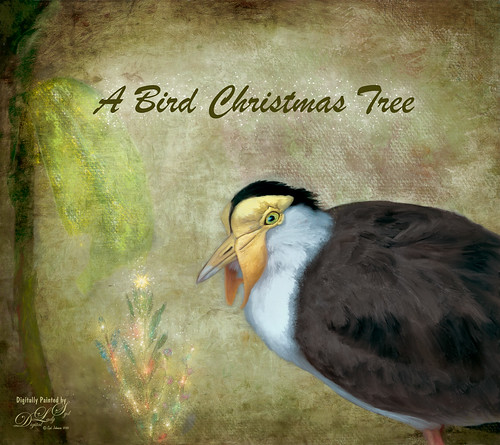
This bird is a Masked Lapwing that was photographed at the Palm Beach Zoo. I decided I needed to practice some painting so I picked this funny guy who sort of waltzed into my shot. Since the background was not too exciting, I decided to give him a little more holiday spirit by both painting and adding several filters. This image uses a lot of different filters and textures. The background texture is from Kim Klassen called Papertrio Paper and Paste (not sure it is still available but she has some beautiful textures) – applied twice, the second time set to Hard Light at 49% layer opacity. Topaz (see sidebar for website link) ReMask was used to select the bird and put him on his own layer – then used the Mixers to paint him. Used Grut’s MI Sues Hedge brush to soften and get the pretty edging between the brown and white feathers and am finding this to be a very useful mixer! Also used one of Fay Sirkis’s hair blenders. Have to find the right brushes to paint these guys! French Kiss (see sidebar for website link) Myrica Gale png was used for the plant – color was painted on a layer underneath it to add some colors. On a stamped layer (CTRL+ALT+SHIFT+E) Topaz Impression 2 was opened and Cezanne 2 preset was applied but masked out the bird to retain my painting strokes. On another stamped layer Topaz ReStyle’s Emerald preset was applied. Set the opacity to 69%. Corel’s Partical Shop was opened and used the Flame brush to paint a little color in the tree leaf and used Cluster brush to add some lights to the plant. Then used the Star brush to create the bright star on top and added a little color in by turning off the Glow and painting a little on the branches. Its Eraser brush was used to soften the effect a little. (See my Intro to Corel ParticleShop Brushes for Photoshop blog.) Back in PS, this layer looked pretty bright so lowered the opacity. Magic Dust Pretty Actions Brush was used to add a little white snow effect on tree and underneath text. Added some texture and clean up was done to finish up……Digital Lady Syd
Purring Tiger
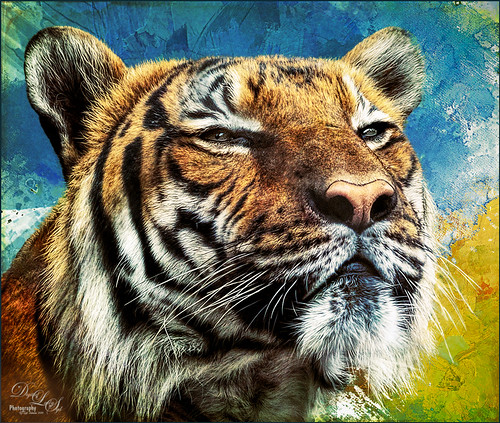
This image is of a Malaysian Tiger at the Palm Beach Zoo – I think he was actually purring – I sort of connected with him. I tried a couple different plug-ins on this guy. Started with Topaz (see sidebar for website link) Clarity, then Topaz Clean’s Cartoon preset where a black layer mask was added and just the whiskers were painted back to give the sharp effect. First time I have used this plug-in so it was really good to see the results. Used PS’s Select and Mask panel and then followed up with a Defringe of 1 px to get rid of the gray edging. Used two of Jai Johnson’s new Unpredictable Textures for the interesting painted look behind him. On a stamped layer (CTRL+ALT+SHIFT+E) and applied Topaz Texture Effects 2 – one of Blake Rudis’s from a while ago (check out his videos on Topaz Labs). On another stamped layer Nik Viveza 2 was applied and that was it. It has a bit of an engraved feeling to it and was a lot of fun to try…..Digital Lady Syd
Topaz Labs AI Gigapixel
Check out AI Gigapixel stand-alone software for upsizing your images. It’s incredible! And it can now be used as a plugin when in Photoshop. Also Topaz Labs Photo AI has some great sharpening and denoise tools along with Photo Video AI.

Luminar Neo
Click here to visit Luminar for more info and check out their new AI Filters.

GRUT BRUSHES – Photoshop Brushes for Digital Artists
Click here to visit GrutBrushes.com
And be sure to check out his Free Brush of the Week and Brush Sampler! These are the best brushes you can find!

Topaz Studio 2 and Legacy Topaz Labs Filters
Unfortunately Topaz Studio 2 and other Topaz Lab filters are no longer available for sale as of 2020. If you had bought these filters and would like to put them back on, here is a link to the Legacy Apps where they can be downloaded again. Below is an example of the wonderful Remix AI Filter from Studio 2. The wonderful Impression still works fine in Photoshop right now along with Adjust (all versions), ReStyle, and even PhotoFXLab!

On1 Photo Raw
Wonderful software to use as a substitute for or plugin with Photoshop. Many great filter effects and lots of AI capabilities!
