Anything Photoshop or Photography

Latest

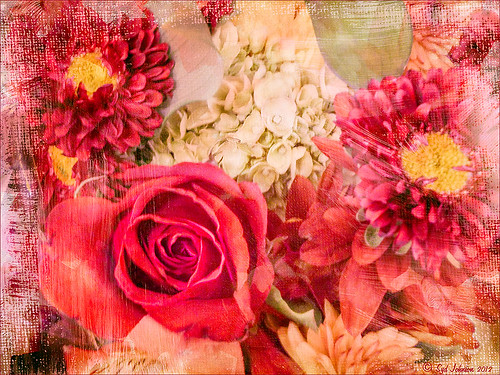
Beautiful Christmas Flowers


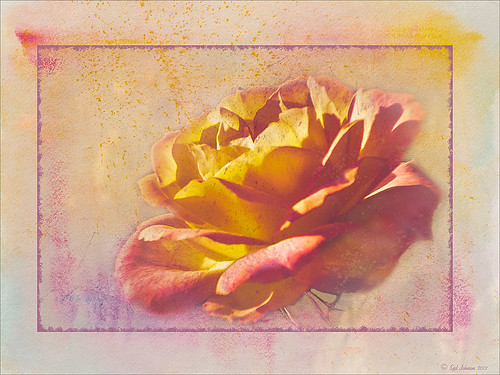
These flowers were once again taken at the local grocery store with my little Kodak Point-and-Shoot camera. I bought four textures from Melissa Gallo’s Painted Textures website on Black Friday and love them. These are very painterly textures and create a different look! She also has some very interesting tutorial videos on how to apply a texture – keeping the texture on an image and painting in color to remove texture from parts of the image, which is what was done here. Check out her website if you enjoy textures as much as I do.

The biggest change I did on this image was in Lightroom where the White Balance eyedropper was sampled throughout the image until I found something different that I liked – it turned a rather dark fall colored image into a bright red and pink image. Totally awesome! I also used a Lightroom Adjustment Brush to sharpen the yellow centers of the flowers and some of the rose petal edges. Now following Melissa’s tutorial,  Shadowhouse Creations Vintage Soft Grunge texture V32b texture in Set 3 was applied using the Multiply blend mode at 84% opacity, along with Painted Textures Taupe Canva using Hard Light blend mode at 35% and Pink Impasto using Hard Light blend mode at 67%. A Color Balance Adjustment Layer was added to increase the red color a little in the Highlights and greens in the Shadows. A Curves Adjustment Layer was added to lighten the overall contrast of the image.

Totally loved the result!…..Digital Lady Syd

Digital Lady Syd Related Blogs:
For Tidbit Blogs, click on the Texture Category to get several more.
Where to Find Those Cool Free Christmas Card Templates?
How to Create Unique Textured Backgrounds
How to Create Unique Watercolor Background Texture
Creating That Vintage Texture Feel
Russell Brown’s Paper Texture Panel Updated!
Tips for Flower Textures
Some Free Christmas Overlays to Spice Up Your Christmas Cards

Using a Couple of My Textures


Just thought I would post a little link to how my textures can work together. These are my miniature mums on my back porch – they were processed in Lightroom using my workflow (see How to Use Adobe Camera Raw (ACR) or Lightroom 4 Quickly). Once in Photoshop clean up was done first on some of the petals, and a High Pass Filter set to radius 8 and Soft Light blend mode to sharpen the flowers. Next my free Pastel Watercolor Texture set to Hard Light, and Cat Painting Texture set to Hard Light at 40% opacity. Last a couple of French Kiss Splatter brushes were added and my French Photography Overlay I created (see How to Create Personal Overlays for Your Images). That is all that was involved. Enjoy!…..Digital Lady Syd

Unexpected Humor in an Image


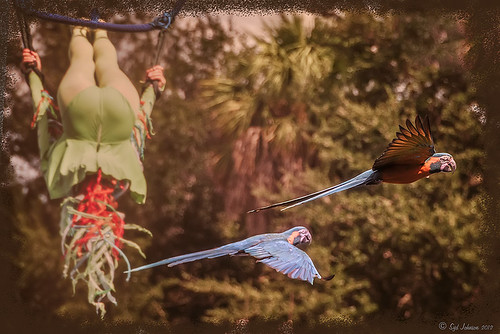
I was so busy trying to shoot these beautiful McCaws in sharp detail on my camera (Blue Horizons Show at SeaWorld-Orlando) that I did not notice what else I was shooting. What a surprise! Although I must say I did a pretty good job of catching the birds while they were zipping by pretty fast. The birds even look like they are laughing!

After basic processing in Lightroom, I decided the image needed a soft background feel as it was really busy and the birds were getting lost in the background. So I went back to one of my all time favorite filters, Nik Color Efex Pro 4‘s Film Efex-Vintage, to get the look I liked. First the Darken/Lighten Center filter and Brilliance/Warmth filter were applied – both of these filters I use a lot as they always give nice results. But one of my very favorites is the Film Efex-Vintage filter – there are so many options with this one filter that it is amazing. This time Film Type 11 was chosen with the vignette turned off. It turned this image into these beautiful brown tones. Clean up, a Curves Adjustment Layer to add just a little contrast, a Photo Adjustment Layer set to Cooling Filter 80 at 43% density (applied to just the birds by filling the layer to black and painting back in the birds in white), Noiseware‘s Default preset, and a soft painted layer was used to slightly soften the trapeze artist. My Soft Sparkle Overlay Frame was added with a Color Fill Adjustment Layer clipped to it to change the color to a dark brown. To see other results of using the Film Efex-Vintage filter, check out some of my older blog links below……Digital Lady Syd

Digital Lady Syd Related Blogs:
The New Film Efex-Vintage Filter From NIK CEP 4
Loving SeaWorld!
Hawaiian Bliss!
Nik Color Efex Pro 4 Just Does It Right!

Vintage Toy Processing


This image is of a really cute 6-year old that I met at the 39th Annual Turkey Run at the Daytona International Speedway who graciously agreed to pose for me. These vintage toys bring back a jolt from years past! Amazing you can still buy them! This image was processed in Lightroom using a Gritty Preset by Michael Rather from the True Grit Video – I use this preset a lot for this type of look. Then I increased the orange and red saturation a little to get the colors to pop. An adjustment brush set to Sharpen and Clarity was added to sharpen the lettering and detail on the toys only. In Photoshop Topaz (see sidebar for website link) photoFXlab was opened and from the Effects tab, the Retro Style I from Topaz Adjust 5 was applied. My favorite Adjustment tab brush Dynamics was increased along with the Sharpness. Then using the Masks tab, the effect was removed from the boy’s face. The layer was then set to Darken blend mode at 88% opacity. Back in Photoshop a High Pass Filter set to 8 and Soft Light blend mode was used to sharpen the photo. The last step involved adding French Kiss’s Glorious Grunge Edging free overlay with some of the lines removed in the center so as not to be distracting. The last step was using Nik Viveza2 (all time favorite plug-in) to direct the eye to the cute kid and toys. That’s it!…..Digital Lady Syd

Digital Lady Syd Related Blogs:
Trying Out Some New Techniques!
Digital Lady Syd’s Review of Topaz photoFXlab v1.1
Using photoFXlab v1.1
Using Topaz photoFXlab to Replace Skies

The Textured Flower Look!

Really enjoying processing the beautiful little white mums still blooming on my back porch. I recently found yet another wonderful texture site and decided to give it a try. The flower image was first processed in Lightroom – a preset called Summer Haze by Matt Kloskowski (one of the Photoshop guys at NAPP) was first applied and it turned everything into this soft warm summery feeling. With the Basic sliders a few tweaks were added to increase Exposure and open up the Shadows a little, and then a couple adjustment brushes were created to add sharpening and clarity to the flower centers. Once in Photoshop some blown out highlights were softened (see Getting Rid of Those Blown Out Areas in Your Image and a little Burning was done to bring out some of the flower lines. Next a beautiful Kim Klassen Texture called Organic was added and set to Hard Light blend mode at 92%. (Join her site and get lots of her beautiful textures for free including this one!) A Levels Adjustment Layer was added to increase the contrast a little. Next I added one of my own overlays I created (see How to Create Personal Overlays for Your Images) and used a layer mask to remove part of it – just wanted a little showing. I also used a small splatter brush at 15% opacity to reduce parts of the lettering without reducing all of it. The last step involved adding my favorite French Kiss Glorious Grunge Edging Overlay – a free overlay that can be downloaded at her site. That was it!…..Digital Lady Syd

Yellow Dogface Butterfly in her Glory!


This Southern Dogface Butterflies (named for their heads that look like French poodles) visited my purple pentas this fall. They are very skiddish butterflies and are hard to photograph. I used my 60 mm Nikon Macro Lens to catch the shot at F/3.2, 1/2000, and ISO 200. The image was processed first in Lightroom 4 using the workflow from my How to Use Adobe Camera Raw (ACR) or Lightroom 4 Quickly blog. To create the soft effect, Nik Color Efex Pro 4 was applied with several filters stacked: Midnight using Neutral Color Set, Glamour Glow with Glow set to 90%, Vignette, and Film Efex Vintage set to Film Type 2 and an Overall Opacity of 40%. The Sharpen Tool was applied to the face. Nik Viveza 2 was applied to soften the bright tones in the background and to sharpen the head a little more. My Mid Size Double Edged Frame was added to the image to finish up. I really enjoyed working on this image – it has a different feel to what I normally do……Digital Lady Syd

Just Bloomin’ Beautiful!


This miniature mum was in bloom again for the fall season. Just beautiful! This image was taken with my Micro Nikkor 60 mm f/2.8 macro lens set to Manual mode, 1/90 sec, F/5.6 and ISO 200. Very little processing but did use Flypaper Texture Rainbow Trout Taster and my Double Edge Frame Layer Style sampling the Inner Shadow color from the image. Enjoy!…..Digital Lady Syd

Digital Lady Syd Related Blogs:
The Macro Shot
Beautiful Soft Flowers

Displacing an Overlay


Since I have been posting a lot on overlays recently, I wanted to show how you can get a really authentic look to overlays by displacing them onto a textured background. In this image the lettering looks like it has been on the wall in the background all the time. This is pretty neat trick Photoshop can accomplish but I personally find it hard to do. Corey Barker, of The Photoshop Guys fame, gave a nice quick tutorial on his Planet Photoshop website called Graphic Texture. The process involves creating a displacement map psd file that is applied to the overlay layer. The steps are as follows:

1. Open image and make sure it is in 8 bit mode. To find out, go to Image -> Mode -> 8-bit. At this point I created a Stamped Composite layer of all the work I have done to have a clean layer to start this process on – go to CTRL+ALT+SHIFT+E.

2. Create duplicate copy of image by going to Image -> Duplicate Image and click OK. This will be your Displacement Map image. Convert this image to black and white image by going to Image -> Mode -> Grayscale. Save the Displacement Map as a psd on your desktop so you can get to it easily.

3. In your regular image, do corrections and add your overlay were you want it. Be sure to Rasterize (right click and select) your overlay if it is a Smart Object.

4. With overlay layer selected, go to Filter -> Distort -> Displace and in the dialog box, set Horizontal and Vertical to 5 for small displacement or 10 or larger – the image above used 5. You are then directed to find your grayscale image on your desktop. Once done, the overlay will distort by the amount of your settings.

5. CTRL+click on overlay layer thumbnail to select your graphic.

6. Highlight your layer underneath your overlay layer, and CTRL+J to copy to a New Layer. Turn off your old overlay layer. The lettering may totally disappear now. Desaturate the new displaced overlay layer by pressing CTRL+SHIFT+U. Go to Layer -> New Fill Layer -> Solid Color and check Use Previous Layer to Create Clipping Mask and OK. Change to any color – try sampling in your image when you hover your mouse over it. You do not need to turn on the original displaced lettering layer.

7. Try changing the layer blend modes and opacity of your overlay layer. Add a Levels Adjustment Layer to increase contrast if needed.

That is it. It is not that difficult but does take a little manipulation to get to work. If you do get it right though, a beautiful result will occur…..Digital Lady Syd.

Digital Lady Syd Related Blogs:
How to Create Personal Overlays for Your Images

Spotlight on the Pink Spica!


Just another example of the wonderful Camera Raw sliders now updated with Adobe Photoshop CS6 and Lightroom 4. This beautiful pink spica was taken at the Hawaii Botanical Tropical Garden and was first processed in Lightroom 4 by following Scott Kelby’s workflow in my How to Use Adobe Camera Raw (ACR) or Lightroom 4 Quickly blog. The White Balance was left as shot, Exposure set to -0.10, Contrast +24, Highlights -100, Shadows +100, Whites +10, Black -6, and no Clarity or Vibrance were used. The Green slider was set to -30 in the HSL Saturation section to reduce the color just a little. Noise reduction Luminance was set to 22, the Lens Correction profile was set to my camera lens, and in Effects a Highlight Priority Style Post-Crop Vignetting Amount set to -41.

In Photoshop a lot of clean up was done on the leaves – they had spots everywhere but the Spot Healing Brush worked wonders on most of it – just set to Content Aware in the Options Bar and swipe away. Scott’s Highlight Effect was applied to spotlight the flower (duplicate the layer and set it to Multiply blend mode, then add a layer mask and paint back in your object with a big soft black brush). Topaz (see sidebar for website link) Simplify 4’s Watercolor II preset was applied to soften the flower a little.  A black layer mask was added and the flower was painted back with a low opacity brush in white to give just a hint of the painterly look. My Thin Double Edge Frame layer style was applied with colors sampled from the image. Very quick and very easy. Love the final look…..Digital Lady Syd

Digital Lady Syd Related Blogs:
Spotlight Effect With the New Subtract Blend Mode

Checking Out French Kiss Textures


I broke down and bought some French Kiss textures and overlays. They have such beautiful real painted textures that they caught my eye. Also the overlays and brushes are from vintage French books and letters – creates a very unique look. I hope to figure out how to make some of my own overlays when I get a chance. In the meantime I thought I would post this image of pink bougainvilleas that I shot at SeaWorld-Orlando. This image used Artiste Collection Impasto Overlay II texture and Artiste Savoir Faire Overlay twice with parts of the text turned in different directions. Just layer mask out parts you do not want showing. You should check out the French Kiss website for several free textures and overlays and try this technique out. There are also some good texture tutorials on how to this look. Very beautiful results very quickly! For more tutorials that used French Kiss products, see my blogs listed below. Have fun!…..Digital Lady Syd

Digital Lady Syd Related Blogs:
A Vintage Butterfly Postcard Effect
Artistic Daisy!
A Little Hollywood for My Butterfly Model
Getting a Nice Painterly Landscape Effect with Topaz Simplify and Texture